
Windows 10 & 11 · installer or portable
 Dial-note
A plain, simple text editor, just like the Notepad that came with Windows 10. The same menus, the same keyboard shortcuts, the same boxes: there's nothing new to learn. Open a file, type, save. Dial-note keeps itself up to date, and every menu item explains itself in the status bar while you point at it.
What it does
Everything Notepad does. Nothing to get in the way.
Feels like home
The File, Edit, Format, View and Help menus are laid out exactly like Windows 10 Notepad's, with the same shortcut keys. No ribbon, no tabs, no clutter.
Every encoding
ANSI, UTF-8, UTF-8 with BOM, UTF-16 LE and BE. Dial-note works out which one a file uses, and the Save As box lets you change it.
Any line endings
Windows (CRLF), Unix (LF) and old Mac (CR) files open properly and are saved back the way they came. The status bar shows which.
Find & Replace
Match case, Wrap around, Up or Down, F3 and Shift+F3. Replace All can be taken back with a single Undo.
Word Wrap & Zoom
Fold long lines to fit the window, and zoom from 10% to 500% with Ctrl+Plus, Ctrl+Minus or Ctrl + mouse wheel.
Prints properly
Header and footer on every page (file name, page number, date, time), any paper size and margins, long lines folded to fit.
The .LOG trick
Start a file with .LOG and Dial-note adds the time and date at the end every time you open it: an instant diary or work log.
Explains itself
Point at any menu item and the status bar says what it does. Every box has detailed tooltips. Settings take effect immediately.
Updates itself
Shows “Update available!” on the menu bar when a new version is out. One click downloads it, checks its SHA-256 fingerprint and reopens your document.
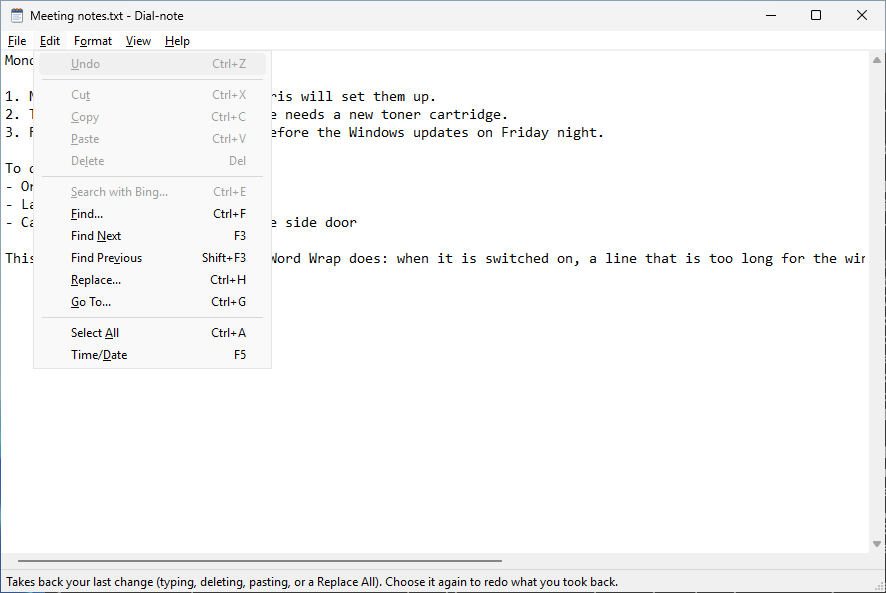
The menus you already know.
Undo, Cut, Copy, Paste, Delete, Search with Bing, Find, Find Next, Find Previous, Replace, Go To, Select All and Time/Date, in the same order and with the same shortcuts as the Notepad that came with Windows 10.
While a menu is open, the status bar along the bottom says what the highlighted item does, in plain English.
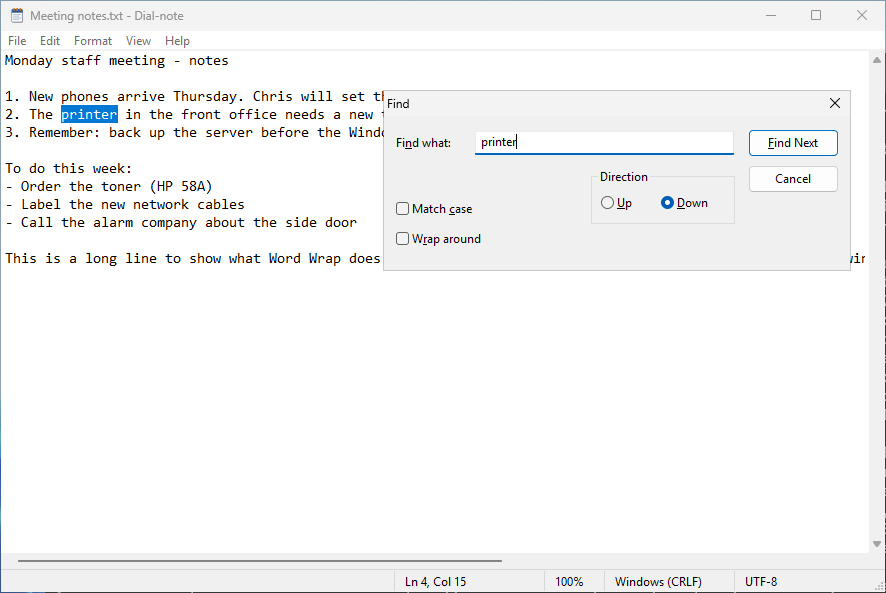
Find and Replace.
The Find box stays open while you work. Match case, Wrap around, Up or Down. Select a word first and it's filled in for you. Replace one at a time, or all at once.
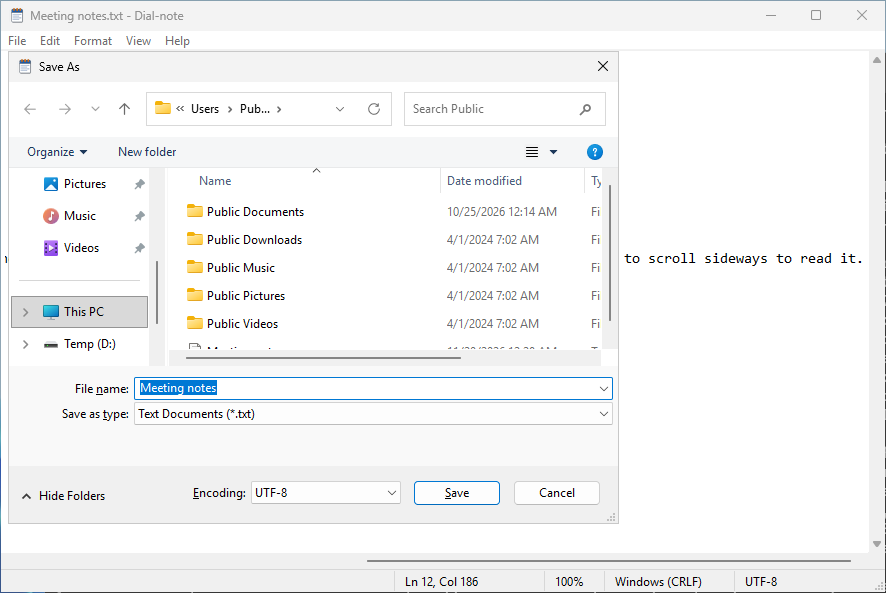
Choose the encoding when you save.
Windows' own Save As box, with an Encoding list at the bottom: UTF-8, UTF-8 with BOM, UTF-16 LE, UTF-16 BE or ANSI. Dial-note warns you before saving as ANSI would lose any characters.
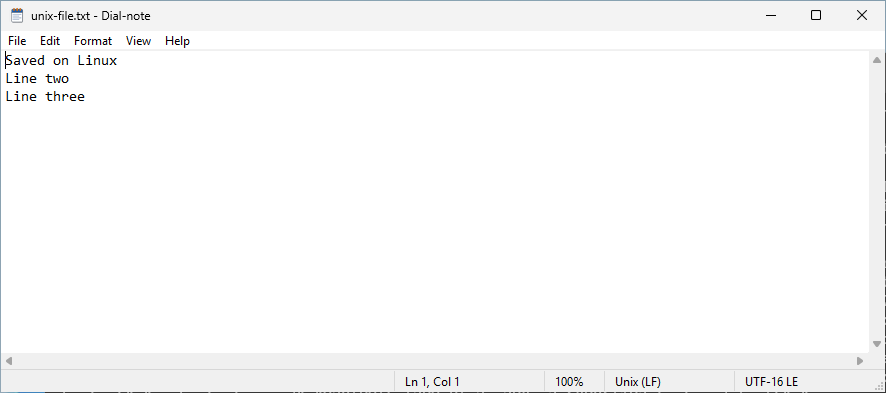
Files from anywhere.
A file saved on a Linux server in UTF-16 opens cleanly, and the status bar says so: Unix (LF), UTF-16 LE. Save it and it stays that way.
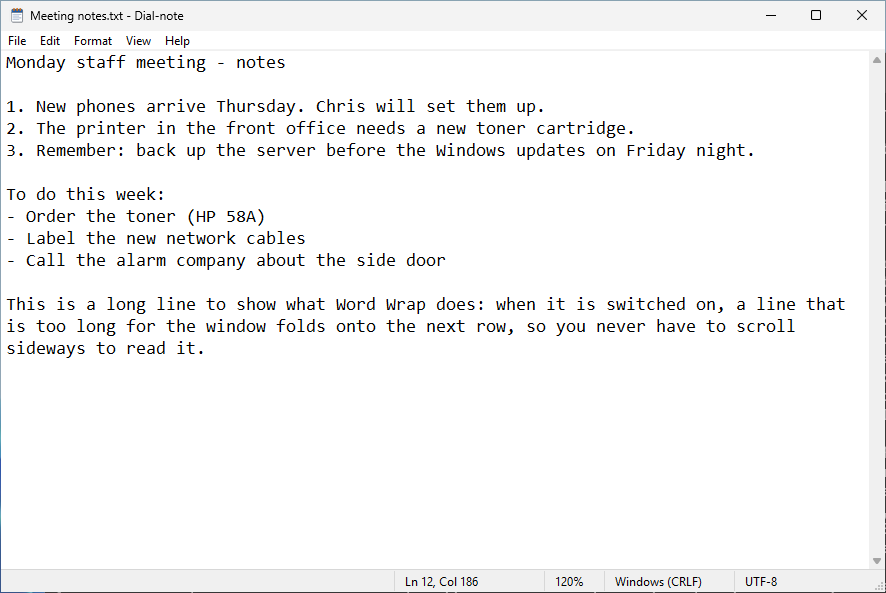
Word Wrap and Zoom.
Format › Word Wrap folds long lines to fit the window, so you never scroll sideways. Ctrl + mouse wheel makes the text bigger or smaller, without changing the font you print with.
Keyboard shortcuts
The same keys as Notepad.
| Ctrl+N Ctrl+Shift+N | New document · new window |
| Ctrl+O Ctrl+S Ctrl+Shift+S | Open · Save · Save As |
| Ctrl+P | |
| Ctrl+Z Ctrl+X Ctrl+C Ctrl+V | Undo · Cut · Copy · Paste |
| Ctrl+F F3 Shift+F3 | Find · Find Next · Find Previous |
| Ctrl+H Ctrl+G | Replace · Go To line |
| Ctrl+E | Search the selected text with Bing |
| Ctrl+A F5 | Select All · insert the time and date |
| Ctrl+Plus Ctrl+Minus Ctrl+0 | Zoom in · zoom out · back to 100% (or Ctrl + mouse wheel) |
| Ctrl+Backspace | Delete the word before the cursor |
| F1 | Open the user guide |
Get started
Installer or one portable file.
- Windows 10 or 11, 64-bit.
- Installer (Dial-note-Setup.exe): asks whether to install for just you (no administrator needed) or for everyone on the PC, adds Dial-note to the Start menu, to Open with for text files (.txt, .log, .ini, .md, .csv and more), and to Installed apps, with an uninstaller.
- Portable (Dial-note.exe): save it anywhere and double-click it. Nothing to install.
- To open every .txt file with Dial-note: right-click a .txt file › Open with › Choose another app › Dial-note › tick Always. (Windows doesn't let programs make themselves the default.)
- For IT:
Dial-note-Setup.exe /Sinstalls silently; add/ALLUSERS(as administrator) for everyone,/DESKTOPfor a Desktop shortcut,/NOOPENWITHto leave Open with alone,/NOUPDATESto switch off update checks. - Settings are kept in the Windows registry under your own account. Nothing about you or your files is ever sent anywhere; the only internet use is checking GitHub for updates (which you can switch off).
Seeing “Windows protected your PC”? New programs can trigger SmartScreen until they're widely downloaded: click More info → Run anyway. Only download Dial-note from dialsoft.com or Dialsoft's GitHub page.
What's new
Release notes
Version 1.0.0 · November 19, 2026
- First release of Dial-note: a plain, simple text editor, just like the Notepad that came with Windows 10.
- Same menus and shortcuts as Notepad, including Search with Bing, Find Previous, Go To, Time/Date, Word Wrap, Font, Zoom and the Status Bar.
- ANSI, UTF-8, UTF-8 with BOM, UTF-16 LE and BE; Windows, Unix and Mac line endings kept as they were.
- Find and Replace with Match case, Wrap around and Up/Down; Replace All undoes in one step.
- Ctrl + mouse wheel zoom, Ctrl+Backspace, drag a file onto the window to open it, and the .LOG trick.
- Printing with header and footer on any paper size and margins.
- Every menu item explains itself in the status bar; every box has detailed tooltips; settings take effect immediately.
- Keeps itself up to date; installer or single portable EXE.