
Windows · launcher bar
Tool Belt
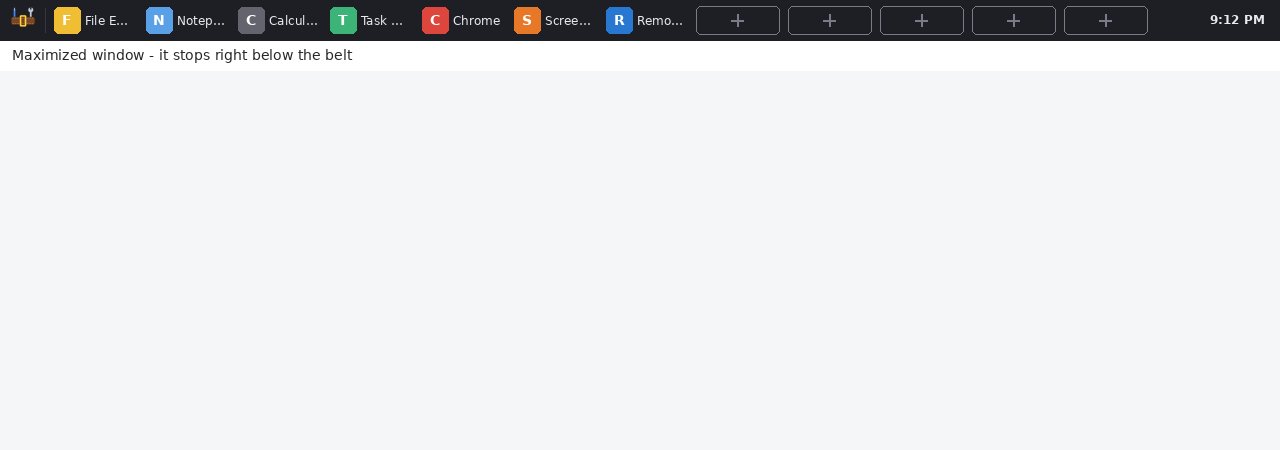
A second taskbar across the top of your screen, with 12 slots for the programs, folders and websites you use all day. It stays put and stays on top. Maximized windows stop just below it, so nothing ever covers your tools. One click opens a tool. Drag something onto a slot to add it.
What it does
Your tools, one click away, always.
Locked to the top
Docks across the top edge like the real taskbar. It can't be dragged away, and Windows keeps other windows out of its space.
12 slots
Programs, shortcuts, documents, folders or websites. Each shows its real icon and name.
Drag to add
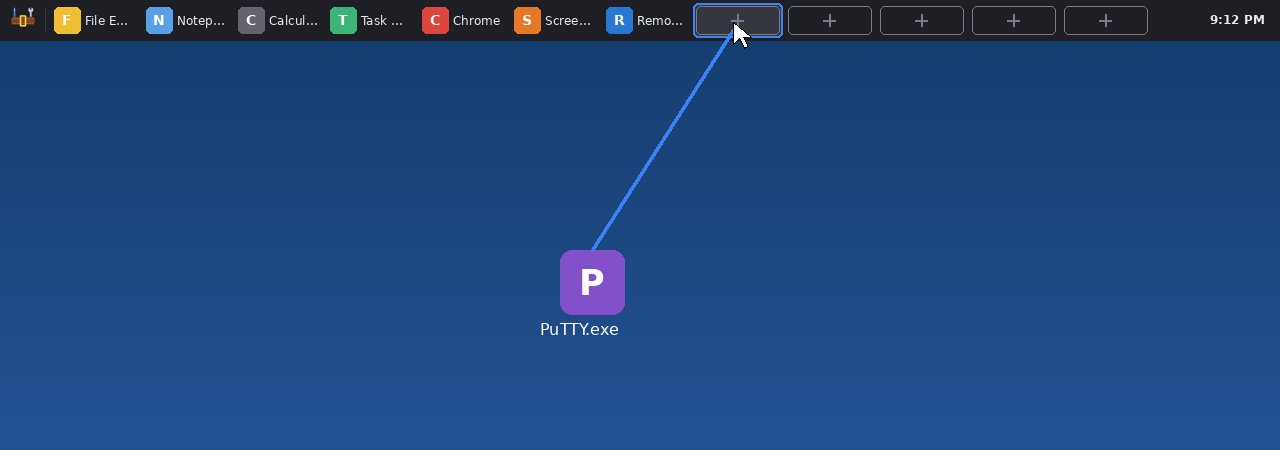
Drop a program, file or folder from the desktop or File Explorer onto a slot. Drag a web address from your browser too.
Drag to rearrange
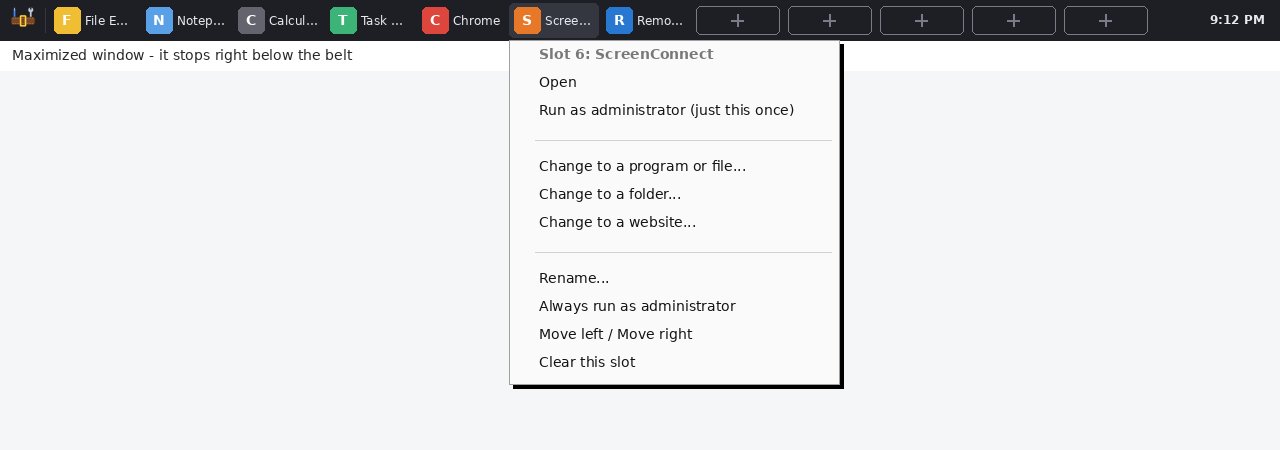
Drop one slot on another to swap them. Right-click to rename, move or clear.
Run as administrator
Once, or every time. A blue dot marks the slots that always run as admin.
Small, Medium, Large
Pick a size, show names or icons only, center the slots, show a clock. Every change is instant.
Multi-monitor
Choose which screen it sits on. It re-docks by itself when monitors or resolution change.
Gets out of the way
Steps behind full-screen games and videos, then comes back on top.
Starts with Windows
The installer can start Tool Belt every time you sign in, add shortcuts, and list it in Installed apps. No administrator password needed.
Keeps itself current
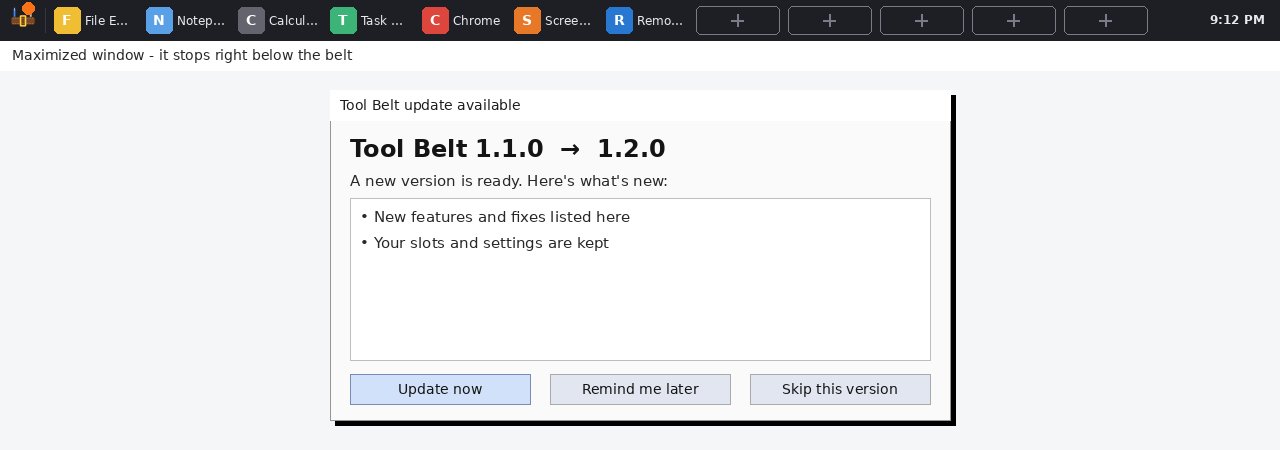
Checks for new versions, shows what's new, verifies the download's fingerprint and updates itself. You stay in charge.
A second taskbar, up top
Tool Belt registers with Windows the same way the taskbar does. Maximize any window and it stops right under the belt.
Fill a slot in a second
Drag a program, shortcut, folder or file onto a slot. Or click an empty slot (the dashed +) and browse.
Right-click for everything else
Open, run as administrator, rename, add command-line options, open the file location, move or clear. Every item has a tooltip that explains it.
Updates, your way
When a new version is out you see what changed and choose Update now, Remind me later or Skip this version. The download is checked before it's used, your slots are kept, and the belt is back in seconds.
Get started
Download, double-click, done.
- Windows 10 or 11
- Installer (recommended): installs just for you, no administrator password, with options to start Tool Belt when Windows starts and add Start menu or Desktop shortcuts. Uninstall from Settings › Apps.
- Portable: one file under 100 KB, nothing to install. Keep it somewhere you own (Desktop, Documents, C:\Tools) so it can update itself.
- Uses the .NET Framework 4.8 built into Windows
Seeing “Windows protected your PC”? New programs can trigger SmartScreen until they're widely downloaded: click More info → Run anyway. Only download Tool Belt from dialsoft.com. Pictures on this page are illustrations.