
DeskGrid user manual
DeskGrid tidies your Windows desktop into shaded, labeled boxes called grids. Each grid holds the icons you put in it and can be named, colored, made more or less see-through, rolled up out of the way, locked in place, or hidden with a double-click. A Folder Portal is a grid that shows a folder you already have, like Documents or a network share.
1. Getting started
Install it (recommended). Download DeskGrid-Setup.exe from dialsoft.com/deskgrid and run it. Setup needs no administrator password. It adds DeskGrid to the Start menu, starts it with Windows, and adds an uninstaller under Settings → Apps → Installed apps. Windows may show a blue “Windows protected your PC” box the first time, because the installer is new; click More info, then Run anyway.
Or run it without installing. Download the portable DeskGrid.exe from the same page, put it somewhere permanent such as your Documents folder, and double-click it.
Either way:
- The DeskGrid window opens on Start here. Click Organize my desktop for me for a one-click tidy-up, or Make one empty grid to start by hand.
- DeskGrid now lives in the notification area (by the clock). Closing its window keeps it running. Double-click the icon there to open the window again.
DeskGrid starts with Windows by default. Grids only show while it is running, so leave that on (Options → Start DeskGrid when I sign in).
Uninstalling. Use Settings → Apps → Installed apps → DeskGrid → Uninstall. Your files are never deleted: the folder that holds them appears on your desktop as a normal folder named DeskGrid, with one folder inside per grid. The uninstaller asks whether to keep your saved layout, so installing again can bring your grids back as they were.
For IT staff. DeskGrid-Setup.exe /S installs silently for the signed-in user and starts DeskGrid. Uninstall.exe /S removes it silently and keeps the user’s files and settings.
2. Using grids
| To… | Do this |
|---|---|
| Put something in a grid | Drag it from the desktop or any Explorer window and drop it on the grid. If you drop it on a folder icon inside the grid, it goes into that folder. |
| Take something out | Drag it onto the desktop, into another grid, or into a folder. |
| Copy instead of move | Hold Ctrl while you drop. |
| Open an item | Double-click it, or select it and press Enter. |
| Move a grid | Drag its title bar. |
| Resize a grid | Drag any edge or corner. Grids snap to screen edges and to each other. |
| Roll up / unroll | Double-click the title bar. A rolled-up grid opens while you point at it. |
| Lock a grid | Right-click the title → Lock position and size. A padlock shows in its title. |
| Change anything else | Right-click the title, or an empty spot inside the grid. |
Keyboard (click a grid first): Delete sends to the Recycle Bin, F2 renames, Ctrl+A selects all, Ctrl+C / Ctrl+X / Ctrl+V copy, cut and paste, F5 refreshes, and Backspace goes back in a portal.
Right-click an icon to open it, choose Open with, Open file location, cut, copy, rename or delete it, Move to the desktop or another grid, or open Properties.
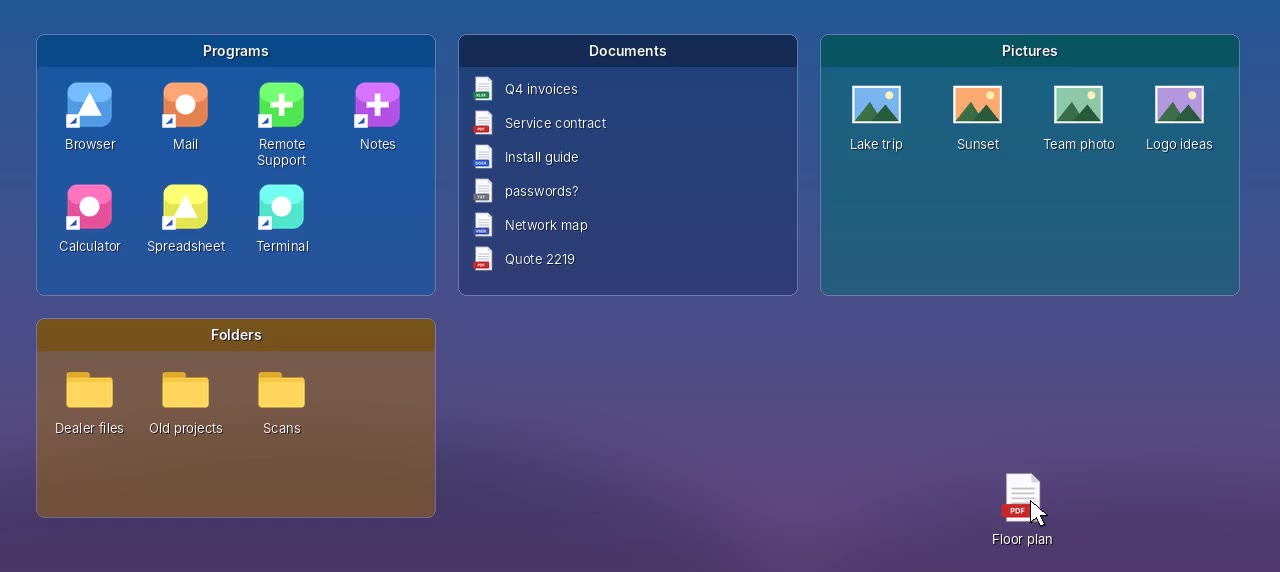
How a grid looks
These are all on the grid’s right-click menu and on the Grid settings tab:
- Color. Thirteen ready-made colors, or any color you like.
- See-through. Choose anything from invisible (icons only) to solid. Icons and names stay sharp either way.
- Icon size. Small, Medium, Large or Extra large. You can also choose large icons or a list (one item per line, which fits many more).
- Sort by. Name, type, date changed or size, with an option to reverse the order. Folders always come first.
- Icon look.
- Normal
- Faded until I point at it: the grid melts into the wallpaper until the mouse is over it.
- Grayscale
- Tinted with the grid color
- Thumbnails. Photos and videos show a small preview instead of a plain icon.
- Title position. Centered or on the left.
3. Folder Portals
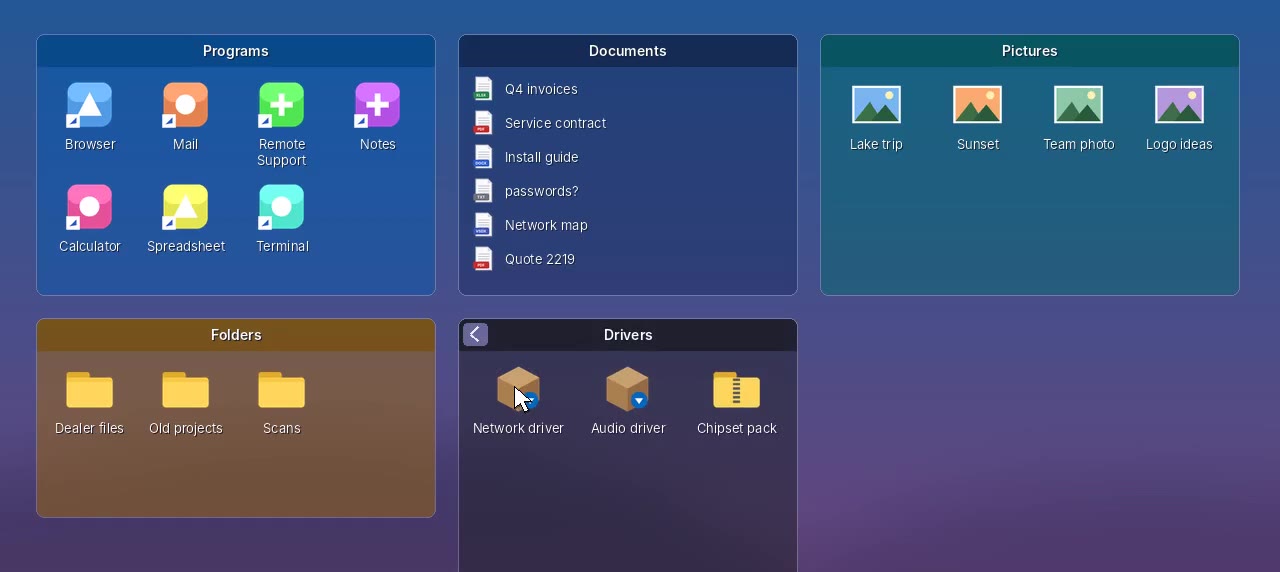
Click Folder portal on the ribbon (or right-click a grid → New Folder Portal) and pick any folder. The portal shows that folder live, and nothing gets moved into it. Double-click a sub-folder to browse into it; the ← arrow in the title takes you back. To show a different folder, right-click the title → Change folder….
4. Rules: automatic sorting
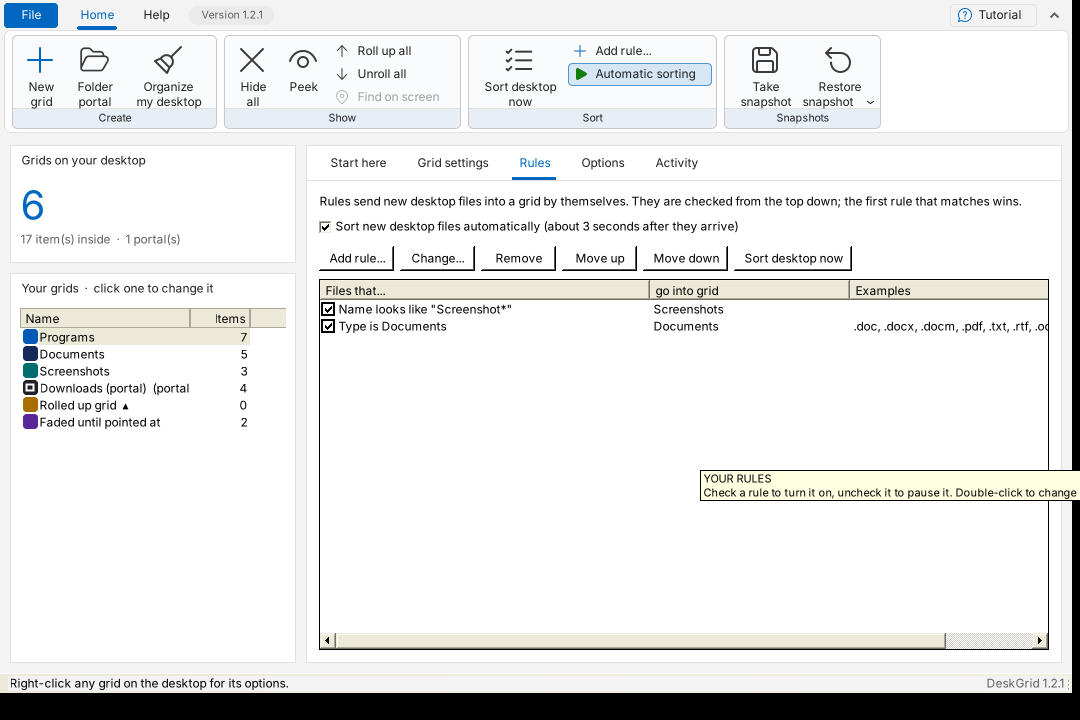
A rule says “files like this go into that grid”. Rules are checked from the top of the list down, and the first one that matches wins. Open the Rules tab and click Add rule…. A rule can match on one of three things:
- Kind: Programs & shortcuts, Folders, Documents, Pictures, Videos, Music, Archives, Installers or Other.
- File ending: for example
.png; .jpg. - Name pattern: for example
Screenshot*. Here*means “anything” and?means “any one character”.
When Automatic sorting is on, a new file that lands on the desktop is moved into its grid about 3 seconds after it arrives. DeskGrid waits until downloads and copies have finished first. Sort desktop now applies the rules to everything that is already on the desktop.
Organize my desktop sets all of this up in one go. It shows you its plan first, then makes a grid for each kind of thing on your desktop, moves the items in, and adds the rules. Some shortcuts belong to every user of the PC (they live in the Public Desktop folder). Moving those needs administrator permission, so Windows asks you once.
5. Quick-hide and Peek
- Quick-hide. Double-click any empty spot on the desktop. Every grid disappears, and so do the desktop icons unless you turn that off in Options. Double-click again to bring them back. You can also use Hide all on the ribbon or in the tray menu.
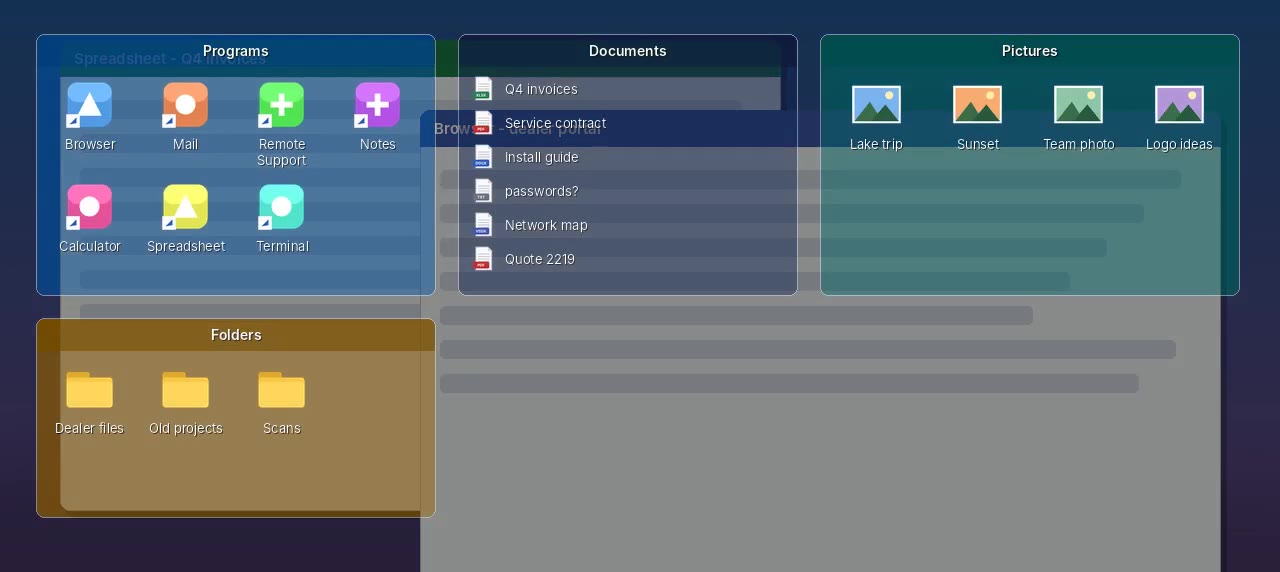
- Peek. Press Ctrl+Alt+Space. The screen dims and every grid comes forward in front of your open windows. Press the keys again, press Esc, or click the dark area to go back. You can change the key under Options → Peek hot key.
6. Snapshots and multiple monitors
Take snapshot saves where every grid is, how it looks, and your rules. Restore snapshot puts it all back. Your files are not moved by a restore.
DeskGrid also remembers grid positions separately for each screen arrangement. Docking or undocking a laptop, or changing resolution, therefore puts each grid back where it was for that setup.
7. Where your files are, and safety
- A grid’s files live in Desktop\
. That folder is hidden so it doesn’t clutter the desktop, but it is a normal folder inside your Desktop, so OneDrive and backups still include it. File → Open the grids folder shows it. - DeskGrid never deletes anything on its own.
- The Delete command sends items to the Recycle Bin.
- Remove grid puts the grid’s files back on the desktop.
- File → Put everything back on the desktop empties every grid at once. Use it before you stop using DeskGrid.
- When DeskGrid is closed, the files in your grids are not on the desktop. They are still safe in the folder above.
- Settings are kept in
%AppData%\Dialsoft\DeskGrid\:grids.txt,settings.txtand theSnapshotsfolder.
8. Updates
DeskGrid keeps itself up to date. It checks when it starts and every 6 hours after that. When a new version is out, it waits until you aren’t busy, downloads it, and checks it against its published SHA-256 fingerprint. A damaged or tampered download is never installed. It then swaps itself in and restarts in a few seconds, without touching your grids or files. A notice by the clock tells you it happened, and Help → What’s new lists the changes.
To decide for yourself, turn off Options → Install updates automatically. You then get a notice and a green “Update available” link in the status bar instead, and nothing installs until you click it or Help → Check for updates.
Help → Watch the video plays a 2-minute narrated tour of DeskGrid.
© 2026 Dialsoft LLC, Marc Frega, Wharton NJ. Built with Claude by Anthropic.