
Dialsoft › DriveScope › Manual
DriveScope user manual
DriveScope tests SSDs, hard drives, USB flash drives and memory cards on Windows. It reads each drive's health, measures its speed, catches counterfeit drives that lie about their size, erases drives securely, prepares them for sale and prints a test label on a Brother QL label printer. Every button and setting has a tooltip: point at it with the mouse for a plain-English explanation.
1. Installing & starting
There are two versions of the same program. Pick one:
| Installer (DriveScope-Setup.exe) | Portable (DriveScope.exe) | |
|---|---|---|
| Best for | Your own bench PC | A USB stick, or a quick look on someone else's PC |
| Shortcuts | Start menu and Desktop | None – double-click the file |
| Settings & history | %AppData%\DriveScope | Next to DriveScope.exe (they travel with it) |
| Test reports | Documents\DriveScope Reports | “Test reports” folder next to DriveScope.exe |
| Uninstall | Settings → Apps → Installed apps → DriveScope | Delete the file |
| Updates | Both update themselves (see Updates) | |
- Installer: run
DriveScope-Setup.exeand click through. It installs just for you; no administrator password is needed to install.
Portable: saveDriveScope.exeon the Desktop, inC:\Toolsor on a USB stick – any folder you can write to (not Program Files), so it can update itself. - If Windows says “Windows protected your PC”, click More info → Run anyway. New programs get this message until enough people have run them.
- Windows asks “Do you want to allow this app to make changes?” – click Yes. DriveScope needs administrator rights because it reads drives directly; Windows asks every time it starts.
- DriveScope opens in your web browser. It isn't a website: the page comes from DriveScope itself, on your own PC (address
127.0.0.1), and nothing is sent anywhere. - DriveScope keeps running in the system tray, next to the clock. Closing the browser tab doesn't stop it: click the tray icon to open the page again; right-click it and choose Quit to stop it (or use the Quit button on the page).
2. The DriveScope screen
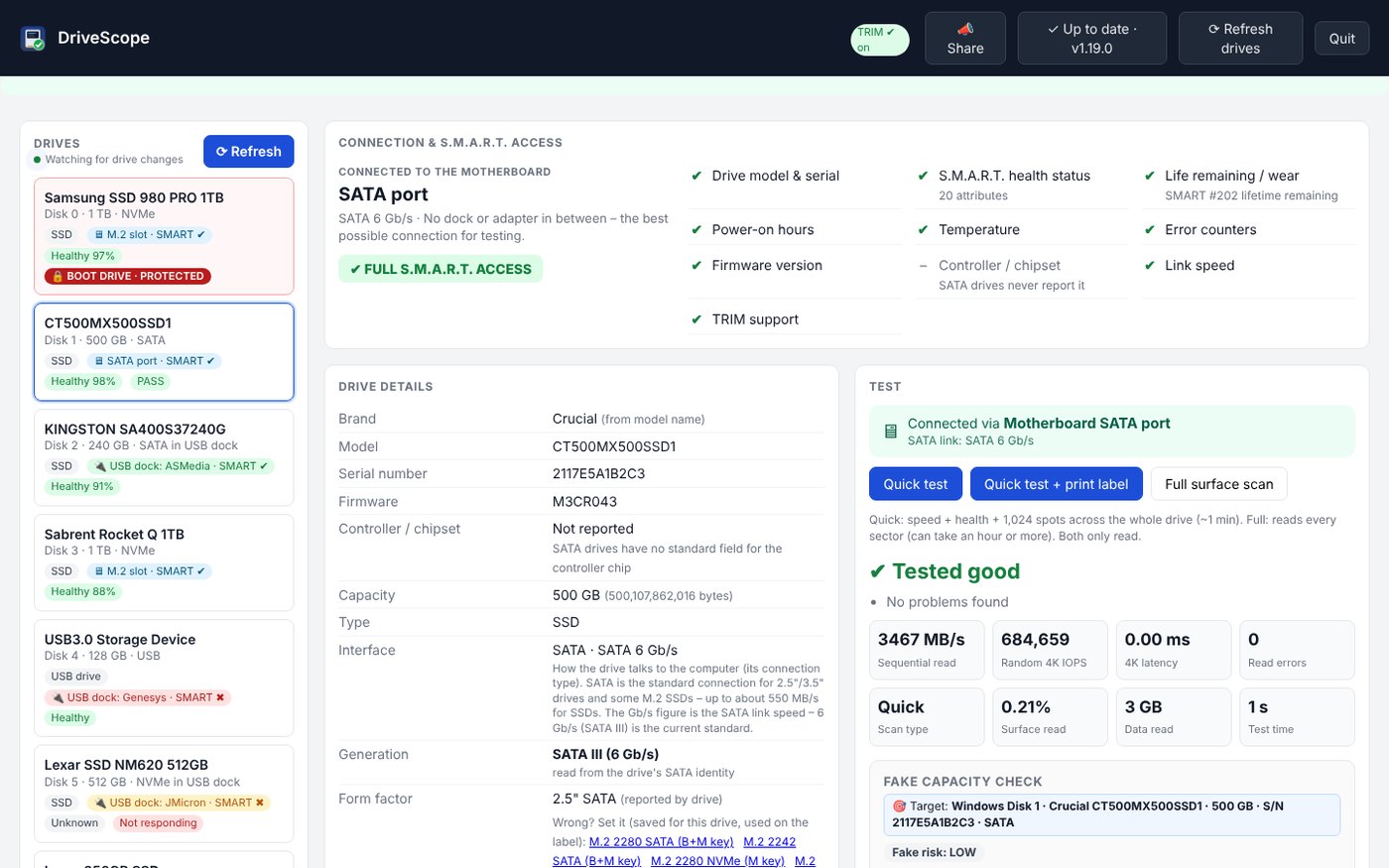
The header

| Item | What it does |
|---|---|
| TRIM ✔ on | Windows is sending TRIM to SSDs (see TRIM). If it ever shows ⚠ TRIM is OFF, click Turn TRIM on. |
| 📖 Manual | Opens this manual in a new browser tab. |
| 📣 Share | Tell someone about DriveScope (see Sharing). |
| Up to date / Update to x.y.z | Update status. Click to check for a new version now. |
| Refresh drives | Scans all drives again and clears the results shown. DriveScope also refreshes by itself when a drive or dock is plugged in or removed. |
| Quit | Stops DriveScope completely (it asks first if something is running). |
The drive list
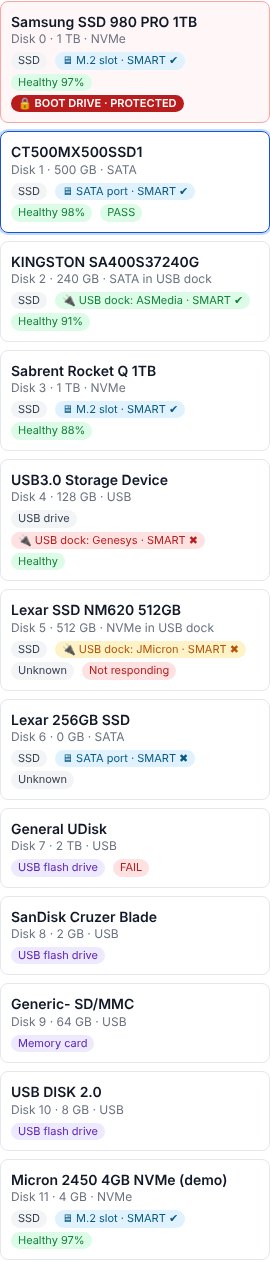
Every drive shows its Windows disk number, model, size and type, plus small colored tags:
- 🖥 M.2 slot / 🖥 SATA port – connected to the motherboard. 🔌 USB dock: chip name – in a USB dock or adapter. SMART ✔ / ✖ – whether DriveScope can read the drive's health data through that connection.
- Healthy 97% etc. – health and life remaining. PASS / FAIL / FAKE – the last test result.
- 🔒 BOOT DRIVE · PROTECTED – the drive Windows is running from (see Safety).
- A drive that's busy shows its task and progress, e.g. “Benchmark · 12%”.
Click a drive to select it. DriveScope never selects disk 0 or the boot drive on its own.
3. Safety: how your drives are protected
- The boot drive is locked. The drive Windows runs from (and any drive holding Windows) can be tested and read, but DriveScope never writes to it, erases it or changes its partitions. Its erase and partition buttons don't appear.
- Nothing defaults to disk 0. Every action names its drive explicitly.
- The right drive, verified. Before anything that writes, DriveScope re-reads the drive's serial number, size and partition-table ID from the hardware and compares them with what the screen showed. If you swapped drives or something changed, it refuses and tells you. Each action shows a 🎯 Target line naming the exact drive.
- Confirmation codes. Erasing and partition changes need the last 4 letters/digits of the serial number typed in (letters and digits only; spaces and capitals don't matter). Drives without a usable serial number ask you to type ERASE.
- Tests that only read (Quick test, surface scan, benchmarks' read part, self-tests) never change data. Tests that write say so in red and always ask first.
4. Connection, docks & USB
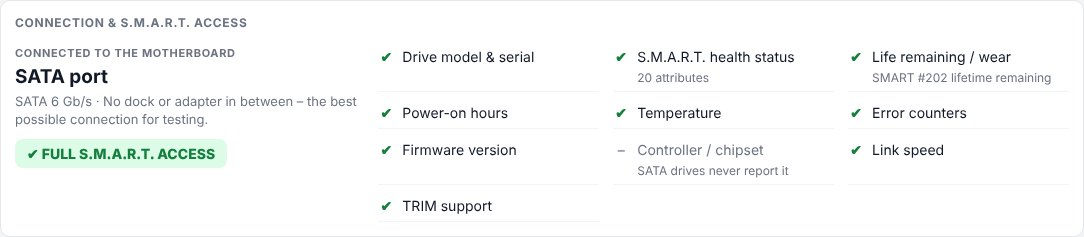
The Connection & S.M.A.R.T. access panel says how the drive is connected and what DriveScope can read through that connection – model and serial, S.M.A.R.T. health, wear, temperature, error counters, firmware, link speed and TRIM.
- Motherboard (M.2 slot or SATA port) is the best place to test: full speed, full health data and every erase method.
- USB docks translate between USB and the drive. Good docks pass health data through (DriveScope rates the dock and names its chip, e.g. Realtek RTL9210, ASMedia ASM1153, JMicron JMS583). Cheap docks may hide health data, slow the drive down, block secure-erase commands, or disconnect during big operations.
- The Connected via line at the top of the Test panel repeats this in one glance: green = motherboard, orange = USB dock.
USB connection & controller
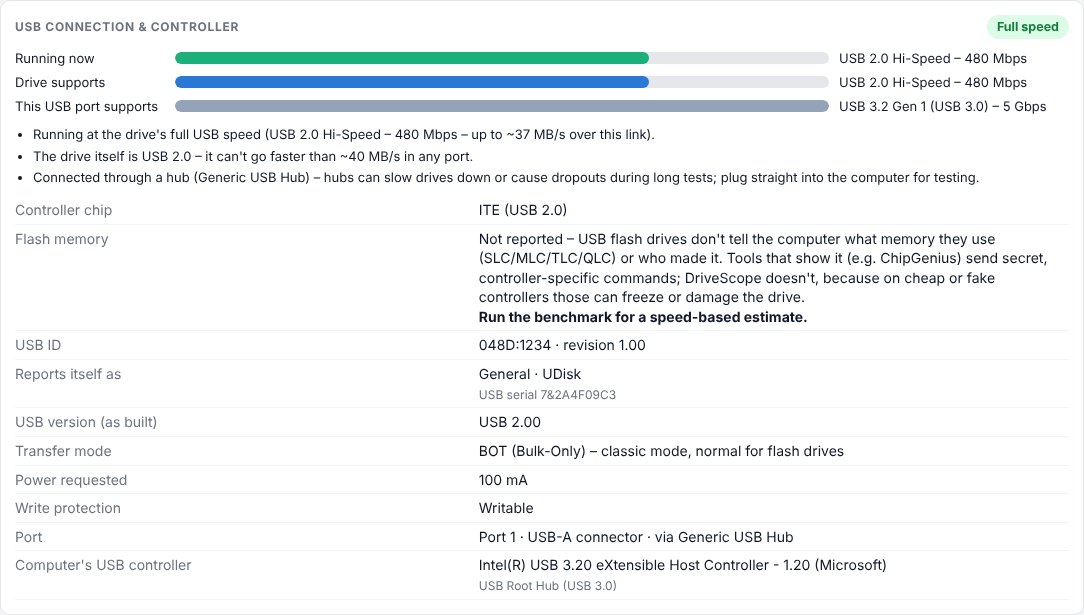
For USB flash drives, card readers and docks, three bars compare the speed the device is running at now, the fastest the device supports, and what the USB port supports, with advice when it runs slower than it could (“The drive is USB 3 but connected at USB 2 speed – reinsert it, avoid hubs”). Below: the controller chip, what the device reports about itself, USB version, transfer mode (UAS or BOT), power draw, USB-A or USB-C port, any hub in between, the computer's USB controller, and write protection – flash drives often die by locking themselves read-only.
5. Drive details
The Drive details panel lists everything DriveScope knows. Point at any line for an explanation. Highlights:
- Brand, model, serial, firmware – the firmware line warns about versions with known bugs and links to the maker's update page.
- Generation – the interface the drive is built for: NVMe PCIe Gen3 / Gen4 / Gen5 ×4, SATA III (6 Gb/s), or the USB version for flash drives. Read from the drive's own link when it's on the motherboard; from the model number when it's in a dock (a dock hides the PCIe link).
- Form factor – 2.5", M.2 2280/2242/2230, mSATA, USB stick… M.2 cards show their keying: M.2 SATA (B+M key) has two notches in the gold edge; M.2 NVMe (M key) has one. Some cheap drives report the wrong shape: click the right one under Wrong? Set it; it's remembered for that drive and used on the label.
- Memory type (NAND) – SLC, MLC, TLC or QLC, with its typical P/E (erase) cycles. Drives don't report this, so it comes from the maker's specifications for the model; for unknown models the sustained-write test gives an estimate. See the Glossary.
- Standard & Features – e.g. NVM Express 1.4, ACS-3; TRIM, S.M.A.R.T., volatile write cache, self-test, sanitize.
- Health, life remaining, power-on hours, temperature, data written, and S.M.A.R.T. values with raw numbers on hover, so you can compare with CrystalDiskInfo.
- Drive history – the drive's own error log and self-test history.
- Since intake – DriveScope remembers each drive's health the first time it saw it, and warns if things got worse during your tests.
6. Testing a drive
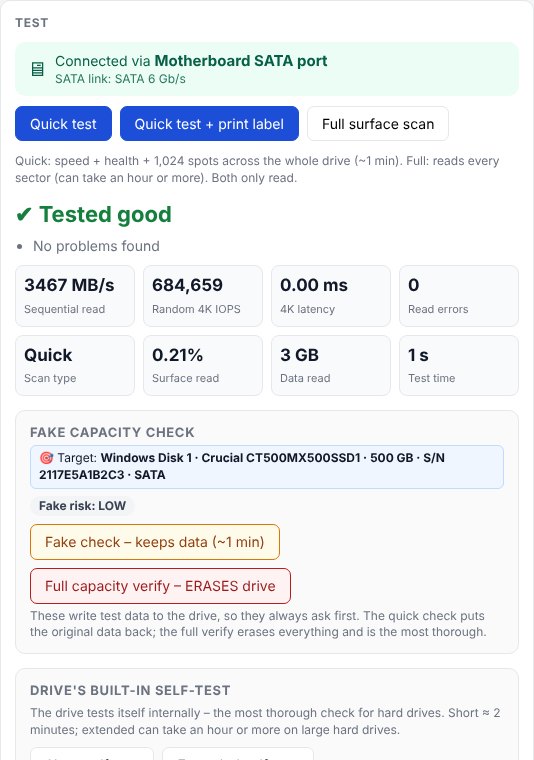
| Button | What it does | Time |
|---|---|---|
| Quick test | Reads health, measures read speed and reads 1,024 spots spread across the whole drive. Read-only. | About a minute |
| Quick test + print label | The same, then prints the label on the Brother QL as soon as it finishes – even if you've moved on to another drive. Nothing prints if the test is cancelled. | About a minute |
| Full surface scan | Reads every sector to find unreadable areas. Read-only. | An hour or more on big drives |
| Short / Extended self-test | The drive tests itself internally (the most thorough check for hard drives). | 2 minutes / up to hours |
The result is ✔ Tested good, ⚠ warnings, ✖ Failed or FAKE, with the reasons listed and the measured numbers below. Cancel stops any test. If a drive stops answering during a test, DriveScope notices, fails the test and says so instead of hanging.
7. Fake-capacity check
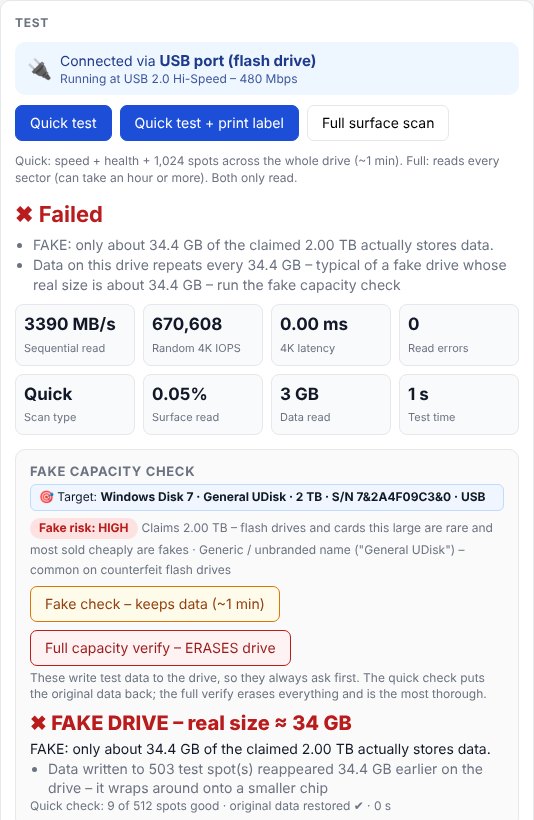
Counterfeit flash drives and SSDs report a big size, but the memory inside is much smaller; data written past the real size overwrites earlier data or vanishes. DriveScope's Fake risk line flags suspicious drives (huge cheap flash drives, unbranded names, data repeating every few GB), and two checks prove it:
- Fake check – keeps data (~1 min): writes test data to 512 small spots across the whole drive, reads them back, then puts the original data back. The drive disappears from Explorer during the check. Don't unplug it until it finishes.
- Full capacity verify – ERASES drive: writes and checks every sector. The most thorough, but it destroys all data (you type ERASE to confirm).
A fake drive shows FAKE DRIVE – real size ≈ 34 GB; its label says so too.
8. Speed tests
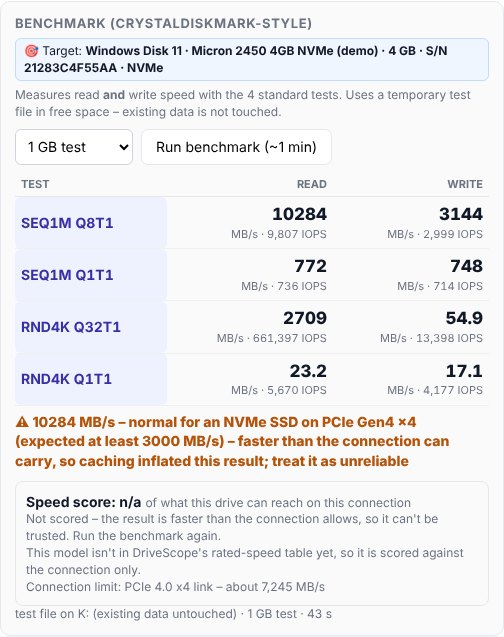
- Benchmark (CrystalDiskMark-style): the four standard tests (sequential and random 4K, read and write) using a temporary test file in free space – your data isn't touched. Results are compared with the drive's rated speed and with what the connection allows (a USB dock or slow port is pointed out).
- Sustained write test: writes one long stream and graphs the speed. Most SSDs are fast only until their write cache fills; the cache size and the speed after it show the drive's real class (QLC drops much lower than TLC).
- Surface read graph: reads across the whole drive and graphs speed by position, to find slow or weak areas. Read-only.
- Performance history: every result for a drive (matched by serial number), newest first – handy for before/after an erase, or comparing docks.
Progress is animated live: speed, position and a running chart.
9. Burn-in, data refresh & TRIM
- Burn-in (soak) test: hours of continuous work to flush out drives that fail early: writes a checkable pattern to a 16 GB test area, keeps reading and verifying it with random reads in between, reads the temperature every minute and compares health counters before and after. Uses free space; your data is untouched.
- Data refresh: reads every block and writes the same data back. On hard drives it makes the drive deal with weak (“pending”) sectors; on SSDs it rewrites old data that has become slow to read. Optional: rewrite unreadable blocks with zeros so the drive can replace them.
TRIM
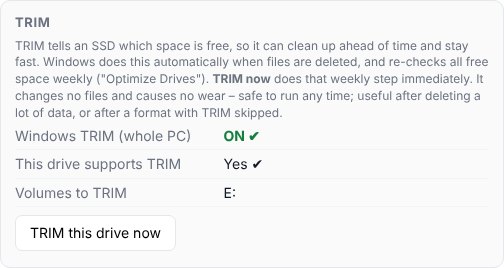
TRIM tells an SSD which space is free, so it can clean up ahead of time and stay fast. Windows does this automatically when files are deleted and re-checks all free space weekly (“Optimize Drives”). The TRIM box shows whether Windows TRIM is on, whether the drive supports TRIM, and which volumes will be trimmed. TRIM this drive now runs Windows' weekly step immediately – it changes no files and causes no wear, so it's also allowed on the Windows drive.
10. Several drives at once
Every drive can run its own test, benchmark, burn-in, erase or partition change at the same time as the others. Each has its own progress, Cancel button and hang detection. Busy drives show their task in the drive list; the floating badge lists every running job (click one to jump to it), and Windows notifies you as each finishes. A second job on the same drive is refused.
11. Partitions & what's installed
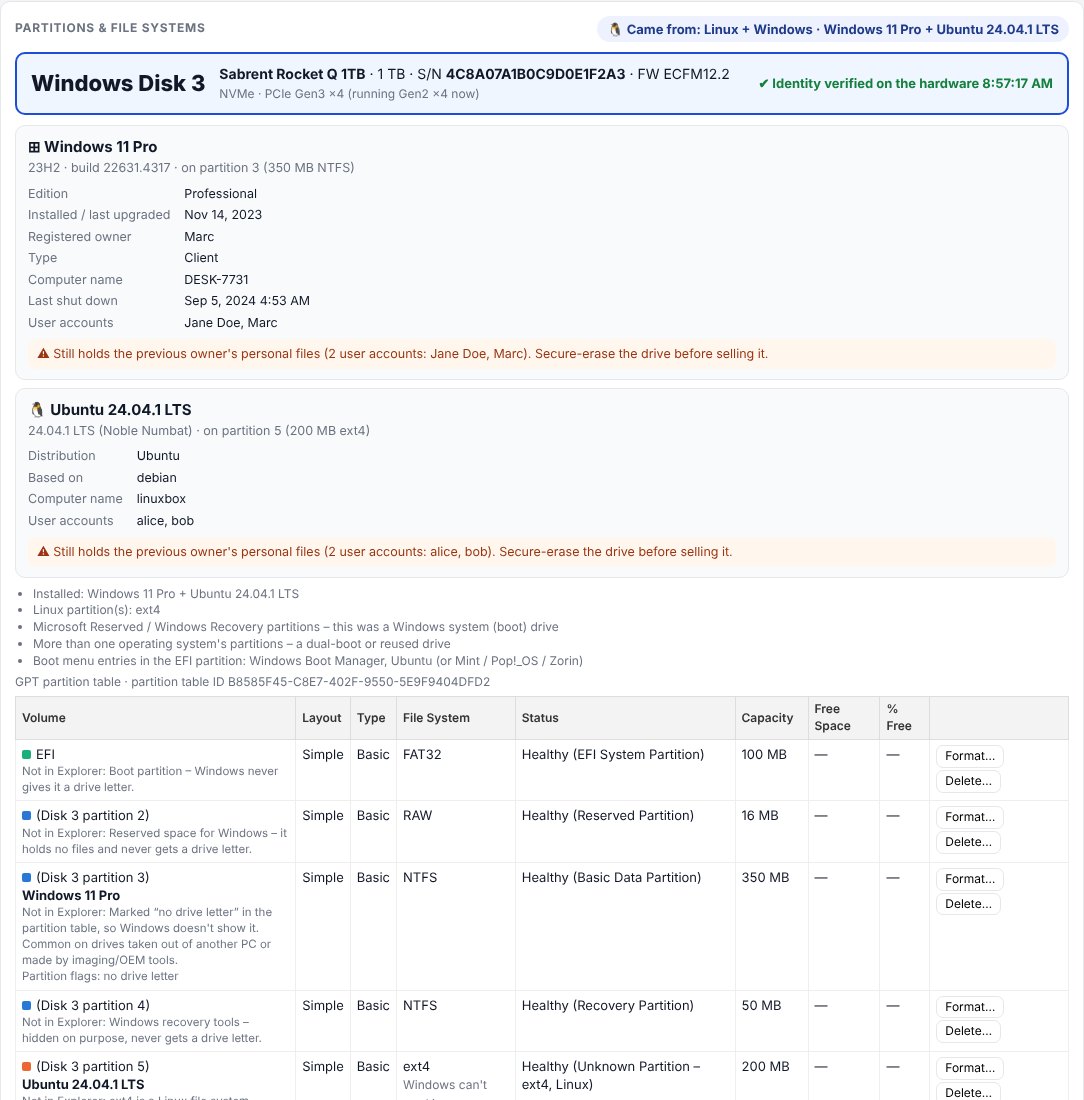
- The drive's name and identity are shown at the top, with ✔ Identity verified on the hardware.
- Partitions are drawn like Windows Disk Management, with the file system (NTFS, exFAT, FAT32, ext4, APFS, BitLocker…), size, free space and status.
- Came from guesses where the drive was used: Windows PC, Mac, Linux, a camera/console, or blank.
- What's installed: DriveScope reads the files on the drive itself (it never mounts the drive, so nothing changes) and names the operating system: Windows edition, version and build, install date, computer name, last shutdown and user accounts; Linux distribution and version; Mac and encrypted volumes are named. If the previous owner's user accounts are still there, you get a warning to secure-erase before selling.
- BitLocker volumes show their real state: locked, on, unlocked on this PC, or protection OFF – readable by anyone (encrypted in name only; common on laptops).
- Not in Explorer: every partition without a drive letter says why (boot, reserved or recovery partition; “no drive letter” flag; BitLocker; a Mac/Linux file system Windows can't read).
- Partition tools: Delete, Format, Create (in free space), Remove all partitions and Prepare for sale. All show animated progress and need the serial-number code.
12. Prepare for sale
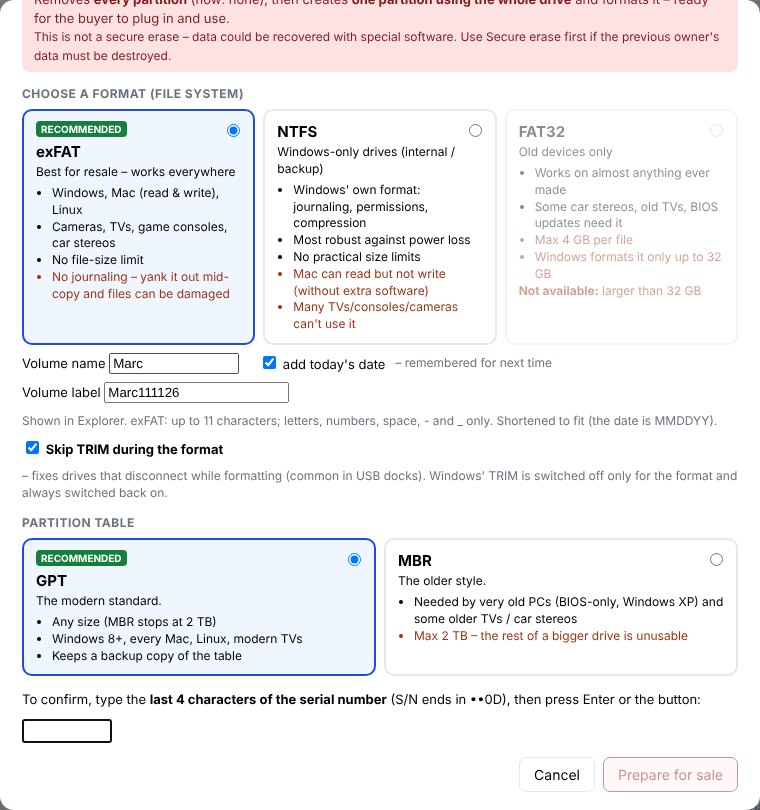
Removes every partition, creates one partition using the whole drive and formats it, ready for the buyer to plug in. (It's not a secure erase – run Secure erase first if the previous owner's data must be destroyed.)
- Choose a format:
- exFAT (recommended for resale) – works on Windows, Mac, Linux, cameras, TVs and consoles; no file-size limit; no journaling (pulling it out mid-copy can damage files).
- NTFS – Windows' own format: most robust; Macs can read but not write it; many TVs/consoles can't use it. Best for drives going inside a Windows PC.
- FAT32 – for old devices; 4 GB per-file limit; Windows formats it only up to 32 GB.
- Partition table: GPT (recommended, any size) or MBR (very old PCs; stops at 2 TB).
- Volume name: filled in automatically from a name (default DriveScope) plus today's date, shortened to fit Windows' rules: NTFS allows 32 characters (DriveScope11-11-26); exFAT and FAT32 allow 11 (Drive111126, FAT32 in capitals). Change the name or untick add today's date – both are remembered. You can also type over the label for a one-off name.
- Skip TRIM during the format (on by default for USB docks): a quick format also TRIMs the whole drive, which makes some docks and drives disconnect mid-format. DriveScope switches Windows' TRIM off just for the format and always switches it back on (even after a crash).
- Type the last 4 characters of the serial number; the box shows ✔ matches. Press Enter or click Prepare for sale.
If Windows refuses the format (“Invalid Parameter”), DriveScope waits and retries, then uses Windows' classic FORMAT command automatically.
13. Secure erase
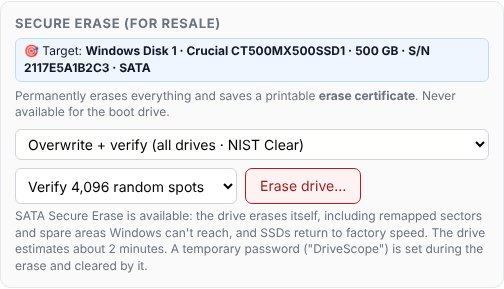
| Method | For | What it does |
|---|---|---|
| Overwrite + verify | All drives | Writes over every sector, then checks 4,096 random spots (or every sector). NIST “Clear”. |
| Cryptographic erase | NVMe | The drive destroys its internal encryption key – seconds. NIST “Purge”. |
| Sanitize | NVMe | The drive wipes all flash including spare areas, and confirms. NIST “Purge”. The closest thing to a “low-level format”. |
| SATA Secure Erase | SATA SSDs & HDDs | The drive's own erase command; also clears spare areas and restores SSD speed. Works when the drive isn't “frozen” – connect it after Windows has started (dock or hot-swap bay). |
Every erase checks the drive before and after and produces a printable erase certificate. Many USB docks block crypto erase and sanitize; use a motherboard slot for those. SATA Secure Erase sets a temporary password that the erase clears; if anything interrupts it, the Remove DriveScope password button unlocks the drive.
Hidden capacity (HPA): if a drive has part of its capacity hidden (by a laptop maker or a previous owner), DriveScope shows it and offers to restore it (directly-connected SATA drives).
14. Resale check & labels
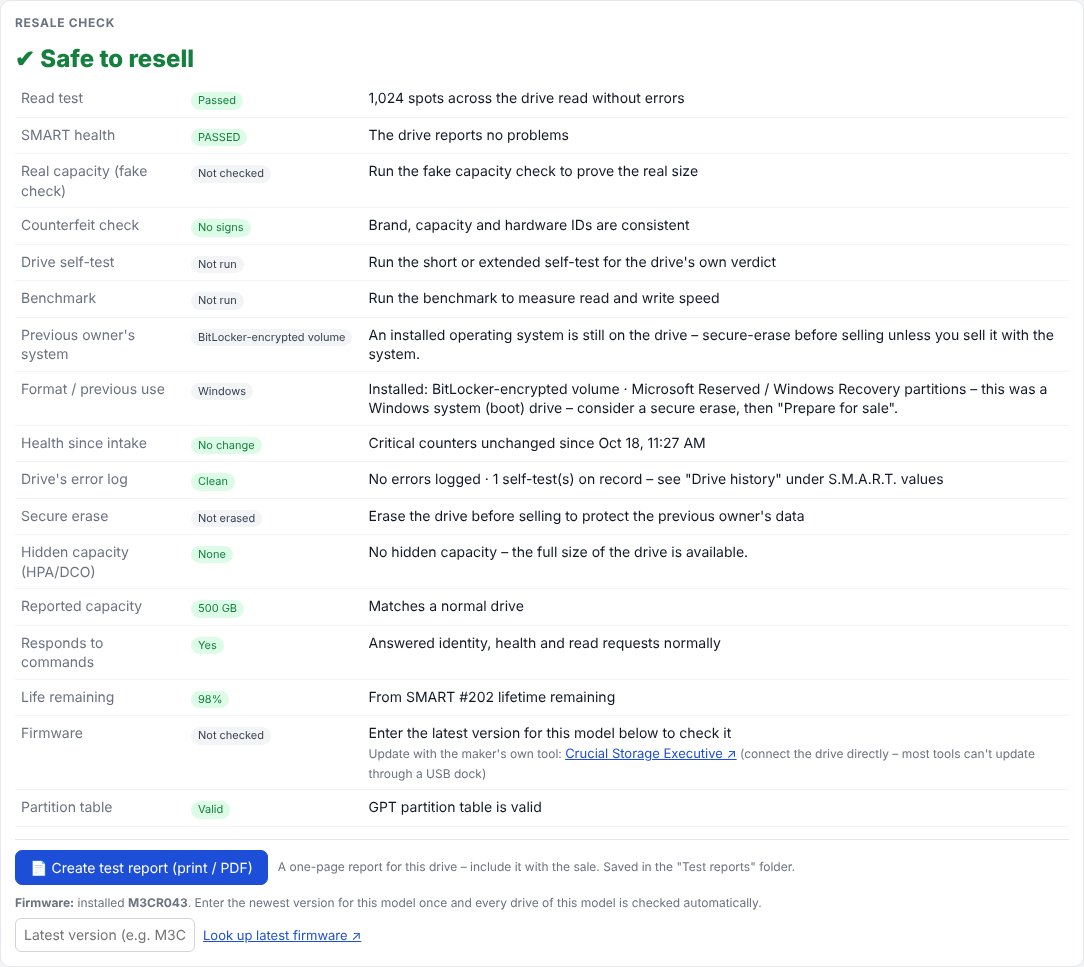
The Resale check lists everything a buyer cares about (health, test result, fake check, erase, previous owner's system, format) with ✔ / ⚠ for each.
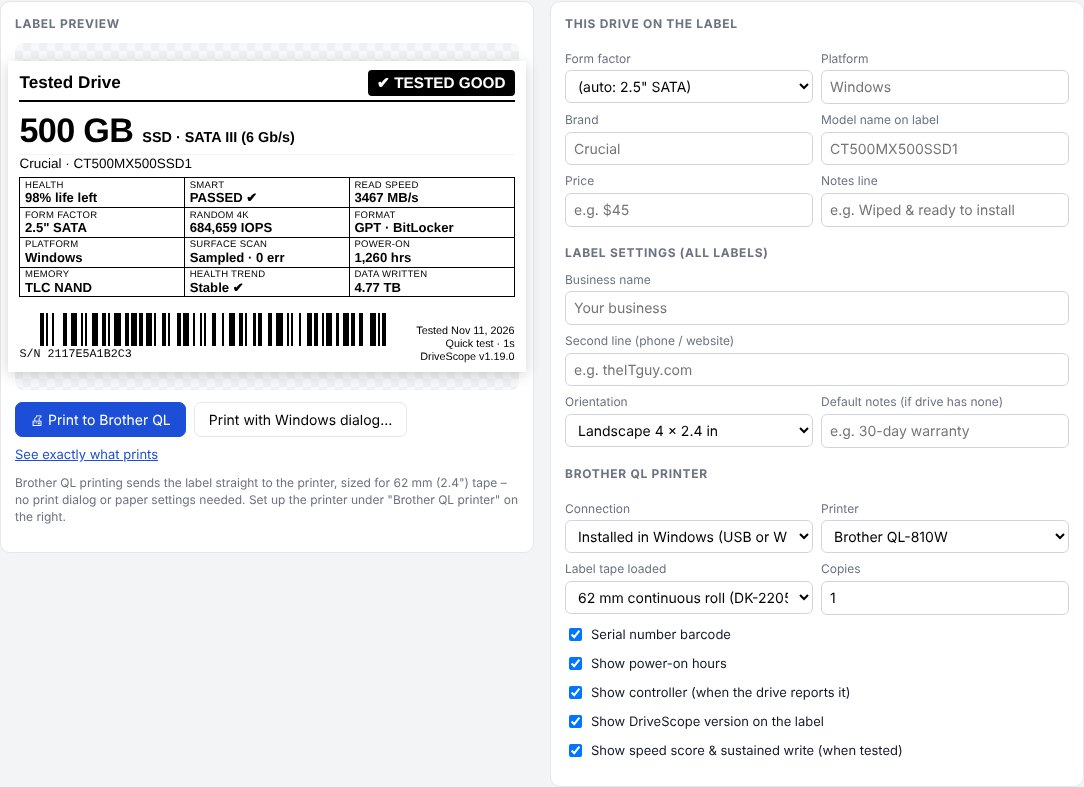
- The label preview shows exactly what will print: capacity, type and generation (e.g. 500 GB SSD · SATA III), brand and model, health, S.M.A.R.T., speeds, form factor, platform, memory type, power-on hours, data written, a serial-number barcode, the test date and the DriveScope version.
- This drive on the label: correct the form factor, platform, brand or model name, and add a price or notes line – saved per drive.
- Label settings (all labels): your business name and second line (phone/website), orientation (landscape 4 × 2.4 in or portrait), default notes, and which items appear.
- Brother QL printer: choose Installed in Windows (USB or Wi-Fi driver) or Network IP address, pick the printer and the tape loaded (62 mm continuous DK-2205 or 62 × 100 mm die-cut DK-1202), and the number of copies.
- 🖨 Print to Brother QL sends the label straight to the printer at the right size – no print dialog. Print with Windows dialog works with any printer.
Test reports: the report button saves a full HTML report (drive, health, results, certificate) you can print to PDF and give the buyer.
15. Updates & sharing

- DriveScope checks for a new version a few seconds after it starts and every 6 hours. The header button shows ✓ Up to date, ⬆ Update to x.y.z or ⚠ Update check failed; click it to check now.
- When there's a new version, a green banner shows what's new and an Install now button. Tick Install updates automatically when DriveScope is idle to have it done for you.
- Each update is downloaded from Dialsoft's GitHub page and checked against its published SHA-256 fingerprint before it's installed. It never installs while a test or erase is running. DriveScope restarts by itself and the page reconnects; your settings and history are kept.
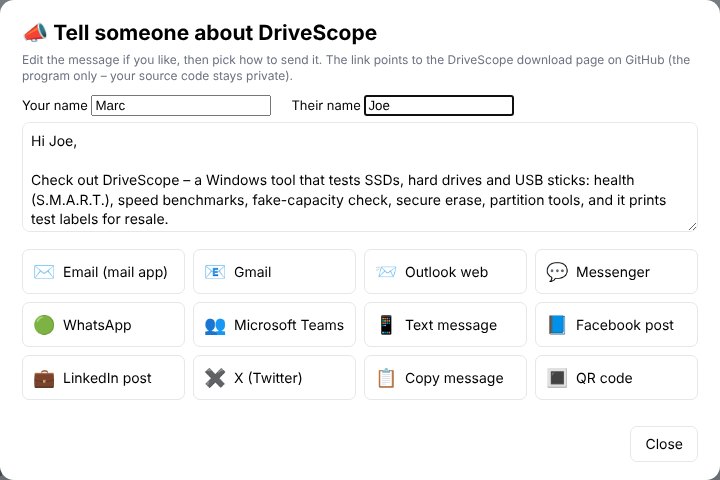
📣 Share tells someone about DriveScope: by email (your mail app, Gmail or Outlook), Facebook Messenger, WhatsApp, Microsoft Teams, a text message (through Windows Phone Link), a Facebook / LinkedIn / X post, or a QR code they scan with their phone. The message is editable, greets them by name and signs with yours (remembered). Messenger and Teams can't be pre-filled from a PC, so DriveScope copies the message for you to paste with Ctrl+V.
16. Where files are kept
| Installed | Portable | |
|---|---|---|
| Settings, label settings, drive history | %AppData%\DriveScope | Next to DriveScope.exe |
| Test reports & erase certificates | Documents\DriveScope Reports | Test reports next to DriveScope.exe |
| Program | %LocalAppData%\Programs\DriveScope | Wherever you put it |
Uninstalling never deletes test reports, and asks before removing settings and history. The exact folder is also shown at the top of the DriveScope page.
17. Troubleshooting
| Problem | What to do |
|---|---|
| The drive disconnects while formatting | Leave Skip TRIM during the format ticked. Let the dock cool down, use a rear USB port on the motherboard and the dock's own cable, or format the drive in a motherboard slot. If it disconnects there too, suspect the drive. |
| “Invalid Parameter” during the format | DriveScope retries and falls back to Windows' FORMAT command by itself. If it still fails: unplug and reconnect the drive, press Refresh and try again, or try NTFS or another dock. |
| No S.M.A.R.T. data (“SMART ✖”) | The USB dock doesn't pass health data through. Use another dock (Realtek RTL9210, JMicron, ASMedia ASM2362/ASM1153 usually work) or a motherboard slot. |
| Running slower than it should | Check the Connected via line and the USB card: USB 2 speed, a hub, or a dock limits the speed. |
| SATA Secure Erase says “frozen” | The PC's firmware froze the drive at startup. Connect it after Windows has started (dock or hot-swap bay), or briefly put the PC to sleep and wake it. |
| The confirmation code won't match | Type only the last 4 letters/digits of the serial number shown in the dialog. Make sure you're on the newest version (an old copy may still be running in the tray: right-click its icon → Quit). |
| A drive shows “Not responding” | Unplug and reconnect it, then press Refresh. If it keeps happening, the drive or dock is failing. |
| The page says DriveScope isn't running | Start DriveScope again from the Start menu, Desktop or DriveScope.exe. |
| Antivirus warning | New, unsigned programs are sometimes flagged. Download only from dialsoft.com or Dialsoft's GitHub page, and report it to your antivirus vendor as a false positive. |
18. Glossary
| Term | Meaning |
|---|---|
| S.M.A.R.T. | The health data a drive keeps about itself: errors, wear, temperature, hours. |
| NVMe / SATA | The two ways SSDs connect. NVMe runs over PCIe lanes and is 3–7× faster; SATA tops out at about 550 MB/s. |
| PCIe Gen3 / Gen4 / Gen5 | Generations of the NVMe connection; each roughly doubles the top speed (about 3.5 / 7 / 14 GB/s with 4 lanes). |
| M.2 / NGFF | The small stick-shaped SSD format (NGFF was its early name). B+M key = two notches, usually SATA; M key = one notch, NVMe. 2280 = 22 mm wide, 80 mm long. |
| NAND: SLC / MLC / TLC / QLC | How many bits each flash cell stores (1, 2, 3, 4). More bits = cheaper and bigger, but fewer erase cycles: SLC 50,000–100,000 · MLC 3,000–10,000 · TLC 1,000–3,000 · QLC 100–1,000. PLC (5 bits) isn't mainstream yet. |
| P/E cycles | Program/erase cycles: how many times each flash cell can be erased and rewritten before it wears out. |
| TRIM | Windows telling an SSD which space is free, so it can clean up in advance and stay fast. |
| DRAM-less / HMB | Budget SSDs without their own memory cache; they're slower under heavy use, especially in USB enclosures. |
| NIST Clear / Purge | Erase levels from the US standard NIST SP 800-88: Clear protects against normal recovery tools; Purge also against lab recovery. |
| HPA | Host Protected Area: capacity hidden from the computer, sometimes used by laptop makers for recovery tools. |
| UAS / BOT | USB storage modes: UAS is the modern, faster one; BOT (Bulk-Only) is the classic mode used by flash drives. |
DriveScope is published by Dialsoft LLC, Wharton NJ. Developed with Claude by Anthropic. Brand and model names belong to their owners. Screenshots show DriveScope's demo mode with simulated drives.