
MXG Scout user manual
For MXG Scout 3.0 · Windows 10 & 11 · and MXG Scout Mobile · © Dialsoft LLC
1. What MXG Scout does
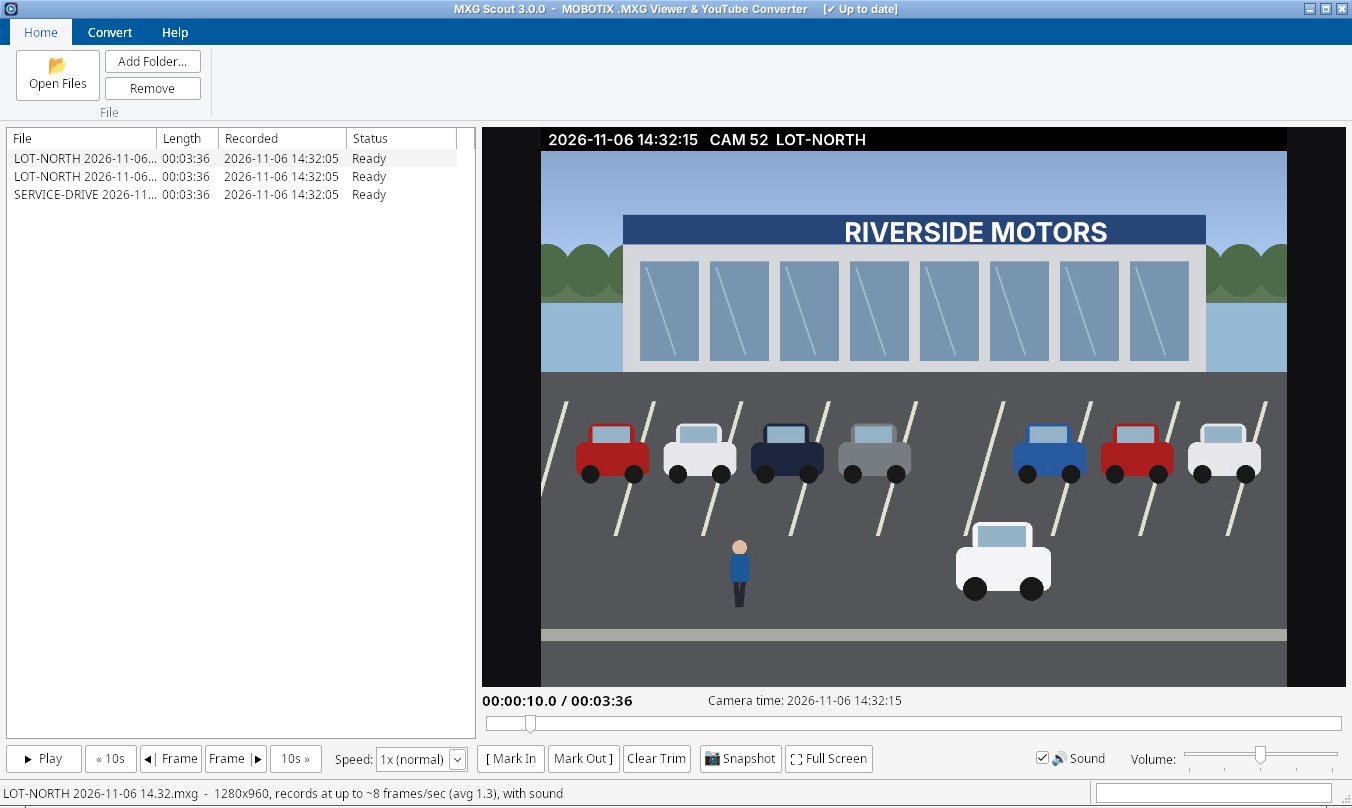
MOBOTIX cameras save their recordings as .MXG files, which ordinary video players can't open, and the players that can are slow and awkward to scrub through. MXG Scout is a viewer that actually works, plus a one-click converter to YouTube-ready MP4 files:
- Instant, frame-exact scrubbing: drag the timeline and the picture follows.
- The camera's real recording date and time for every picture.
- Sound in sync with the picture, with a volume control that can make quiet microphones louder.
- Step one frame at a time (to read a license plate, say), jump 10 seconds, and play from 0.25× to 16×.
- Skips the camera's dead gaps (times it recorded nothing) while the clock still shows the real time.
- Trim with Mark In / Mark Out and convert just that part.
- Converts to MP4 (H.264 video + AAC sound, the format YouTube recommends), one file or a whole batch, in the background while you keep watching.
- Full-resolution snapshots, full screen, keyboard shortcuts, a built-in tutorial, automatic updates.
- A phone version, MXG Scout Mobile, that runs in your phone's web browser (chapter 12).
Every button and setting has a tooltip: point at it with the mouse and wait a moment for a plain-English explanation.
2. Installing & starting
There are two versions of the same program. Pick one:
| Installer (MXGScout-Setup.exe) | Portable (MXGScout.exe) | |
|---|---|---|
| Best for | Your own PC | A USB stick, or a quick look on someone else's PC |
| Shortcuts | Start menu (MXG Scout and this manual) and Desktop; MXG Scout appears in “Open with” for .mxg files | None: double-click the file |
| Where it goes | %LocalAppData%\Programs\MXG Scout (no administrator password needed) | Any folder you can write to: Desktop, Downloads or C:\Tools (not Program Files) |
| Uninstall | Settings › Apps › Installed apps › MXG Scout | Delete the file |
| Updates | Both update themselves (chapter 13) | |
- Download from dialsoft.com/mxg-scout and run the file.
- If Windows says “Windows protected your PC”, click More info → Run anyway. New programs get this message until enough people have downloaded them.
- The very first time it starts, MXG Scout unpacks its built-in video engine. That takes a few seconds and only happens once.
- The first time, the Getting Started tour starts by itself and points out each control (chapter 10). You can close it and run it again from the Help tab any time.
3. The MXG Scout window
| Area | What it's for |
|---|---|
| Title bar | The version, and whether it's up to date (✔ Up to date). |
| Ribbon (top) | Three tabs: Home (open and remove files), Convert (every MP4 setting) and Help. |
| File list (left) | Your recordings. Length is how long the clip runs, Recorded is the date and time on the camera's first picture, and Status shows scanning, converting progress, Ready (trimmed) and ✔ MP4 saved. Click a file to watch it; hold Ctrl or Shift to select several. |
| Picture (right) | The video. Click it to play or pause; double-click for full screen. |
| Time & camera time | Where you are in the clip / how long it is, and the real date and time the camera recorded the picture on screen (in this PC's time zone). The trim, if you set one, is shown here too. |
| Timeline | Drag to scrub; click on the bar to jump 10 seconds toward that side. The marked stretch is your trim. |
| Play bar (bottom) | Play, « 10s, ◀| Frame, Frame |▶, 10s », Speed, [ Mark In, Mark Out ], Clear Trim, 📷 Snapshot, Full Screen, 🔊 Sound and Volume. It stays visible whichever ribbon tab you're on. |
| Status bar | The selected file's picture size, frame rate and whether it has sound, and messages such as “Snapshot saved”. |
4. Opening recordings
- 📂 Open Files (Home tab, or Ctrl+O): pick one or more .MXG files. Hold Ctrl or Shift to pick several.
- Add Folder…: every .MXG file directly inside a folder is added. Handy when a camera export dumped a batch of clips into one folder.
- Drag and drop files or a whole folder from Windows Explorer anywhere on the window.
- Open with: right-click an .MXG file › Open with › MXG Scout (installed version).
- Remove (or the Delete key) takes files out of the list. It never deletes anything from your disk.
When a file is added, MXG Scout scans it once (the Status column shows Scanning…). That's what makes scrubbing instant afterwards.
5. Watching
| Control | What it does |
|---|---|
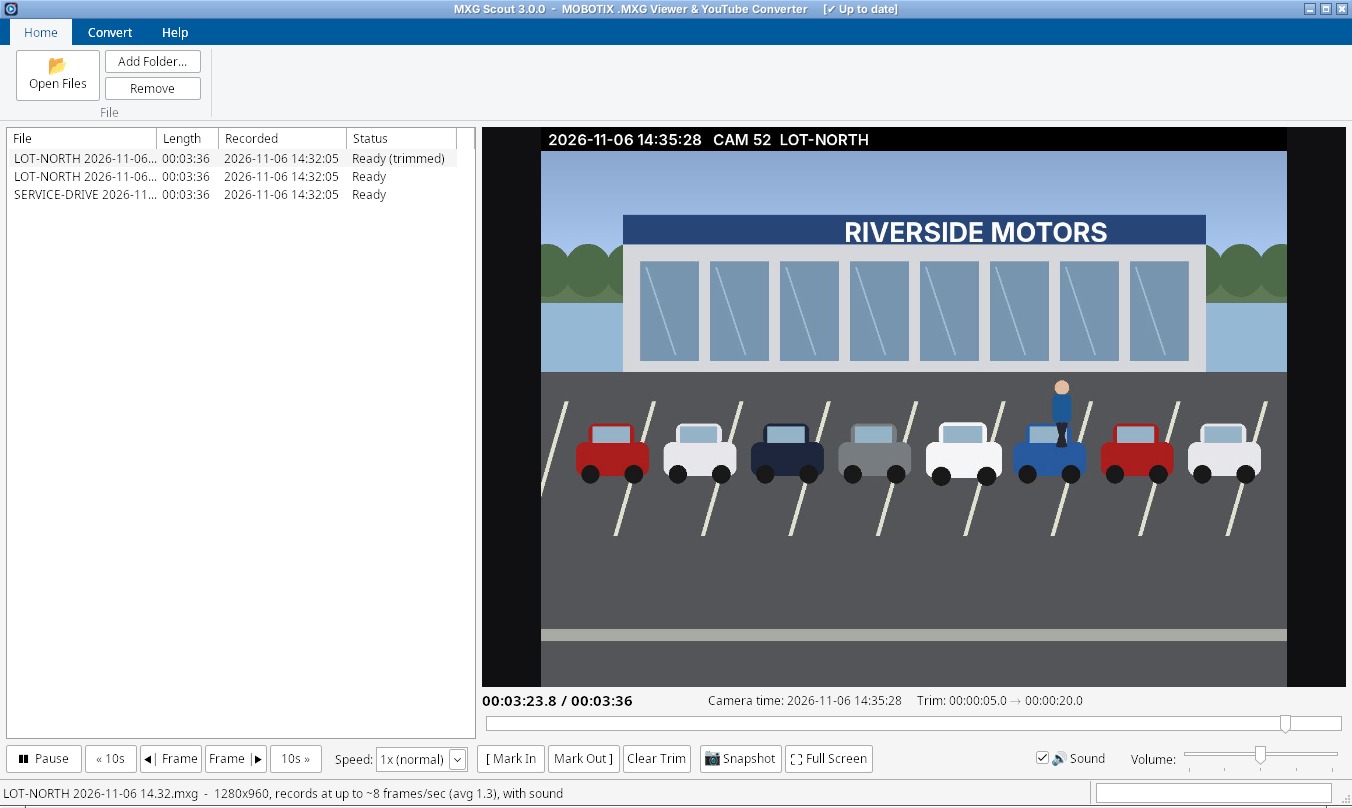
| ▶ Play / ❚❚ Pause | Plays or pauses. Also the Space bar, or a click on the picture. |
| Timeline | Drag the slider to scrub: the picture follows as you drag. |
| « 10s / 10s » | Jump back or forward 10 seconds. The ← / → arrow keys jump 5 seconds. |
| ◀| Frame / Frame |▶ | Pause and step exactly one picture back or forward (Ctrl+← / →). Great for finding the exact moment something happened. |
| Speed | 0.25×, 0.5×, 1× (normal), 2×, 4×, 8× or 16× (↑ / ↓). Fast speeds are for skimming long recordings. Only affects watching; MP4s always play at normal speed. |
| 🔊 Sound | Plays the camera's microphone (M). Sound plays at normal 1× speed only. |
| Volume | The middle is the sound as recorded; drag right to make quiet microphones louder (up to double). Only affects watching. |
| Full Screen | Fills the screen with the video (F or double-click the picture). Esc or double-click again to come back. |
6. Trimming a clip
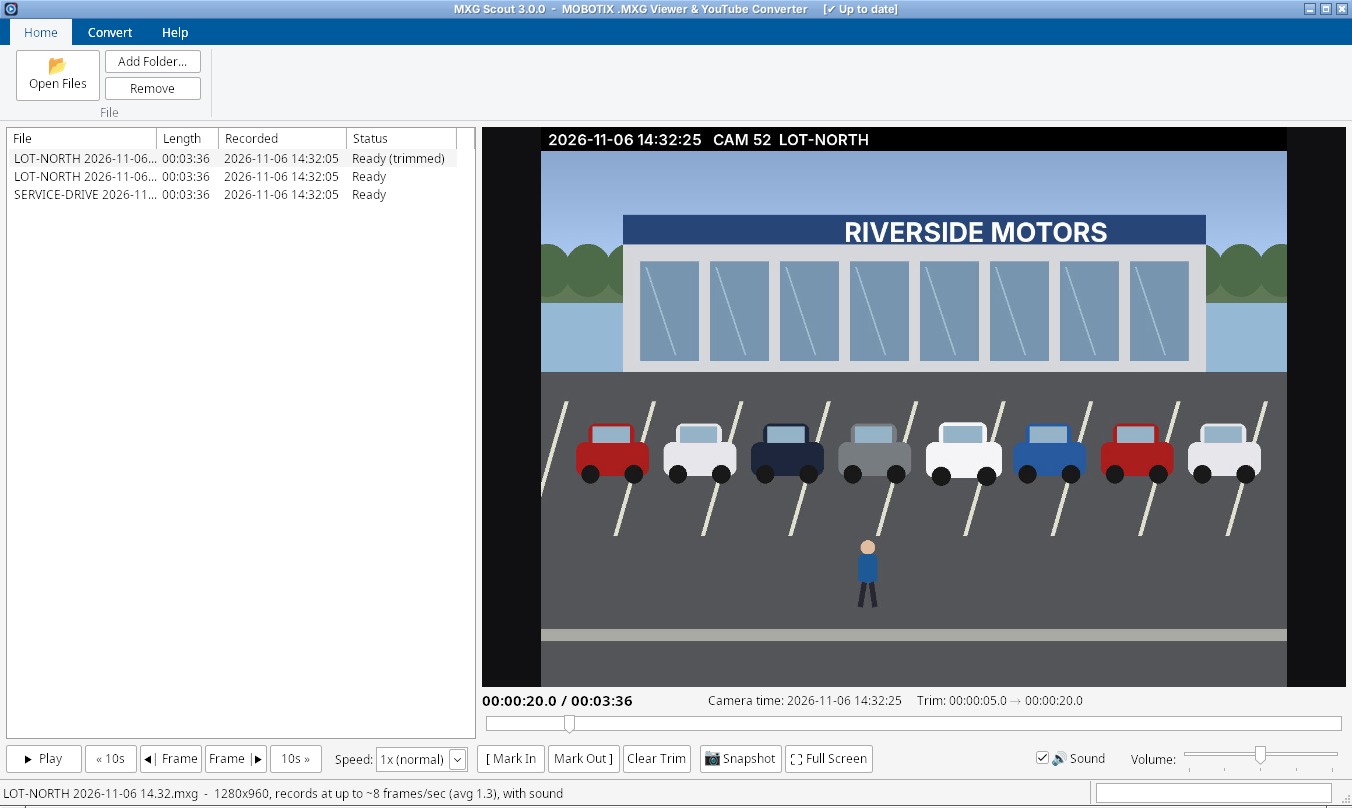
- Go to the first picture you want to keep and click [ Mark In (I).
- Go to the last picture you want and click Mark Out ] (O).
- The kept stretch is highlighted on the timeline, the trim is shown next to the camera time (Trim: 00:00:05.0 → 00:00:20.0) and the file says Ready (trimmed).
- When you convert, only that part becomes the MP4. Clear Trim forgets the marks so the whole clip is converted.
Each file keeps its own trim. The original .MXG is never changed.
7. Converting to MP4
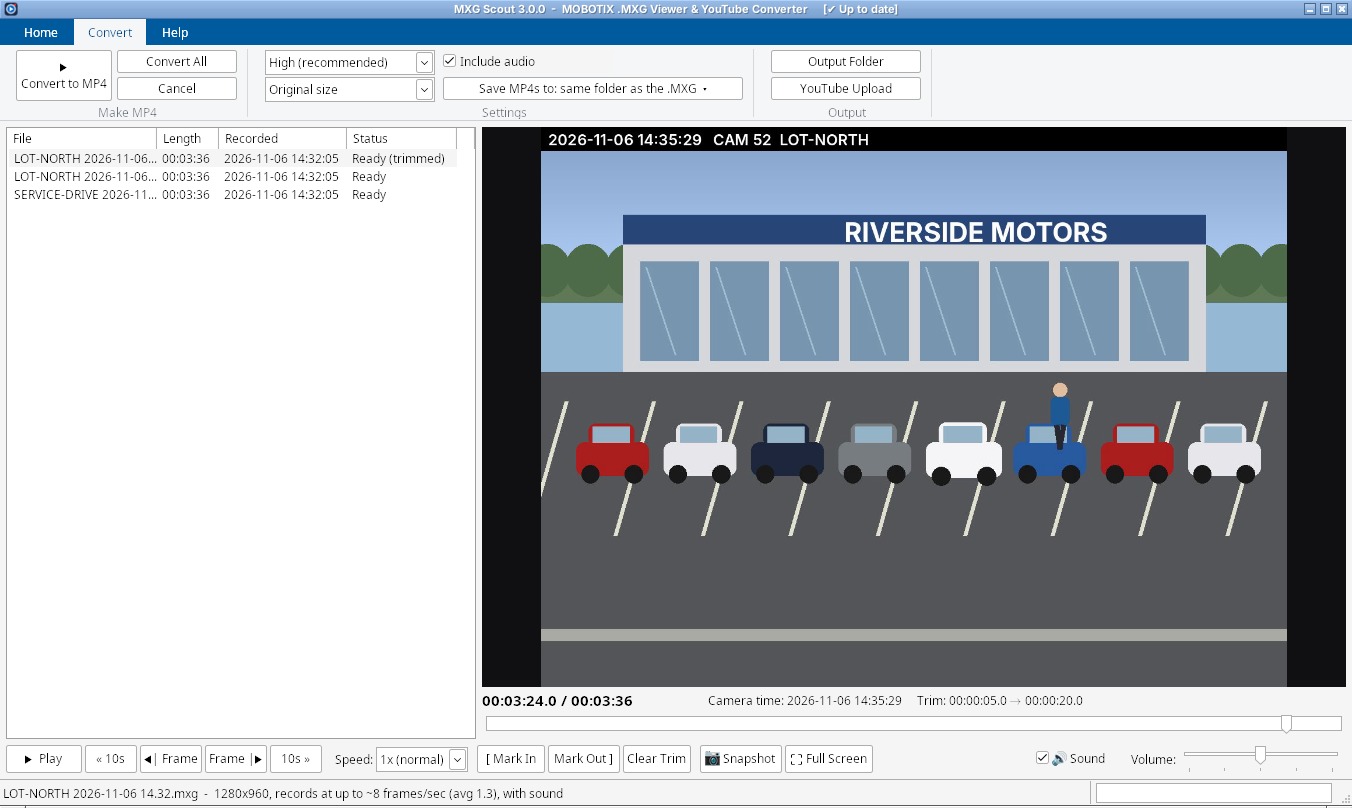
| Setting | What it does |
|---|---|
| ▶ Convert to MP4 | Converts the file(s) selected in the list. |
| Convert All | Converts every file in the list that hasn't been converted yet, one after another. |
| Cancel | Stops the conversion and clears the queue. The half-made MP4 is deleted, so you're never left with a broken file. |
| Quality | High (recommended) looks the same as the original to the eye; Best makes bigger files with a little more detail; Standard; Small uploads fastest but may look softer. |
| Size | Original size keeps the camera's full resolution; 1080p max or 720p max shrink bigger videos (smaller ones are never stretched). |
| Include audio | Puts the camera's sound into the MP4. Untick for a silent video, for example to keep private conversations off YouTube. |
| Save MP4s to | By default each MP4 is saved next to its .MXG with the same name. Choose one folder for all of them instead. Existing files are never overwritten (a number is added). |
| Output Folder | Opens the folder where the selected file's MP4 is saved. |
| YouTube Upload | Opens YouTube's upload page in your browser (chapter 8). |
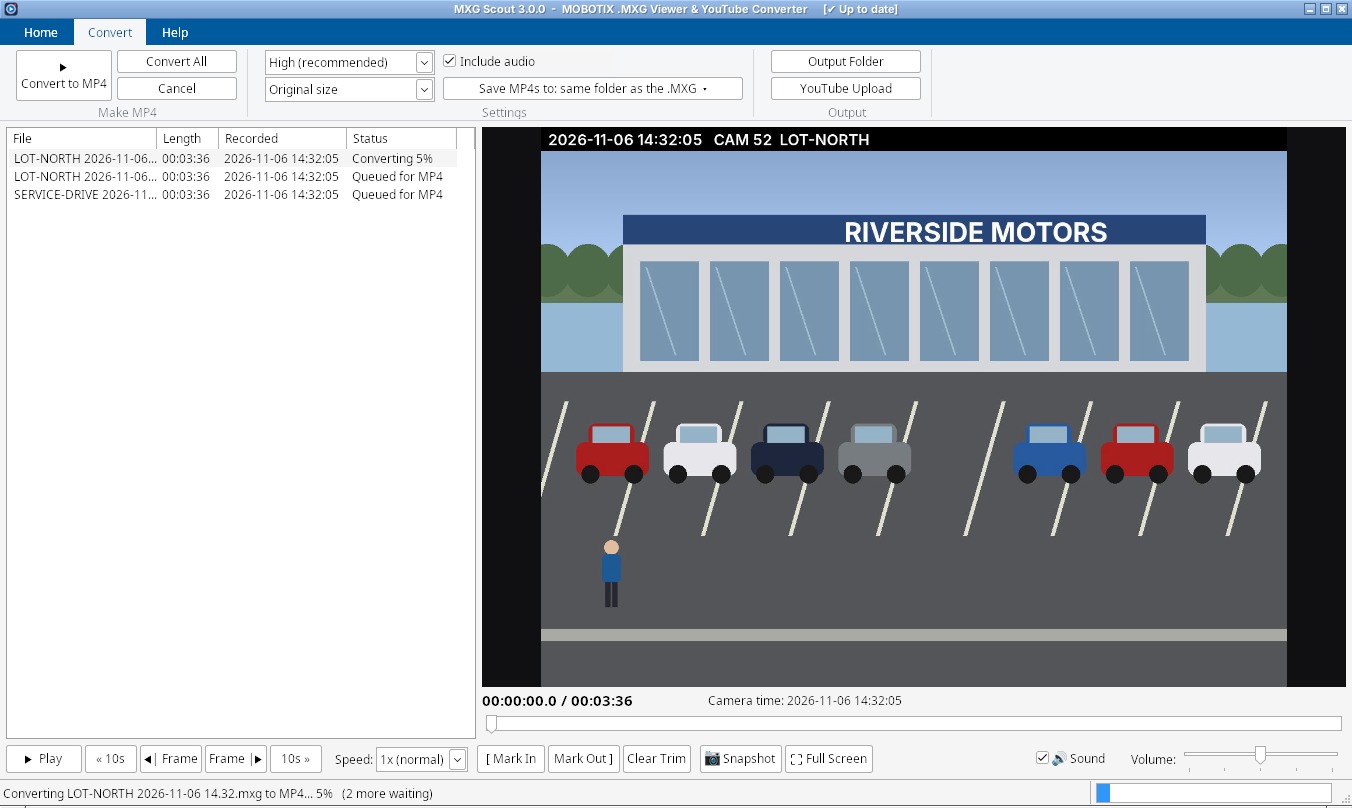
The progress shows in the Status column, the status bar and the progress bar at the bottom right. When a file is done, its Status says ✔ MP4 saved and the status bar shows where. A trimmed clip's MP4 name says which part it is, for example LOT-NORTH 2026-11-06 14.32_0m05s-0m20s.mp4.
Settings are remembered and take effect immediately (for the next file converted).
8. Uploading to YouTube
- Convert the clip (chapter 7).
- Click Output Folder to open the folder with the MP4.
- Click YouTube Upload; YouTube's upload page opens in your browser (sign in if asked).
- Drag the .MP4 file from the folder onto the YouTube page, then fill in the title and choose who can see it (Public, Unlisted or Private).
9. Snapshots
📷 Snapshot saves the picture on screen as a full-resolution .PNG image, in the same place MP4s are saved. Its name includes the clip name and the position, for example LOT-NORTH 2026-11-06 14.32_snapshot_00-00-12.500.png. Use Frame |▶ first to land on exactly the right picture.
10. The Help tab & tutorial
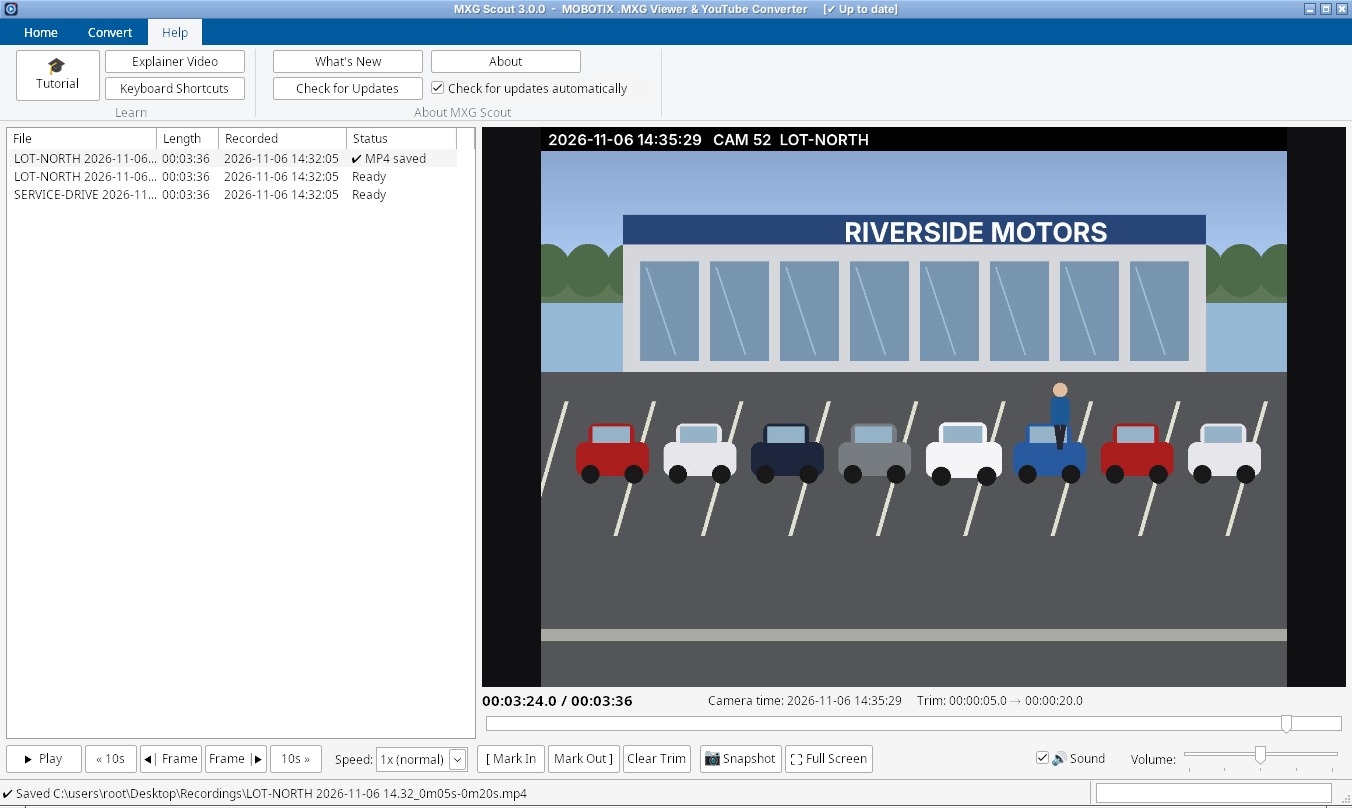
- 🎓 Tutorial: a 14-step guided tour; an orange frame points at each control in turn, with a card explaining it (Back / Next / Close tour).
- Explainer Video: plays the short video on dialsoft.com.
- Keyboard Shortcuts: the list in chapter 11.
- What's New: the release notes for this and earlier versions.
- Check for Updates, and Check for updates automatically (chapter 13).
- About: version, publisher and where the video engine is.
11. Keyboard shortcuts
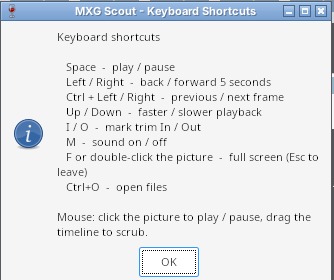
| Key | Does |
|---|---|
| Space | Play / pause |
| ← / → | Back / forward 5 seconds |
| Ctrl+← / → | Previous / next frame |
| ↑ / ↓ | Faster / slower playback |
| I / O | Mark trim In / Out |
| M | Sound on / off |
| F or double-click the picture | Full screen (Esc to leave) |
| Ctrl+O | Open files |
| Delete | Remove the selected files from the list |
12. MXG Scout Mobile (phone)
MXG Scout also runs on your phone, in Chrome on Android (and Safari on iPhone), with nothing to install: open dialsoft.com/mxg. Your videos are played and converted right on the phone; they're never uploaded unless you choose to.
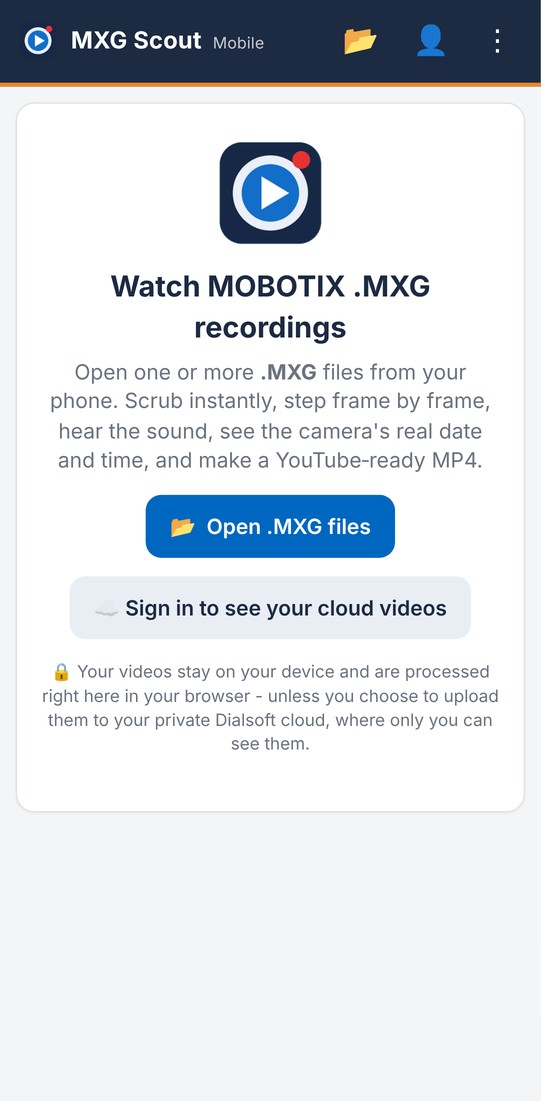
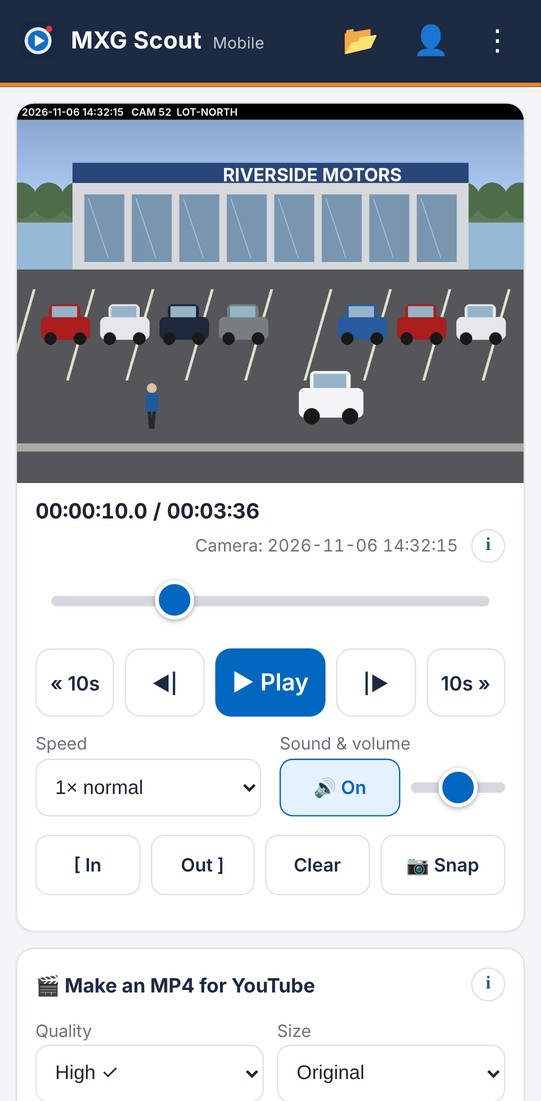
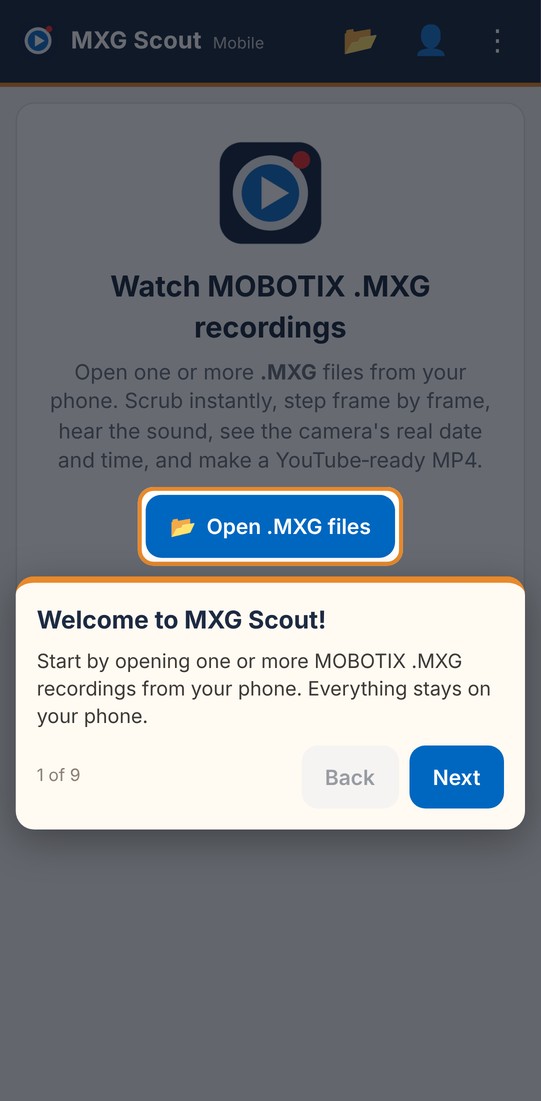
- 📂 (top bar) or Open .MXG files picks recordings from your phone (Downloads, Drive, a USB stick…).
- The same controls as on Windows: timeline, « 10s, frame steps, Play, 10s », speed, sound and volume, [ In / Out ] trim, Clear and 📷 Snap.
- Make an MP4 for YouTube: choose quality, size and sound, tap Make MP4, then Share (straight to the YouTube app, email or a message) or Save.
- My cloud (optional, free): sign in with your email address. You get a code by email (no password). Your projects (files, trims) then show up on your phone and computer, and you can choose to upload videos and MP4s to your private Dialsoft cloud, where only you can see them.
- ⋮ menu: the tour, the explainer video, how-to help, Add to home screen (so it opens like an app), and a link to the Windows version.
13. Updates
- MXG Scout checks for a new version when it starts and every 6 hours (if Check for updates automatically is ticked on the Help tab). The title bar shows ✔ Up to date.
- When there is one, a yellow bar appears at the top with Update now. Nothing is ever installed without you clicking it.
- The download is checked (exact size, SHA-256 checksum and version) before MXG Scout swaps itself and restarts; then it shows what's new.
- Check for Updates on the Help tab checks right away. Installed and portable copies both update themselves.
- The phone version is always the newest: it updates the next time you open it.
14. Where files are kept
| What | Where |
|---|---|
| MP4s and snapshots | Next to each .MXG (default), or the folder you chose under Save MP4s to |
| Settings (quality, size, sound, folder, volume…) | %AppData%\MXG Scout\MXGScout.ini |
| Built-in video engine (unpacked once, about 105 MB) | %LocalAppData%\MXG Scout |
| The program (installed version) | %LocalAppData%\Programs\MXG Scout |
Uninstalling removes the program and the video engine, asks before removing the settings, and never touches your recordings, MP4s or snapshots.
15. Troubleshooting
| Problem | What to do |
|---|---|
| “Windows protected your PC” | Click More info → Run anyway. Only download MXG Scout from dialsoft.com or Dialsoft's GitHub page. |
| The first start is slow | Normal: MXG Scout is unpacking its video engine (once). |
| “This doesn't look like a MOBOTIX .MXG file” | The file isn't an .MXG recording, or it's damaged or still being copied. Copy it again from the camera's storage and retry. |
| No sound | The status bar says no sound recorded when the camera had no microphone on. Otherwise check that 🔊 Sound is ticked, the speed is 1×, and the volume isn't at the left. |
| Length is longer than the action | The length includes the camera's gaps (times it recorded nothing). Playback skips them; trim to the part you need before converting. |
| The MP4 is too big to upload | Choose Standard or Small quality and 720p max, or trim to the part you need. |
| A file stays “Scanning” | Very large files take a moment. If it never finishes, the file may be on a slow network drive: copy it to the PC first. |
| Antivirus warning | New programs are sometimes flagged. Download only from dialsoft.com or Dialsoft's GitHub page, and report it to your antivirus vendor as a false positive. |
| The phone version won't open a file | Use Chrome (Android) or Safari (iPhone), and pick the file with 📂. Very large files need free space on the phone to make an MP4. |
16. Glossary
| Term | Meaning |
|---|---|
| .MXG | MOBOTIX's recording file. Inside are MxPEG pictures, the camera's timestamps and the microphone sound. |
| MxPEG | MOBOTIX's video format: JPEG pictures where only the parts that changed are stored, which keeps files small. |
| MP4 (H.264 + AAC) | The common video file every phone, computer and YouTube plays. H.264 is the picture, AAC the sound. |
| Frame | One picture of the video. |
| Scrubbing | Dragging the timeline to move quickly through a video while watching the picture. |
| Trim | The part of a clip you keep, between Mark In and Mark Out. |
| Gap | A stretch with no pictures, when the camera wasn't recording. |
MXG Scout is published by Dialsoft LLC, Wharton NJ. Developed with Claude by Anthropic. MOBOTIX and MxPEG are trademarks of MOBOTIX AG; MXG Scout is not made by or affiliated with MOBOTIX. YouTube is a trademark of Google LLC. Video engine: FFmpeg (GPL).