
Windows 10 & 11 · PDF reader · free
PDF Scout
A small, fast PDF reader that also fixes PDFs. Read, search, copy and print. Then move pages, delete pages, and combine PDFs by dragging pages from one window into another.
The time saver
Combine PDFs by dragging pages across.
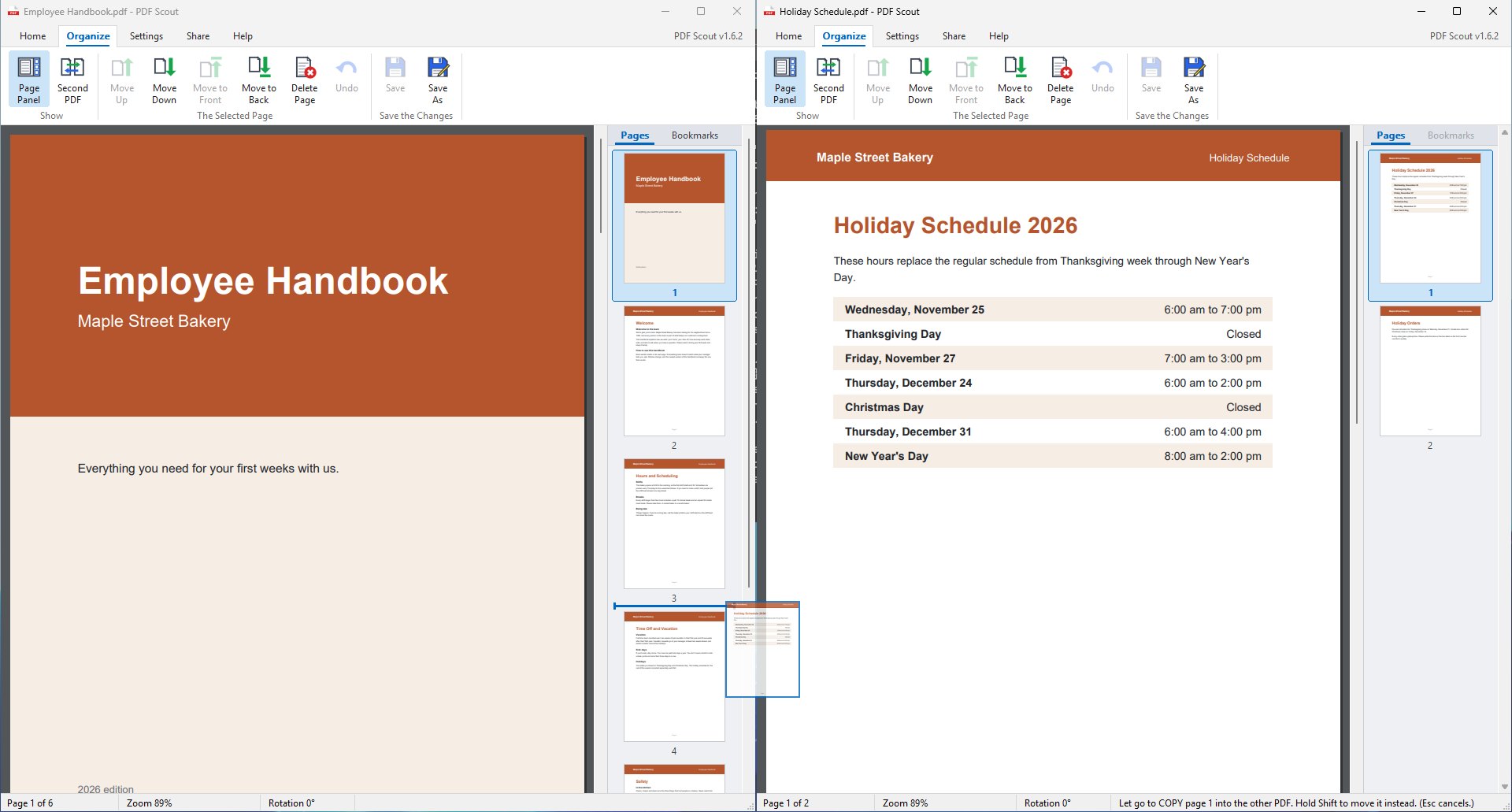
Open two PDFs side by side and drag pages from one into the other. No menus, no wizard, no upload to a website.
- Click Second PDF and pick the other file. The two windows open side by side.
- Drag a page from one page panel into the other. The page travels with your mouse, and a blue bar shows where it will land.
- Click Save As to keep the result as a new PDF. Both originals are left exactly as they were.
A plain drag copies the page. Hold Shift to move it instead. It works in both directions.
What it does
Everything most people need from a PDF program.
Combine PDFs
Drag pages between two open PDFs. Copy them, or hold Shift to move them. Save As makes a new PDF and leaves the originals alone.
Move pages
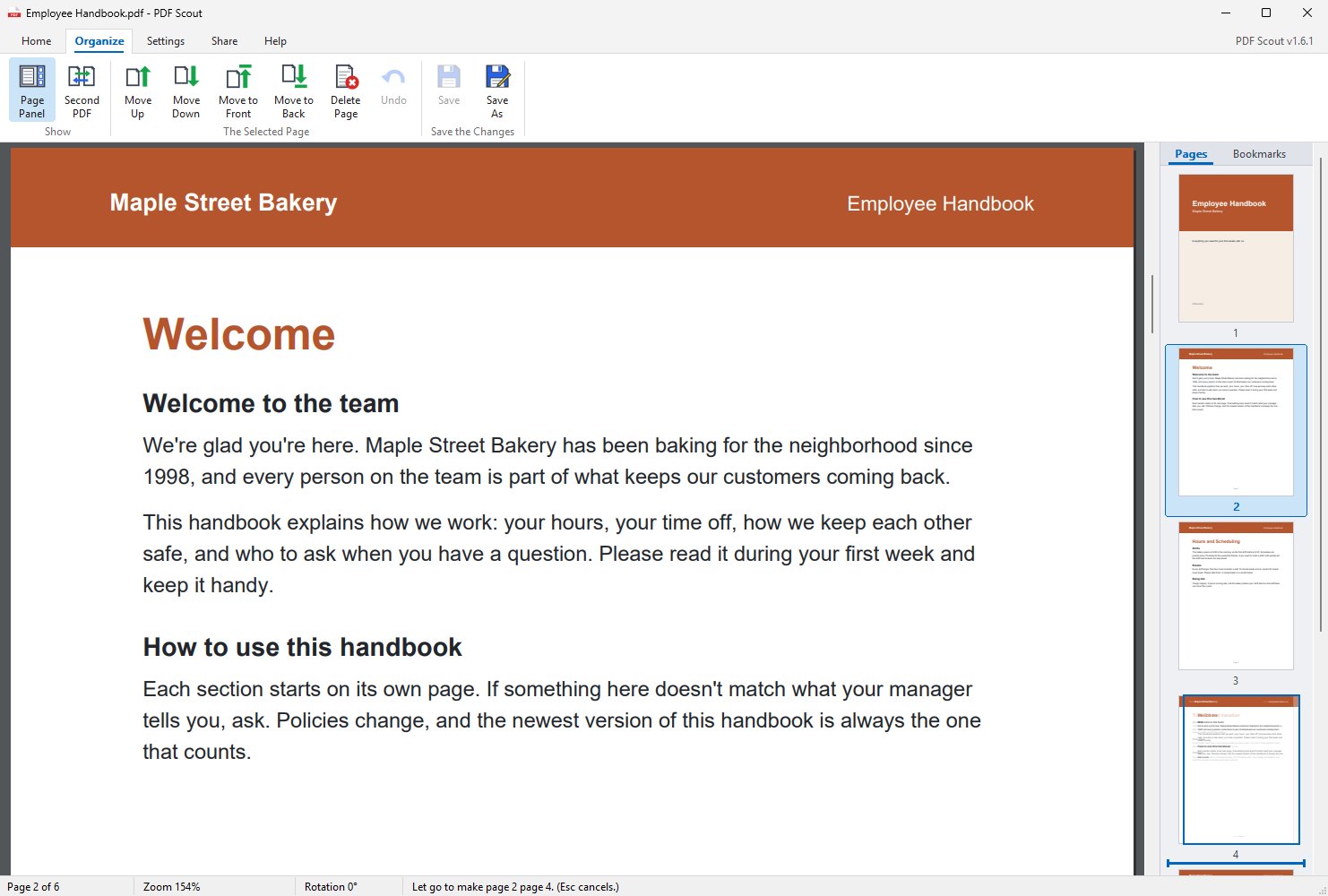
Drag a page up or down in the page panel, or use the Move buttons. A blue bar shows where it will land.
Delete pages
Select a page and press Del. Once saved, the page is really gone from the file, not just hidden.
Find
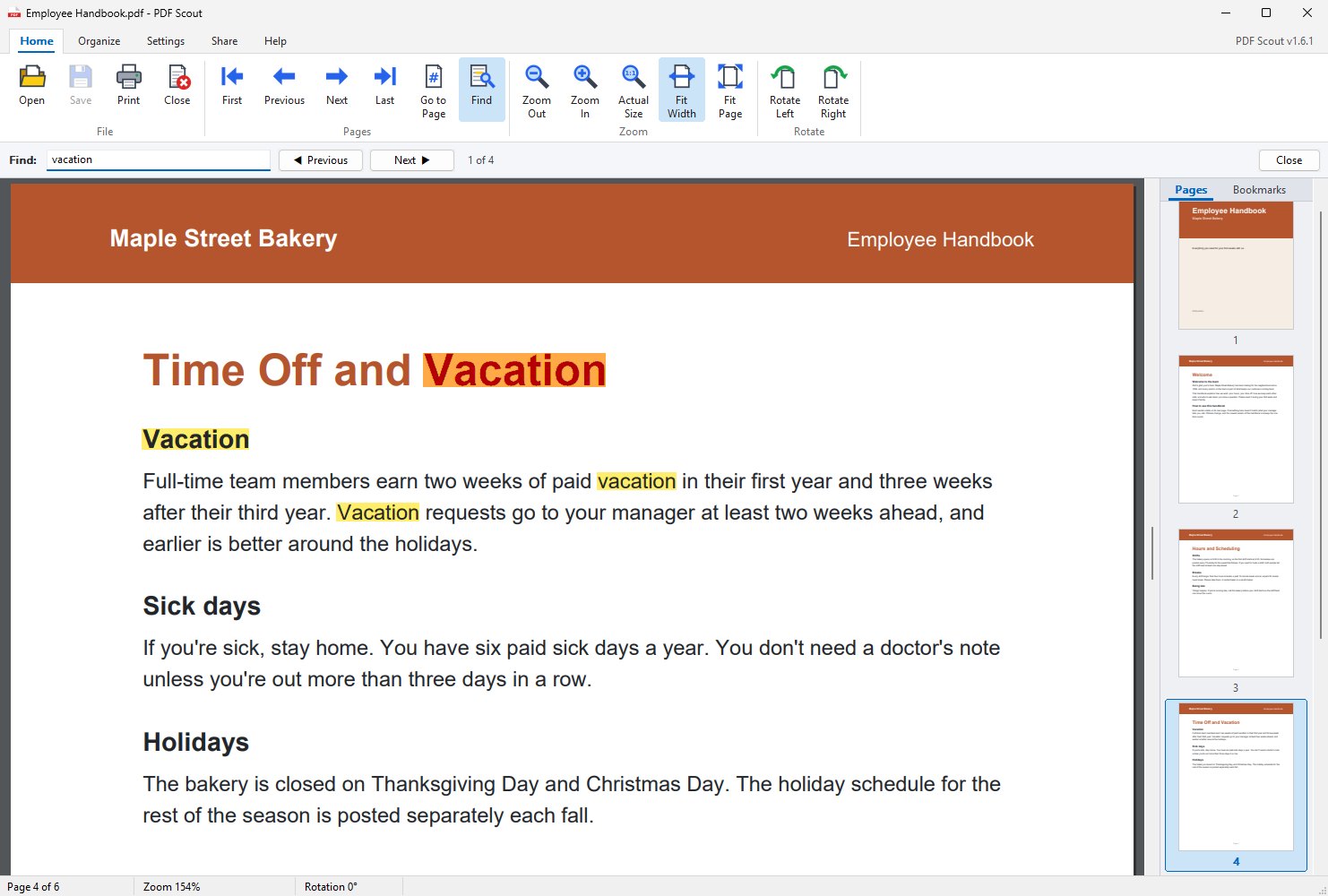
Ctrl+F highlights every match in the document and steps from one to the next.
Select and copy text
Drag across text, double-click a word or press Ctrl+A, then Ctrl+C.
Bookmarks and links
The PDF's own table of contents sits in the side panel. Links work, and web links show the real address before they open.
Every page, the current page or a range, fitted to the paper, with sideways pages turned to match.
Undo, and careful saving
Ctrl+Z takes back any page change. Save writes a new file, reads it back to check every page, and only then replaces the old one.
Send it
Email the PDF straight from PDF Scout, or send it by text, WhatsApp, Messenger or Teams.
Explains itself
Rest the mouse on any button for a plain-English description. Settings take effect the moment you change them.
Its own PDF engine
PDFium, the engine inside Google Chrome, is built in, so PDFs look right and text can be found and copied.
Keeps itself current
Checks for new versions, shows what's new, verifies each download and updates itself, with the same PDF open afterward.
Find it, copy it.
Press Ctrl+F and type. Every match lights up, and Enter steps through them. Drag across text to select it and Ctrl+C to copy.
Put the pages in order.
The page panel shows a small picture of every page. Drag one up or down to move it, press Del to delete it, and Ctrl+Z if you change your mind. Nothing changes in the file until you click Save.
Get started
Installer or portable: your choice.
- Windows 10 or 11 (64-bit).
- Installer (PDFScout-Setup.exe): Start menu shortcut, uninstall from Settings › Apps. It asks whether to install just for you or for everyone who uses the PC.
- Portable (PDFScout.exe): one file, nothing installed. Keep it in a folder you can write to so it can update itself.
- Both are the same program, and both keep themselves up to date.
- Can be your default PDF app: Settings tab › Set as default PDF app.
- For IT: the installer runs silently with
/S, and/ALLUSERSfor every account. See the manual.
Seeing “Windows protected your PC”? New programs can trigger SmartScreen until they're widely downloaded: click More info → Run anyway. Only download PDF Scout from dialsoft.com or Dialsoft's GitHub page. PDF Scout includes the open-source PDFium library; its license notices are on the download page.