
PDF Scout user manual
PDF Scout is a small, fast PDF reader for Windows from Dialsoft. It opens PDFs, finds and copies text, prints, and lets you move, delete and combine pages. This manual covers version 1.6.2.
1. Getting PDF Scout
PDF Scout runs on 64-bit Windows 10 and Windows 11. It comes two ways, and both are the same program. Download either one from the PDF Scout download page.
| Download | Choose it when |
|---|---|
| PDFScout-Setup.exe (installer) | You want PDF Scout in the Start menu and in Windows' list of installed apps, with an uninstaller. |
| PDFScout.exe (portable) | You want one file you can keep on your Desktop, in a tools folder, or on a USB stick. Nothing is installed. |
The installer asks one question: who PDF Scout is for.
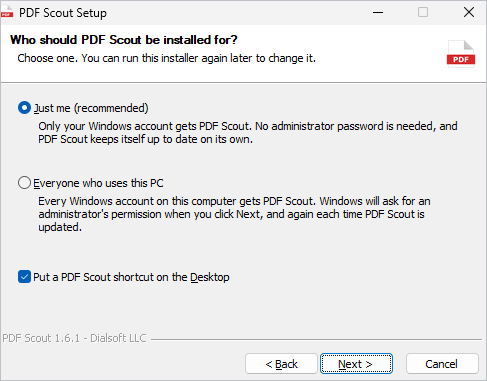
- Just me installs PDF Scout for your Windows account only. No administrator password is needed.
- Everyone who uses this PC installs it for every account on the computer. Windows asks for an administrator's permission when you click Next, and again each time PDF Scout updates.
The portable copy has no setup. Put
PDFScout.exe somewhere like your Desktop or
C:\Tools and double-click it. Don't put it in Program
Files, because it couldn't update itself there.
"Windows protected your PC." Windows may show a blue box with this message the first time you run either download. Click More info, then Run anyway.
Making PDF Scout open your PDFs. Open PDF Scout, go to the Settings tab and click Set as default PDF app. Windows makes you confirm the choice yourself, so PDF Scout opens the right Windows screen and tells you what to click.
Removing PDF Scout. For an installed copy, use
Windows Settings > Apps > Installed apps > PDF Scout >
Uninstall. For the portable copy, delete PDFScout.exe.
2. The window at a glance
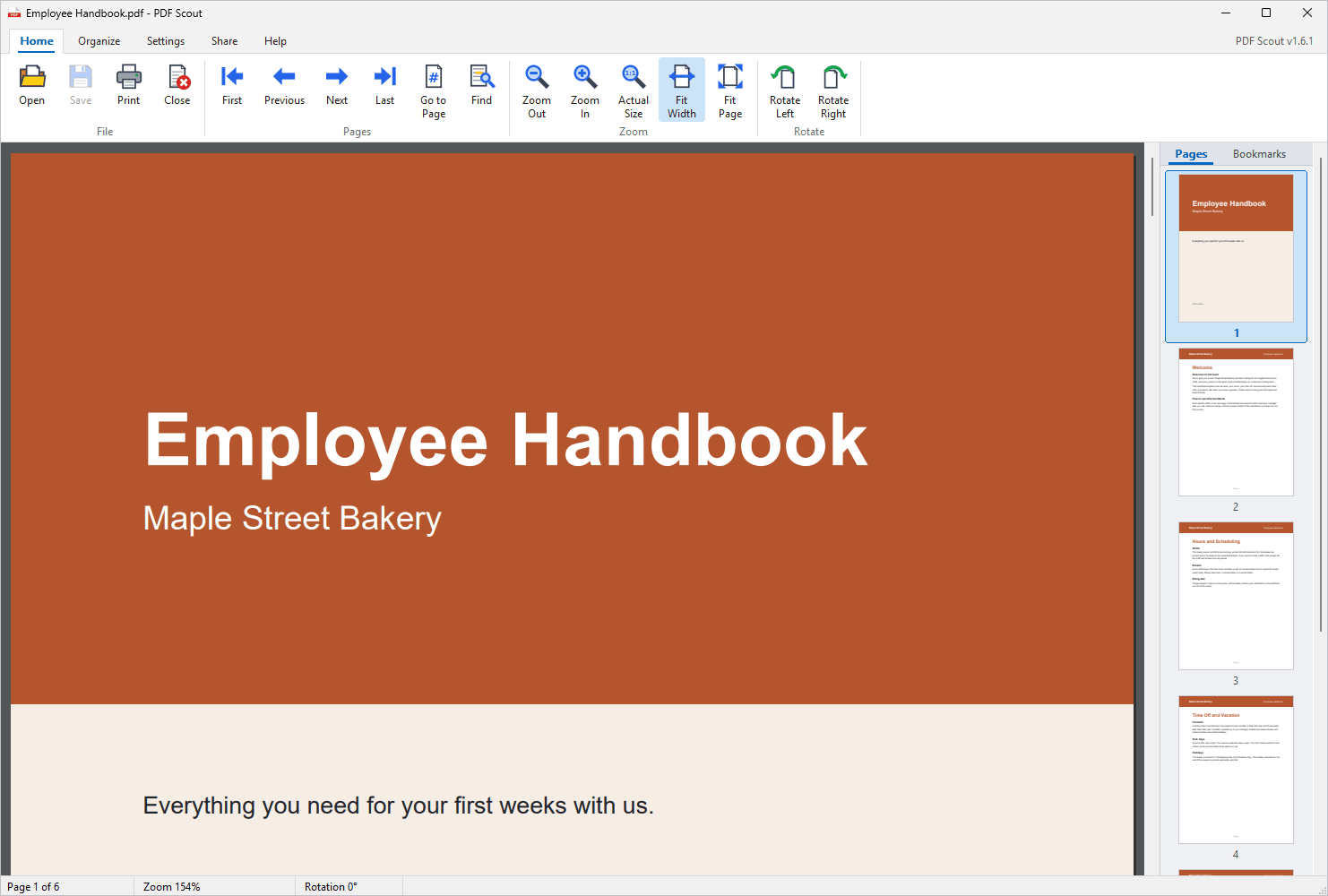
- The ribbon across the top holds the buttons, in five tabs: Home, Organize, Settings, Share and Help.
- The page you're reading is in the middle.
- The side panel on the right shows a small picture of every page. Click one to jump to that page. Press F4 to hide or show the panel.
- The status bar along the bottom shows the page number, the zoom, and a short message about what just happened.
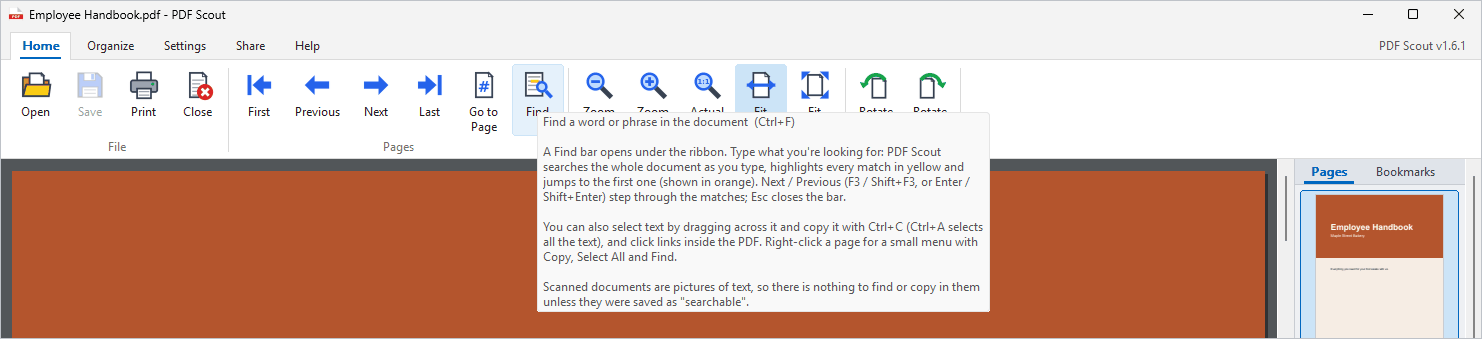
Every button explains itself. Rest the mouse on any button for a moment and a description appears, in plain English, with the keyboard shortcut if there is one.
3. Opening and reading a PDF
To open a PDF, do any of these:
- Click Open on the Home tab, or press Ctrl+O.
- Drag a PDF from File Explorer onto the PDF Scout window.
- Double-click a PDF, once PDF Scout is your default PDF app (see section 1).
If the PDF has a password, PDF Scout asks for it.
Moving around
- Scroll with the mouse wheel, the scroll bar, Page Up and Page Down, the space bar, or the arrow keys.
- Previous and Next (or the Left and Right arrow keys) jump a whole page. First and Last (or Home and End) go to the ends.
- Go to Page (Ctrl+G) jumps to a page number.
- Click a page in the side panel to jump straight to it.
- When the page is bigger than the window, click an empty part of it and drag to move it around.
Zoom
- Zoom In and Zoom Out, or hold Ctrl and roll the mouse wheel.
- Fit Width fills the window from side to side. Fit Page shows one whole page. Actual Size shows the real paper size.
Rotate. Rotate Left and Rotate Right turn every page a quarter turn, which is handy for sideways scans. This only changes how the PDF is shown and printed in PDF Scout. The file itself is not changed.
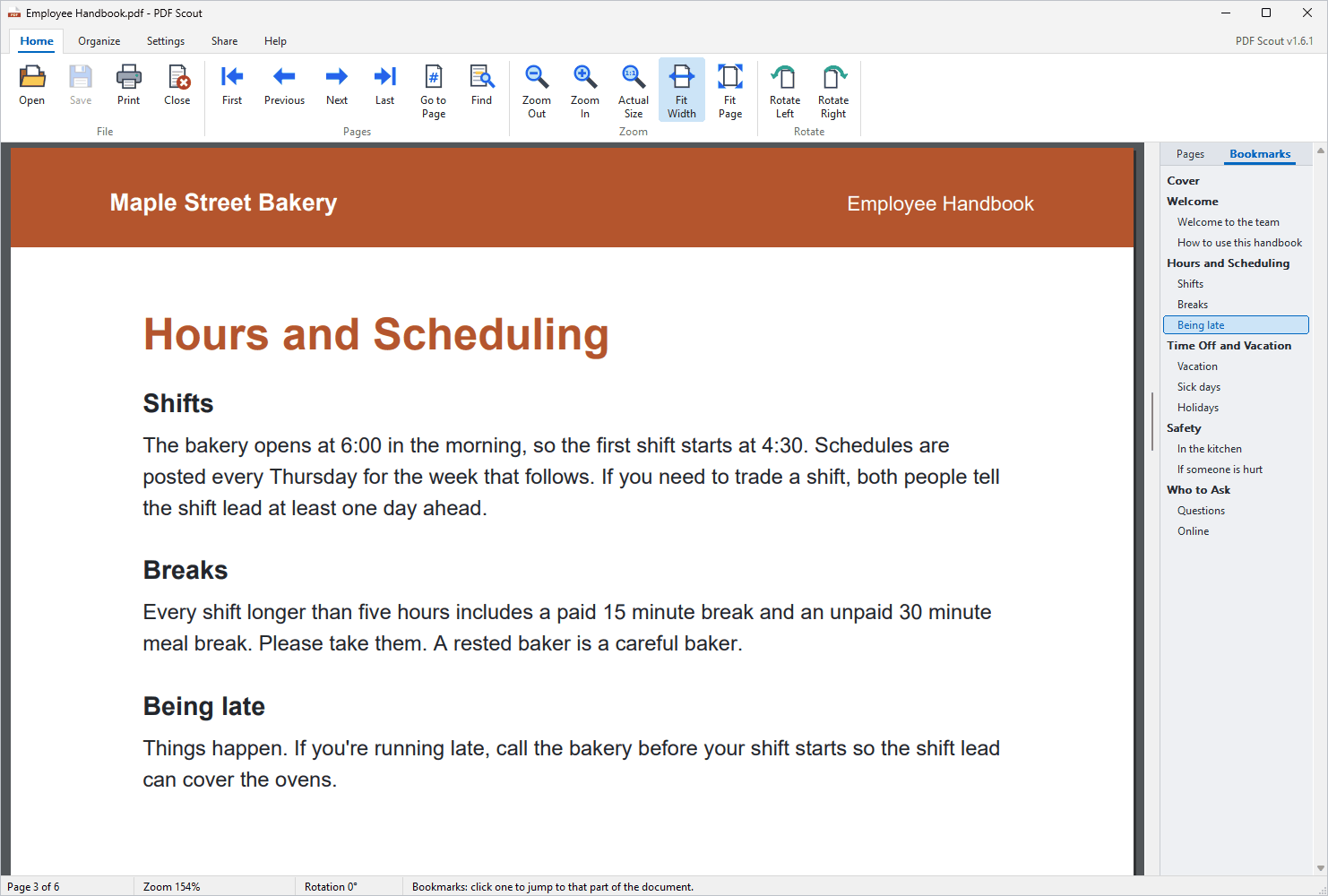
Bookmarks. Some PDFs have their own table of contents. Click Bookmarks at the top of the side panel, then click a heading to jump to that part of the document. The part you're reading is highlighted. If the word Bookmarks is gray, this PDF doesn't have any.
Links. Links inside a PDF work. Click one to jump to the page it points to. A link to a website shows you the real address and asks before it opens your browser.
4. Finding text
- Click Find on the Home tab, or press Ctrl+F. A Find bar opens under the ribbon.
- Type a word or phrase. PDF Scout searches the whole document as you type.
- Every match is highlighted in yellow. The one you're on is orange, and the bar shows a count such as "1 of 4".
- Press Enter or F3 for the next match, Shift+Enter or Shift+F3 for the previous one.
- Press Esc to close the Find bar.
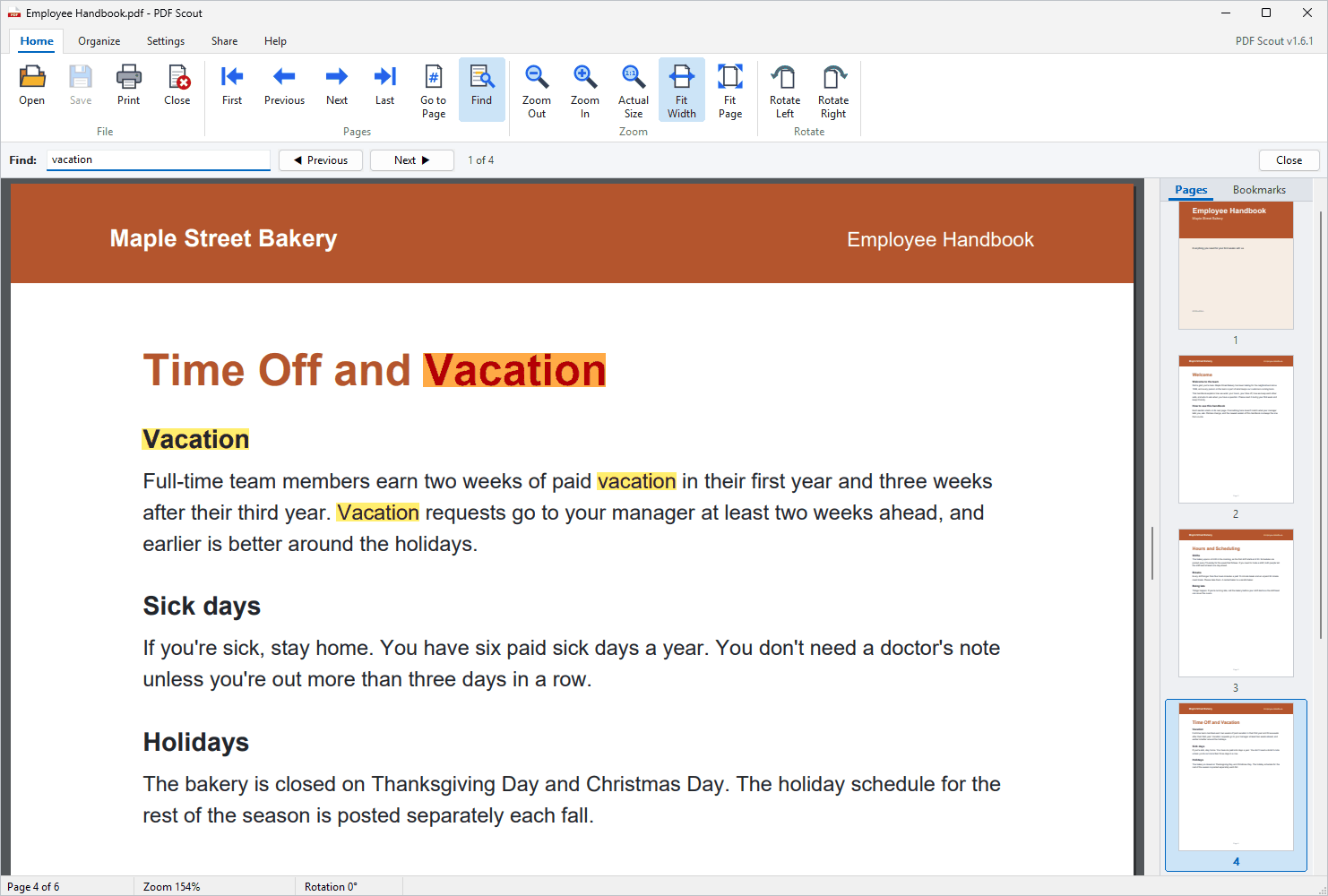
Capital and small letters are treated the same.
Find finds nothing in a scanned document? A scan is a picture of text, so there are no letters to search unless it was saved as "searchable" by the scanner or scanning program.
5. Selecting and copying text
- Drag across text to select it. It turns blue.
- Double-click a word to select just that word.
- Shift+click extends the selection to where you clicked.
- Ctrl+A selects all the text in the document.
- Ctrl+C copies what's selected, ready to paste into an email or document.
Right-click a page for a small menu with Copy, Select All and Find.
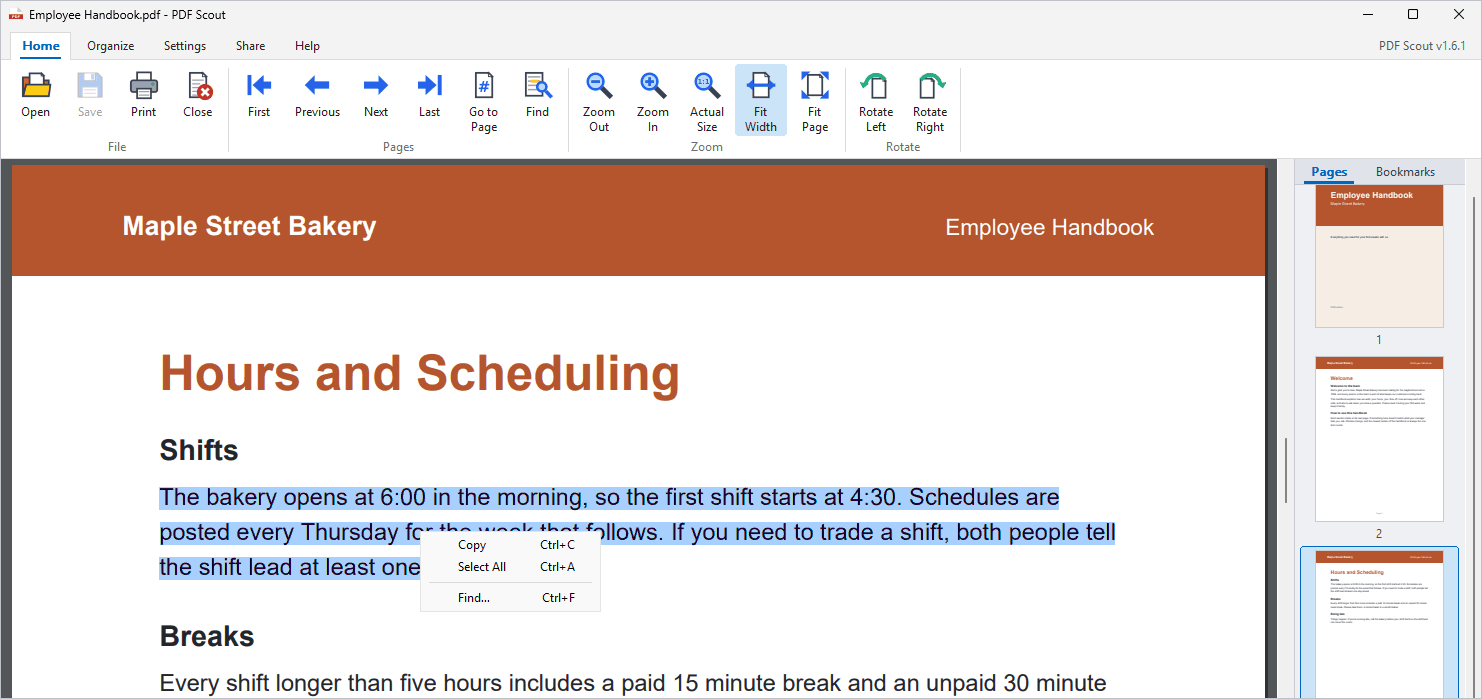
To unselect, click an empty part of the page or press Esc.
6. Printing
- Click Print on the Home tab, or press Ctrl+P.
- Pick your printer.
- Choose All, Current Page, or
Pages with a range such as
1-3,7. - Click Print.
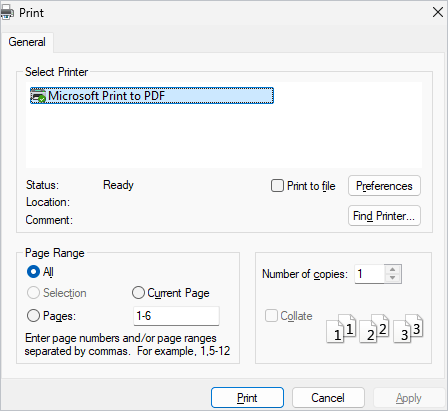
The Settings tab controls how pages fit the paper, the print quality, and whether sideways pages are turned to match the paper. See section 11.
7. Moving and deleting pages
Page changes are made on the Organize tab and in the side panel. Nothing changes in the PDF file until you click Save (section 9), so you can experiment freely.

Moving a page
By dragging: in the side panel, press on a page's picture and drag it up or down. A blue bar shows where it will land. Let go to drop it there.
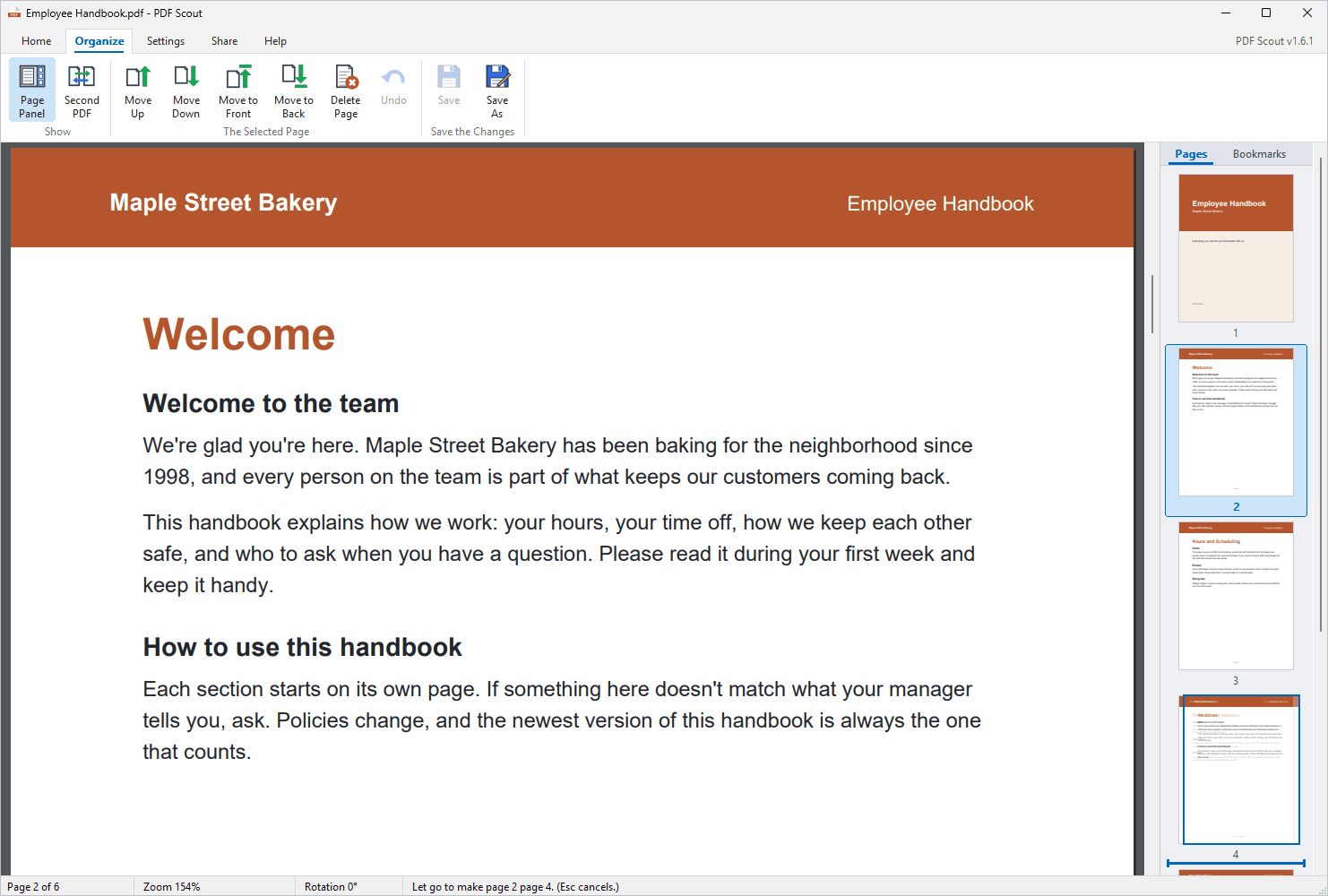
- Drag near the top or bottom edge of the panel and the list scrolls by itself.
- Press Esc while dragging to cancel.
With the buttons: click a page in the side panel to select it, then click Move Up, Move Down, Move to Front or Move to Back on the Organize tab.
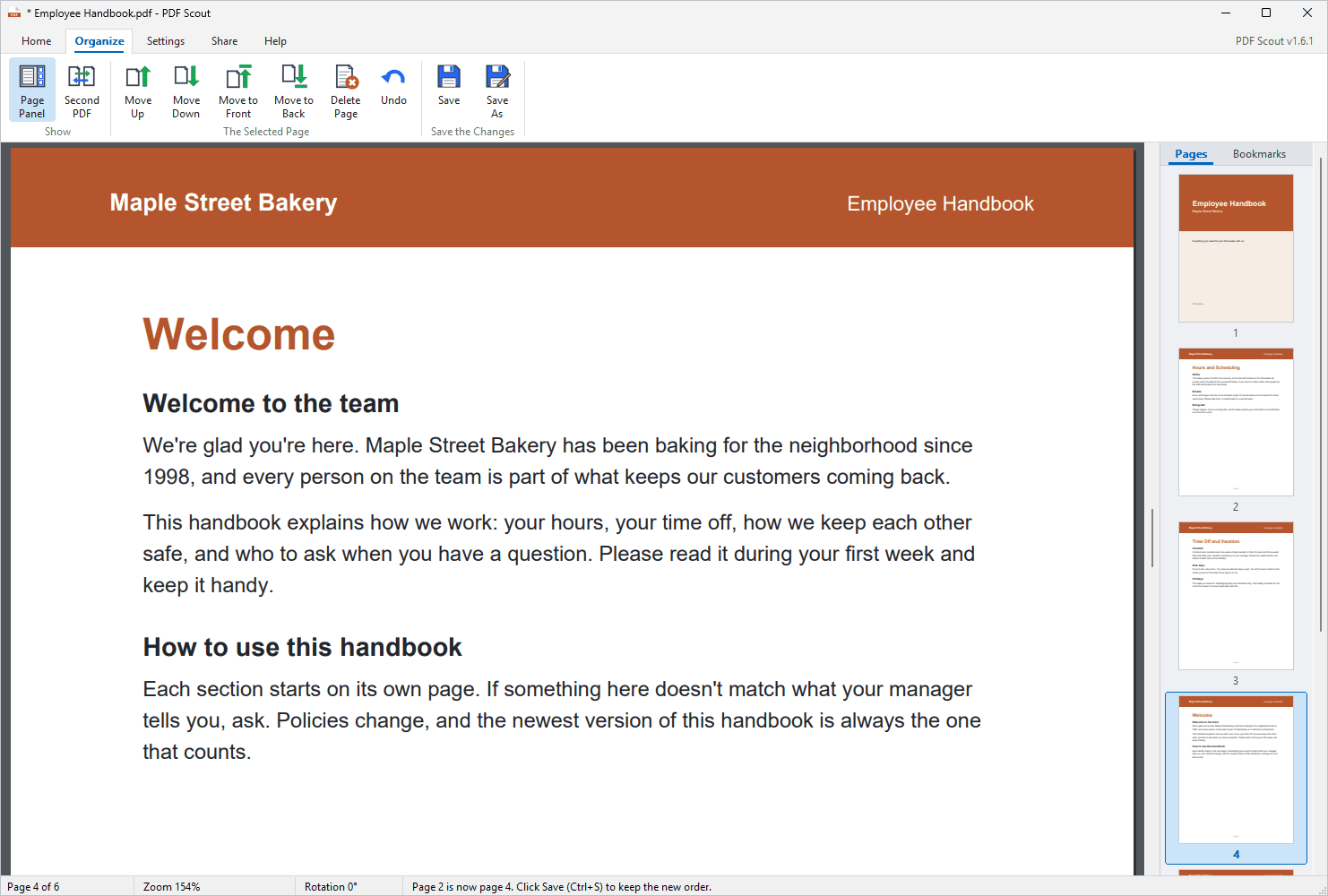
After a move, the status bar says what happened and a star
(*) appears in front of the file name in the title bar. The
star means there are changes you haven't saved yet.
Deleting a page
Select the page in the side panel, then do any of these:
- Press Del.
- Click Delete Page on the Organize tab.
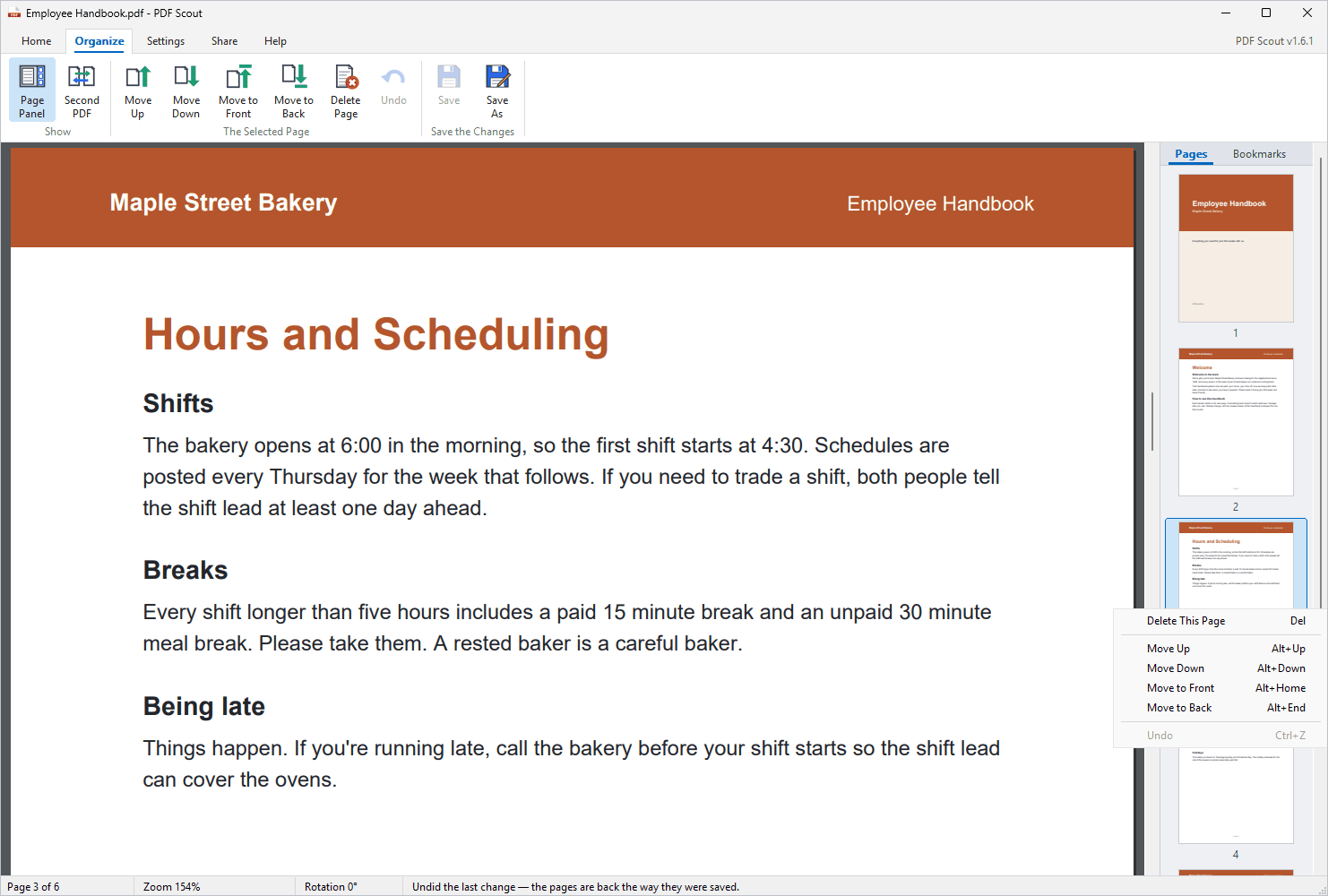
- Right-click the page in the side panel and choose Delete This Page.
A PDF always keeps at least one page, so the last page can't be deleted.
Undo
Undo on the Organize tab, or Ctrl+Z, takes back the last change: a move, a deleted page, or a page you brought in from another PDF. Click it again to take back the change before that, all the way to how the PDF was when you opened or last saved it.
Undo only works on changes that haven't been saved.
8. Taking pages from one PDF into another
To combine PDFs, open each one in its own PDF Scout window and drag pages between them.
Step 1: open the second PDF
On the Organize tab, click Second PDF and pick the other file. PDF Scout moves the window you have to the left half of the screen and opens the other PDF in the right half.
Any two PDF Scout windows work, however you opened them. Second PDF just saves you arranging them.
Step 2: drag a page across
Press on a page in one window's side panel, drag it over the other window's side panel, and let go. A small picture of the page travels with the mouse, and a blue bar in the other window shows where the page will land.
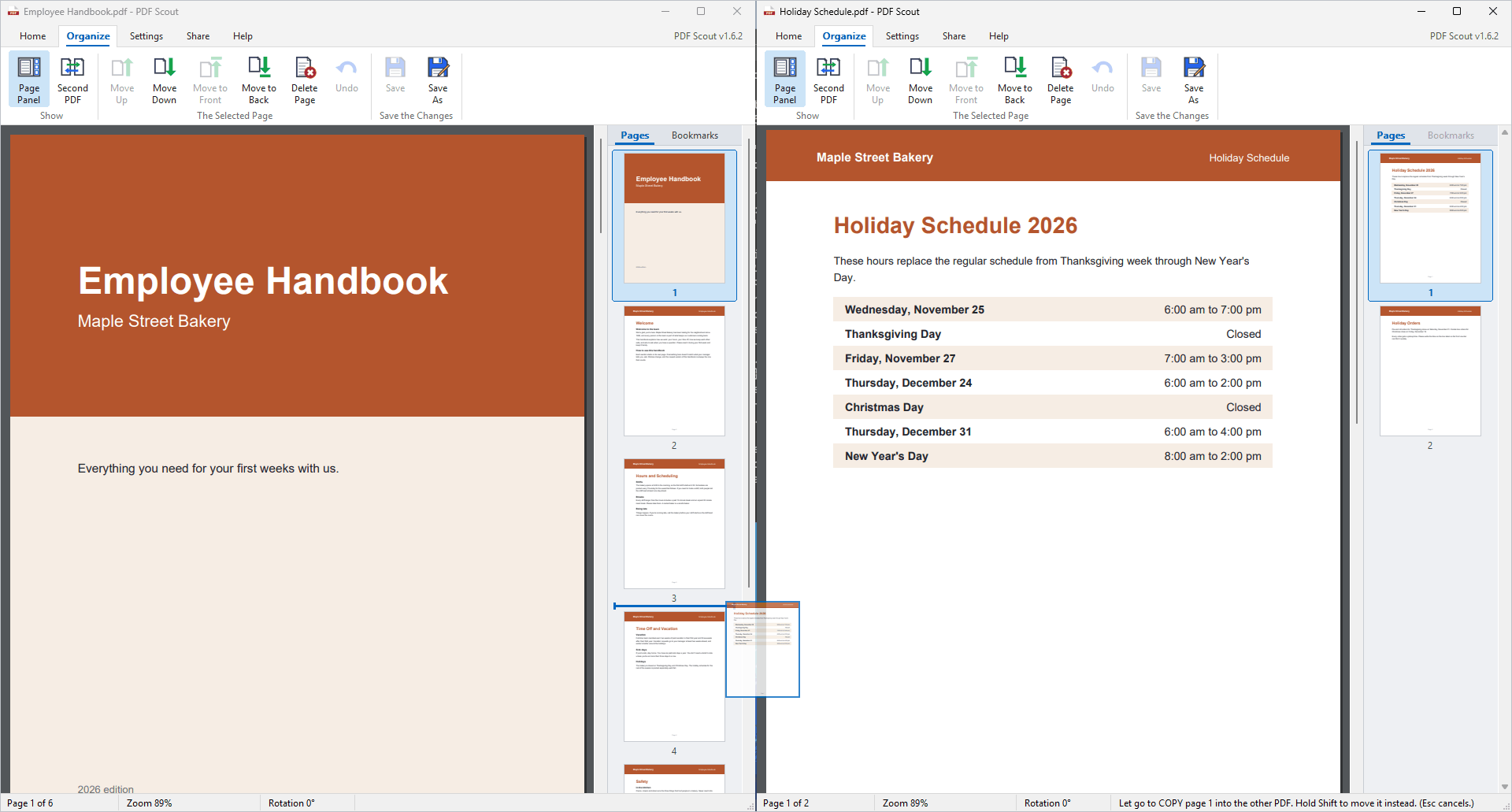
- A plain drag copies the page. It stays in the PDF it came from.
- Hold Shift while you let go to move it instead. It is added to the other PDF and deleted from the one it came from.
- It works in both directions.
- If you let go over the other window's page area instead of its side panel, the page is added at the end.
Step 3: save, or Save As to make a new PDF
You have two choices in the window that received the page:
- Save As writes the combined result to a new PDF with a name you choose. Both original files are left exactly as they were. This is the way to build a new document out of pages from others.
- Save changes the PDF you have open.
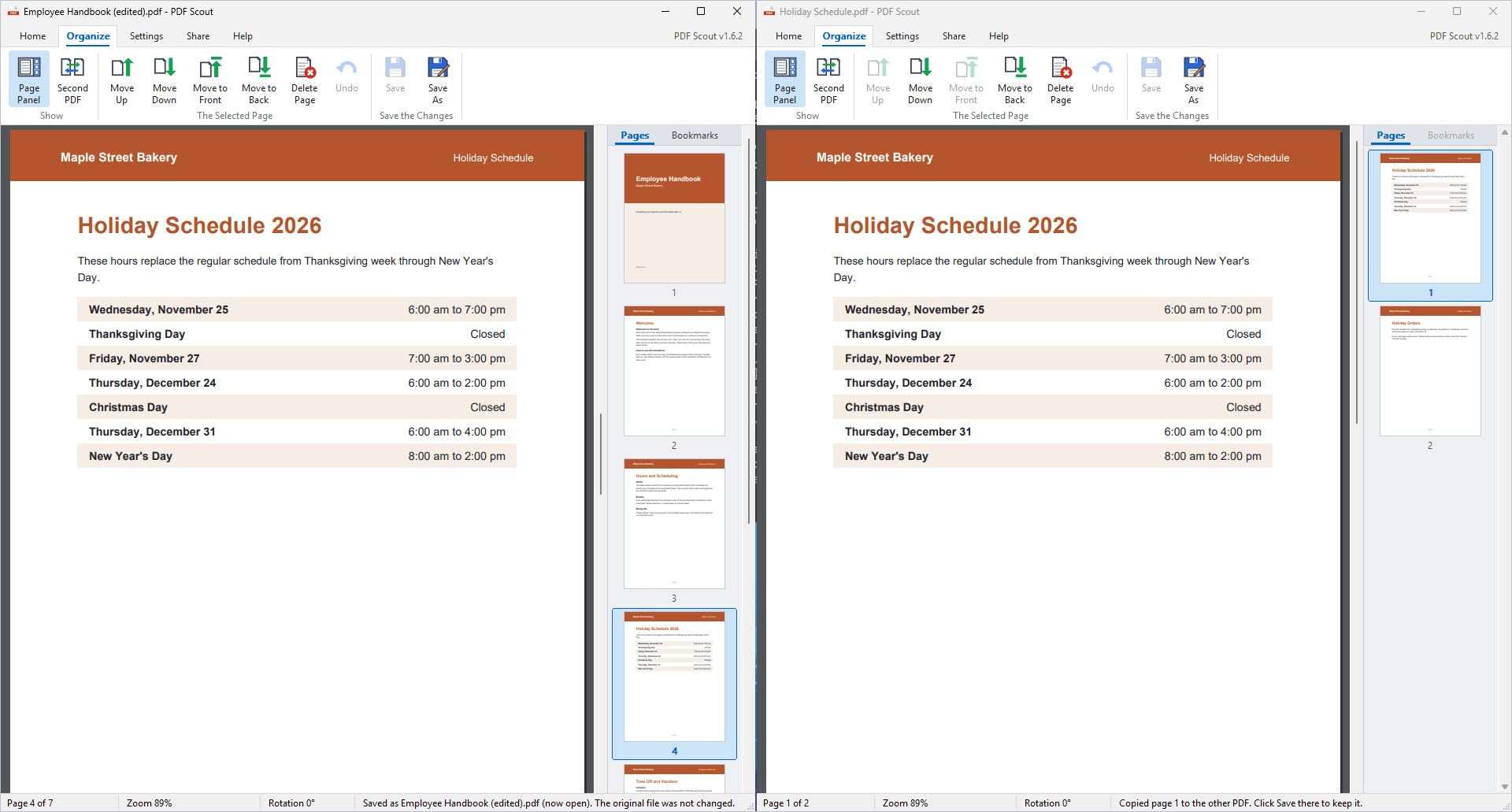
After a Shift move, the window the page left has changes too, so save there as well. Until you do, nothing in that file has changed.
What comes across. A page brought in from another PDF keeps its pictures, text, links and notes. It does not bring that PDF's bookmarks or fillable-form behavior. The PDF receiving the page keeps its own bookmarks.
9. Saving your changes
- Save (Ctrl+S) writes your page changes into the PDF file you have open.
- Save As (Ctrl+Shift+S) writes them to a new file and leaves the original exactly as it was. PDF Scout then switches to the new file.
Saving is careful. PDF Scout writes the new file next to the old one, reads it back to check every page, and only then replaces the old file. If anything goes wrong along the way, your original is left untouched and your changes stay on screen so you can try Save As.
Deleted pages are really gone. Once you save, a deleted page is removed from the file, not just hidden. If you might want the original again, use Save As.
Closing with unsaved changes. If you close the PDF or PDF Scout while the star is showing, PDF Scout asks whether to save first.
Password-protected PDFs can be read and printed, but their pages can't be changed and they can't be used as the source of pages for another PDF.
10. Sending a PDF to someone
The Share tab sends the PDF you're reading, or a short note about PDF Scout, to another person.

- Click Send (or go straight to Email, Text Message, WhatsApp, Messenger or Teams).
- Pick a saved person or type a new one.
- Choose what to send, check the message, and click Send.
How each one works:
- Email: PDF Scout sends the email itself through your mail server, with the PDF attached. Set up the server once with Email Server on the Share tab.
- Text Message: PDF Scout opens Phone Link, types the number and message, and presses Send. Keep your hands off the mouse and keyboard for a few seconds while it works. Phone Link must already be set up with your phone. Text messages can't carry PDF files.
- WhatsApp, Messenger, Teams: PDF Scout opens a chat with the person. If you're sending the PDF, press Ctrl+V in the chat to paste it.
Copy Link copies the PDF Scout download link. Show in Folder opens File Explorer with the PDF selected.
11. Settings
Every setting takes effect the moment you change it. There is nothing to restart.

| Setting | What it does |
|---|---|
| Open PDFs at | How a newly opened PDF is zoomed: fit width, fit page, or actual size. |
| Reopen the last PDF at startup | PDF Scout starts with the PDF you had open last time, at the same page. |
| Set as default PDF app | Makes PDF Scout open PDFs when you double-click them. Windows asks you to confirm. |
| Background | The color behind the pages. |
| Page shadows | A soft shadow under each page. |
| Print size | Fit each page to the paper, or print at actual size. |
| Print quality | Higher quality is sharper and takes longer to print. |
| Turn pages to match the paper | Sideways pages are rotated so they fill the sheet. |
| Check for updates automatically | PDF Scout looks for a new version when it starts and every 6 hours. |
| Check now | Looks for a new version right away. |
12. Updates
PDF Scout checks for a new version when it starts and every 6 hours. When one is available, a yellow bar appears under the ribbon.
- Update now downloads the new version, checks it, and restarts PDF Scout with the same PDF open at the same page.
- What's new shows what changed.
- Later hides the bar for now.
A copy installed for everyone on the PC asks for an administrator's permission each time it updates. If your IT department switched automatic updates off when it installed PDF Scout, they look after updates for you.
Help tab > Release Notes lists what changed in every version.
13. Keyboard shortcuts
| Keys | What they do |
|---|---|
| Ctrl+O | Open a PDF |
| Ctrl+P | |
| Ctrl+W | Close the PDF |
| Ctrl+S | Save page changes |
| Ctrl+Shift+S | Save As |
| Ctrl+F | Find |
| F3 / Shift+F3 | Next / previous match |
| Ctrl+C | Copy the selected text |
| Ctrl+A | Select all the text |
| Ctrl+G | Go to a page number |
| Home / End | First / last page |
| Left / Right arrow | Previous / next page |
| Ctrl+Plus / Ctrl+Minus | Zoom in / out |
| Ctrl+mouse wheel | Zoom |
| Ctrl+0 | Fit page |
| Ctrl+1 | Actual size |
| Ctrl+2 | Fit width |
| Ctrl+L / Ctrl+R | Rotate left / right |
| F4 | Show or hide the side panel |
| Alt+Up / Alt+Down | Move the selected page earlier / later |
| Alt+Home / Alt+End | Move the selected page to the front / back |
| Del | Delete the selected page |
| Ctrl+Z | Undo the last page change |
| F1 | The built-in How to Use help |
14. If something isn't working
Find finds nothing, and text can't be selected. The PDF is probably a scan, which is a picture of text. See section 4.
"The pages of this PDF can't be rearranged." The PDF is password protected, or is built in a way PDF Scout won't risk changing. You can still read, print and send it.
Save says it couldn't replace the file. The file may be read-only, in a protected folder, or open in another program. Your changes are still on screen. Use Save As and pick another name or folder, such as Documents.
Find, copy, links and bookmarks are all missing. PDF Scout has a built-in PDF engine that it unpacks the first time it runs. If your antivirus blocks that, PDF Scout falls back to the engine built into Windows, which shows and prints pages but can't do those things. Help tab > Diagnostic Report says which engine is in use.
Something else. Click Diagnostic
Report on the Help tab right after the problem happens. It
writes a text file called PDF Scout diagnostics.txt to your
Desktop and copies the same text to the clipboard, so you can paste it
into an email to whoever supports you.

15. For IT: installing without clicking
PDFScout-Setup.exe accepts these switches.
/S must be a capital S.
| Command | What it does |
|---|---|
PDFScout-Setup.exe /S |
Installs silently for the account running it |
PDFScout-Setup.exe /S /ALLUSERS |
Installs silently for everyone (run it as administrator) |
add /DESKTOP |
Also creates a Desktop shortcut |
add /NOUPDATES |
Switches off automatic update checks, for PCs you update yourself |
add /D=C:\Folder |
Installs into that folder (must be last on the line, without quotes) |
"C:\Program Files\PDF Scout\Uninstall.exe" /S |
Uninstalls silently |
The installer returns 0 when it succeeds.
To update a PC where automatic updates are off, run the new
PDFScout-Setup.exe with the same switches over the existing
copy.
© 2026 Dialsoft LLC. PDF Scout includes the PDFium library; its license notices are in THIRD-PARTY-NOTICES.txt.