
Dialsoft › Port Scout › Manual
Port Scout user manual
Port Scout finds the smart appliances on your home or office network (fridges, washers and dryers, ovens, dishwashers, thermostats, robot vacuums, smart plugs, water heaters and more) and shows you what each one exposes to the network. You don't need to know anything about networks to use it: every button and box has a tooltip, so hover the mouse over anything for an explanation.
1. What Port Scout does
Every appliance with Wi-Fi is a small computer. Like any computer on a network, it listens on numbered “doors” called ports, waiting for other devices to talk to it. Port Scout does two things:
- Finds your appliances. It lists every device on your network and guesses which ones are appliances, putting the likely ones at the top.
- Port-scans an appliance. It checks every door on the appliance you pick, asks each open one what it is, looks for hidden web pages, and lists the commands (API calls) the appliance says it accepts.
People use it to find an appliance whose address they don't know, to check an appliance isn't leaving something risky open (like a remote login), or to discover what an older appliance can still do after its maker stopped supporting it.
2. Getting started
- Download
PortScout.exefrom dialsoft.com/port-scout. If your browser asks, choose Keep. - Put it somewhere you can find it, such as your Desktop, Documents or
C:\Tools. Avoid Program Files, so Port Scout can update itself. - Double-click it. There's nothing to install. If Windows shows “Windows protected your PC”, click More info, then Run anyway. This happens with new programs that haven't been downloaded by many people yet.
- If Windows Firewall asks whether Port Scout may use the network, allow it on Private networks. Port Scout needs this to hear devices that announce themselves.
- Read the Start here tab, then click Find appliances on the Home tab.
3. The window
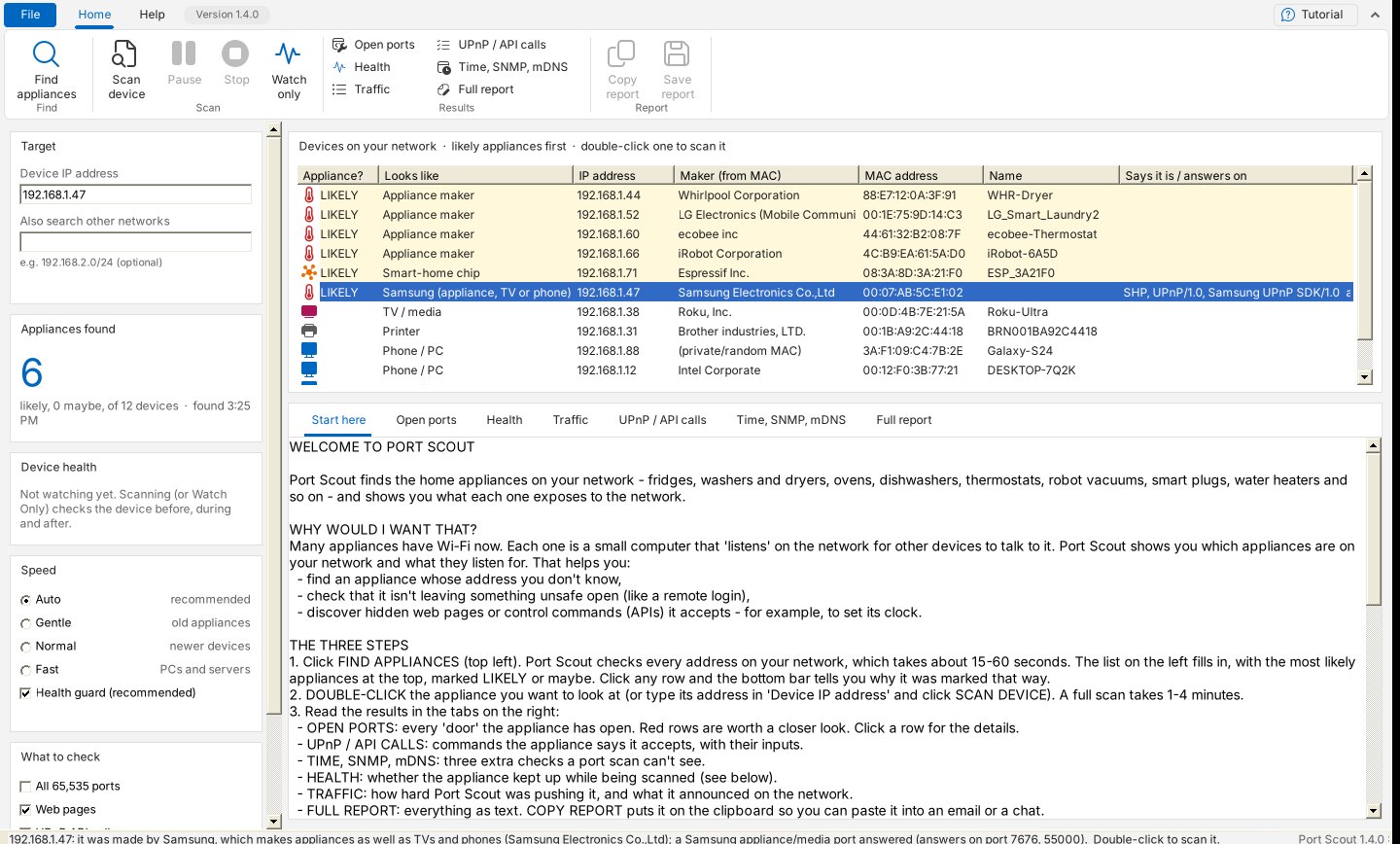
Port Scout looks and works like MAC Scout and Dialsoft's other tools. Across the top is the ribbon:

| Where | What's there |
|---|---|
| File (blue button) | Copy report, Save report, Check for updates, Share Port Scout, Exit. |
| Home › Find | Find appliances. |
| Home › Scan | Scan device, Pause (stays highlighted while paused; click again to resume), Stop, and Watch only. Buttons are greyed out when they can't be used. |
| Home › Results | Jump straight to a results tab: Open ports, Health, Traffic, UPnP / API calls, Time/SNMP/mDNS, Full report. |
| Home › Report | Copy report and Save report. |
| Help tab | Start here, User manual (this page), What's new, Check for updates, Share Port Scout, About. |
| Version / Tutorial | Click the version to see About. Tutorial (top right) opens the Start here guide. |
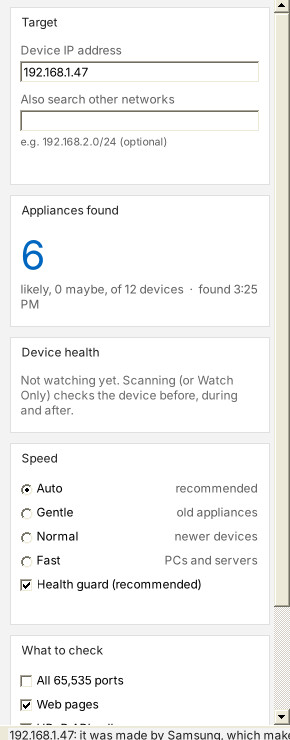
Down the left side are cards:
- Target: the Device IP address to scan (clicking a device fills it in), and Also search other networks (see Appliances on another network).
- Appliances found: how many likely appliances Find appliances found, and how many devices in all.
- Device health: how the device you're scanning or watching is doing right now.
- Speed: Auto, Gentle, Normal or Fast, and the Health guard (see Keeping your appliance safe).
- What to check: which checks a scan runs, how long to wait for each port, and the most ports at once (see Scan options).
On the right, the list of devices on your network sits above the results tabs (Start here, Open ports, Health, Traffic, UPnP / API calls, Time/SNMP/mDNS, Full report). The status bar at the bottom shows progress, explains the device you clicked, shows a green Update available link when there's a new version, and the version number.
4. Finding appliances
- Click Find appliances (Home tab). Port Scout checks every address on your network. This takes about 15 to 60 seconds; the bottom bar counts as it goes.
- The list fills in, most likely appliances first. The first column says LIKELY (bold, yellow) or maybe (light yellow). Blank means probably not an appliance.
- Click a row to put its address in the Scan box. The bottom bar explains why Port Scout thinks it is, or isn't, an appliance.
- Double-click a row to scan it straight away.
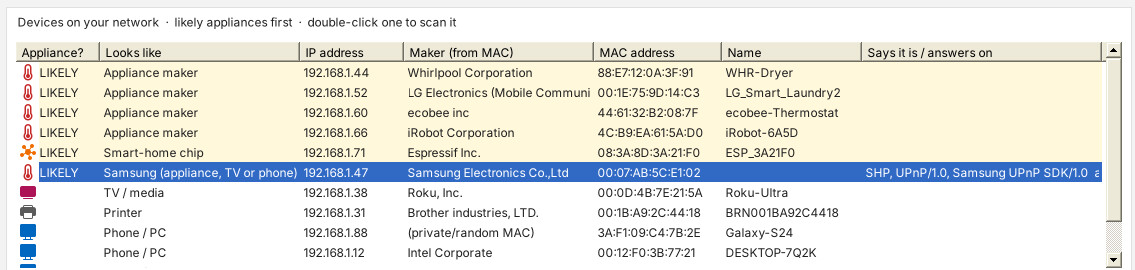
| Column | Meaning |
|---|---|
| Appliance? | LIKELY, maybe, or blank. |
| Looks like | Port Scout's best guess: Appliance maker, Smart-home chip, Samsung (appliance, TV or phone), Appliance (by name), TV / media, Phone / PC, Printer, Network gear, Other or Unknown. |
| IP address | The device's address on your network, like 192.168.1.47. This is what you scan. |
| Maker (from MAC) | The company that made the device's network chip. |
| MAC address | The network chip's serial number. |
| Name | The name the device gave your network, if any (like ecobee-Thermostat). |
| Says it is / answers on | What the device announces about itself (UPnP), and any appliance ports that answered. |
5. How Port Scout recognizes appliances
Appliances rarely say “I'm a fridge”. Port Scout adds up clues:
- Who made the network chip. The first half of every MAC address identifies the company that made the chip. Port Scout contains the official worldwide list (from the IEEE). A chip from Whirlpool, LG, Bosch, iRobot, ecobee and other appliance makers counts strongly. A chip from Espressif, Marvell, Murata or similar Wi-Fi module makers counts too, because those chips are mostly built into appliances and gadgets. Apple, Intel and router makers count against.
- The device's name. Names containing words like fridge, washer, dryer, oven, thermostat, roomba, plug, ESP_ count for; names like iPhone, DESKTOP-, printer count against.
- What it answers on. If a port that appliances use (such as Samsung's 7676 or 55000) answers, that counts for.
- Private MAC addresses. Phones and laptops often use a random “private” address; appliances almost never do.
6. Scanning an appliance
- Double-click the appliance in the list, or type its address in Device IP address (Target card) and click Scan device.
- Port Scout first spends 5 seconds checking the appliance: does it answer, and how fast? (Health tab.)
- Then it tests every port, asks each open port what it is, looks for web pages, asks for UPnP services and runs the time/SNMP/mDNS checks, watching the appliance's health all the while. With All 65,535 ports on and Speed Auto this takes about 3 to 5 minutes. The bottom bar shows each step.
- Finally it checks the appliance again for 10 seconds, so you know it came through fine.
- Results appear in the tabs on the right as they're found. Click Pause to give the appliance a break (click it again to carry on), or Stop any time; what was found so far is kept.
7. Keeping your appliance safe while scanning
Appliances have small, slow computers. Testing thousands of ports quickly can overwhelm one: music it's playing may stutter, or it may restart. Port Scout protects them in three ways.
Speed
| Speed | What it does | Use it for |
|---|---|---|
| Auto (default) | Starts at 8 ports at once and doubles every few seconds, up to 64, only while the appliance keeps answering quickly. | Almost everything. |
| Gentle | 8 at once, at most 40 new connections a second. All 65,535 ports takes about 30 minutes, so turn off All 65,535 ports for a quick gentle scan (under a minute). | Old or delicate appliances, or one that's crashed before. |
| Normal | 64 at once, up to 400 a second. | Newer devices. |
| Fast | 256 at once, no limit. | PCs, servers and network equipment. Not appliances. |
Choose the speed in the Speed card on the left. You can change it at any time, even in the middle of a scan, and it takes effect immediately. Max at once (in the What to check card) shows the ceiling for the speed you picked; you can lower it by hand.
Health guard
With Health guard ticked in the Speed card (the default), Port Scout checks the appliance once a second during the scan:
- If its answers become much slower than normal (four times slower, or 150 ms slower), the scan slows down: half as many ports at once. Auto speeds back up when it recovers.
- If it stops answering for 3 seconds, the scan pauses. When the appliance answers again, Port Scout waits 10 more seconds, then carries on at the slowest speed (1 port at a time).
Before and after checks
Every scan begins and ends with a health check, so the report always says whether the appliance came through fine.
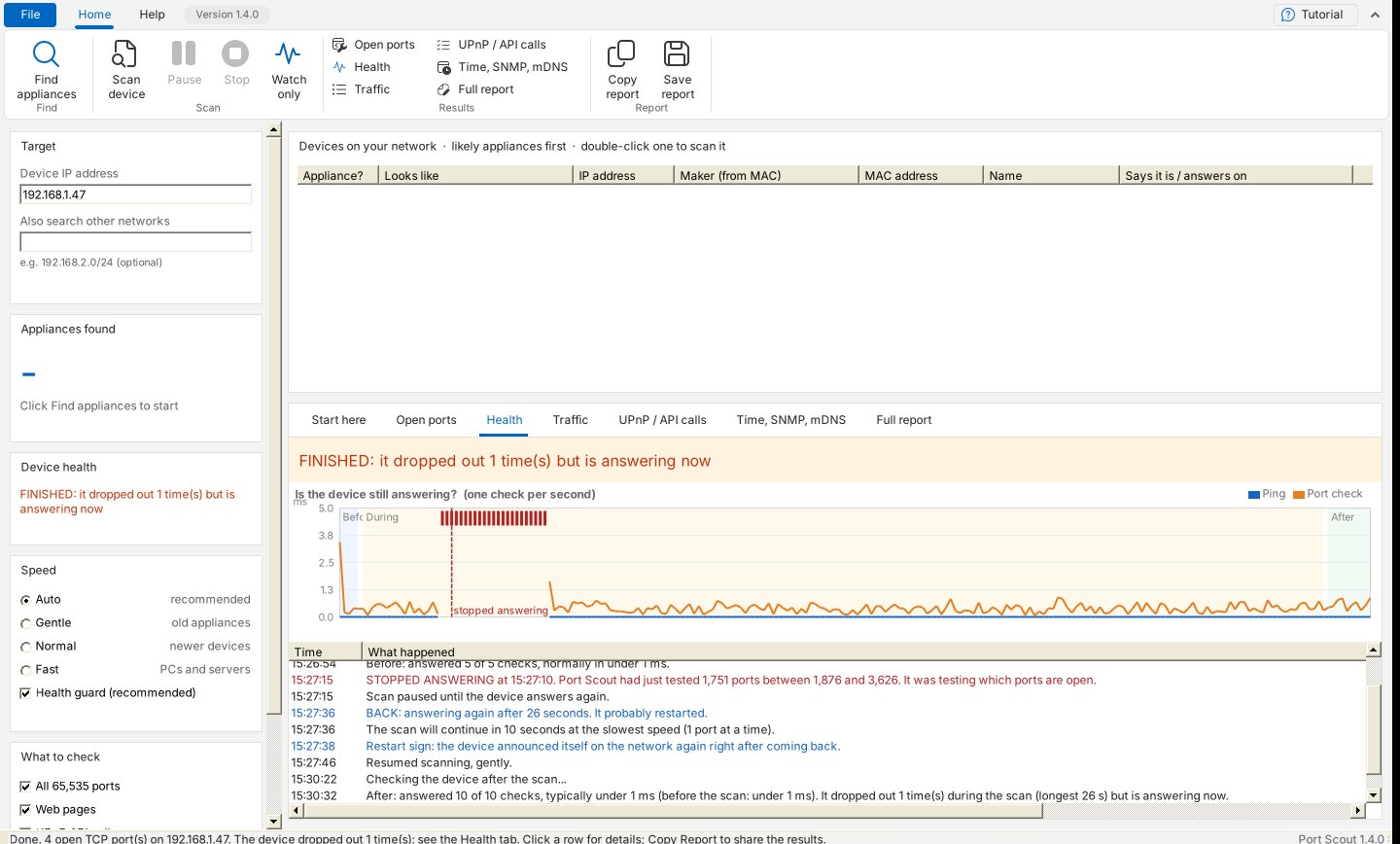
8. Health tab
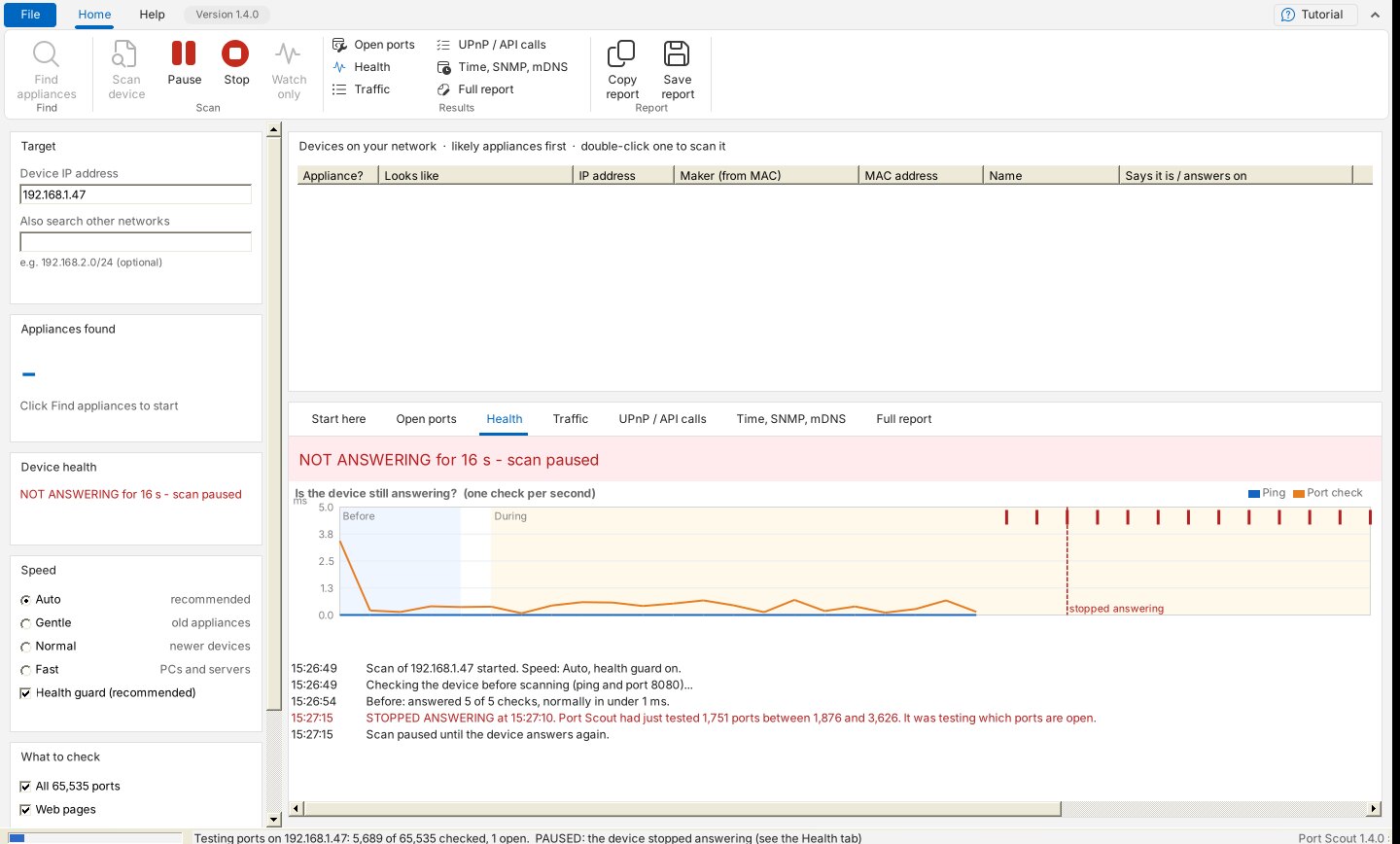
- The banner (also shown in the Device health card on the left) says how the appliance is right now: HEALTHY, STRUGGLING (answering slowly), NOT ANSWERING, or BACK after a drop-out.
- The graph shows one check per second. Blue is the ping time, orange the time to connect to one of the appliance's open ports (some appliances ignore ping). Lower is better. Red ticks along the top are checks that got no answer at all. The background is shaded Before, During and After the scan; dashed lines mark where the scan was slowed or where the appliance stopped answering.
- The timeline lists everything that happened in plain English. It's also in the Full Report.
9. Traffic tab
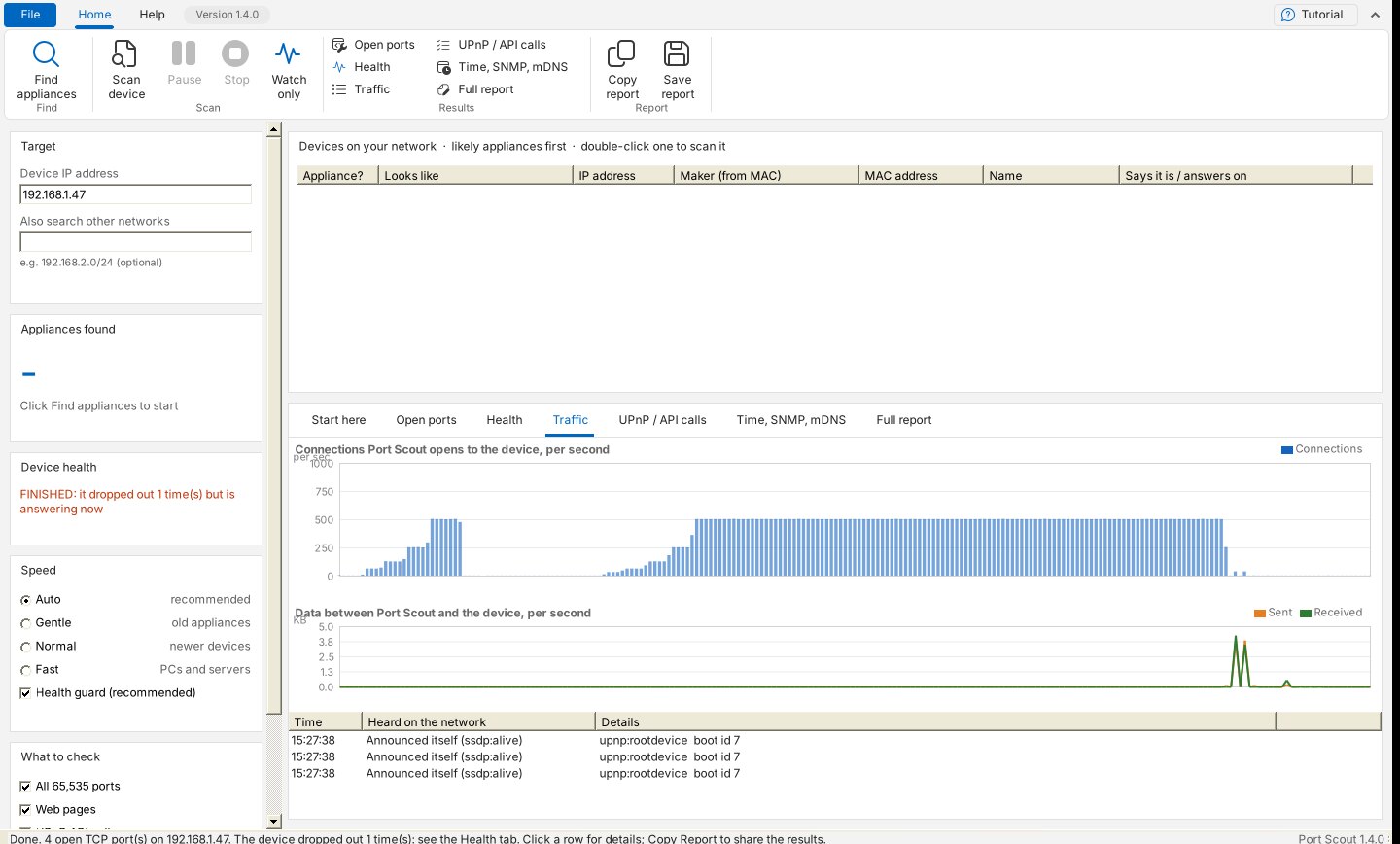
- Connections per second: how hard Port Scout was knocking. If the appliance dropped out, compare the time with the Health tab.
- Data per second: kilobytes sent to and received from the appliance.
- Heard on the network: announcements the appliance broadcast to everyone. A device that restarts usually announces itself again (
ssdp:alive); one that shuts down cleanly says goodbye (ssdp:byebye). Port Scout uses these as evidence of a restart.
10. Watch Only
Watch Only checks an appliance once a second without scanning it, filling in the Health and Traffic tabs until you click Stop. Use it to learn what “normal” looks like, or to watch an appliance you think is restarting on its own.
11. Open Ports tab
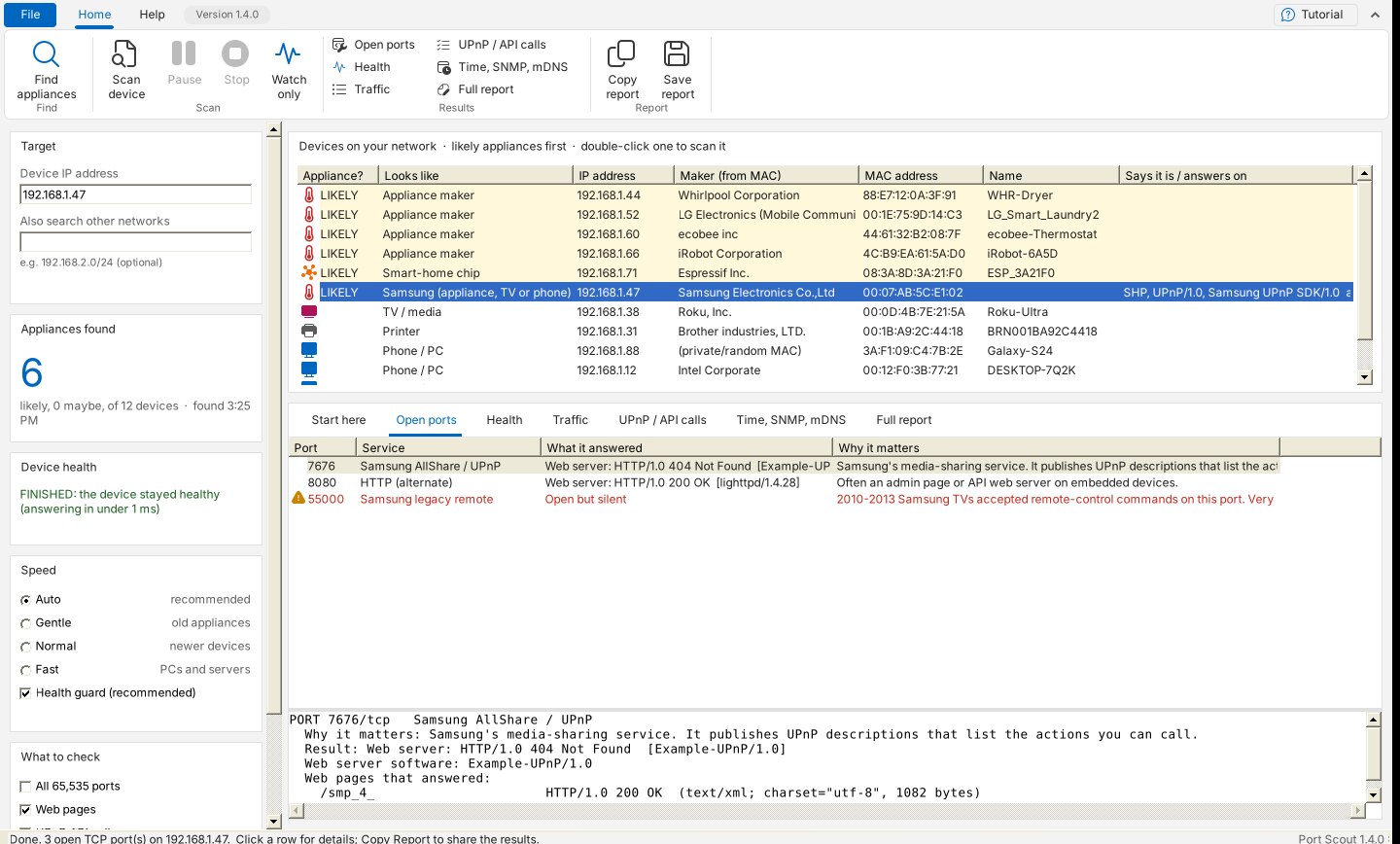
Each row is an open port (a door that answered):
- Port: its number.
- Service: what it usually is (for example HTTP (web), SSH, Samsung AllShare / UPnP), or Unknown.
- What it answered: Web server (with the reply and the server software), Says: … (a greeting or “banner”), Encrypted (TLS), binary data, or Open but silent.
- Why it matters: a plain-English explanation.
Red rows are remote-login or remote-control doors (Telnet, SSH, FTP, Android debugging, file sharing, remote-control ports). They're the most interesting, and the ones to check if you're worried about security.
Click a row to see everything about that port in the box below: what it said, the web server software, page titles, its encryption certificate, and which web pages answered (any page that didn't say “not found”).
12. UPnP / API Calls tab
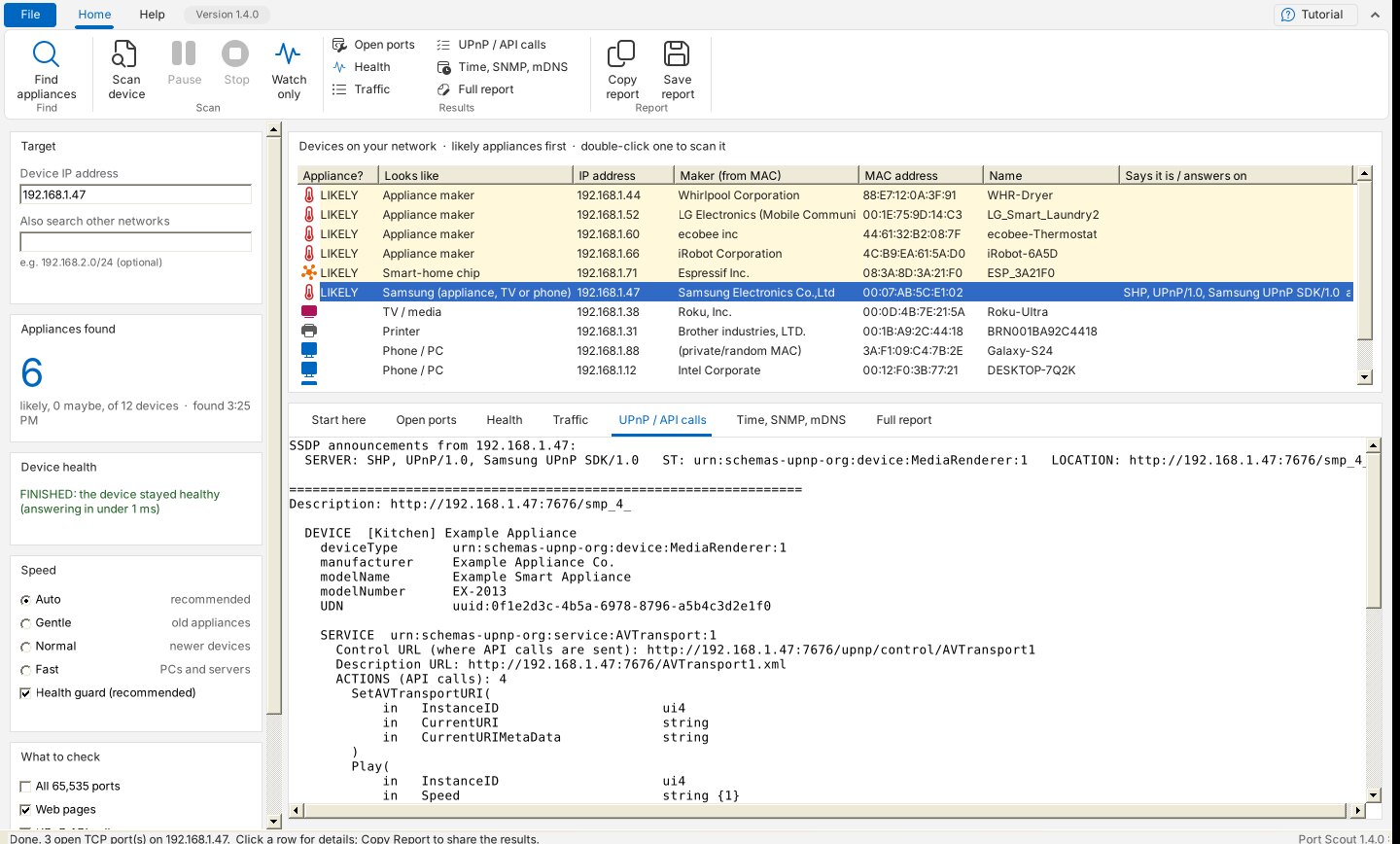
UPnP is a standard way for devices to describe themselves. A device publishes a description (its name, maker and model) and a list of services. Each service lists its actions: commands other programs can send it, with named inputs and outputs. In other words, these are the appliance's API calls.
For each service Port Scout shows the Control URL (where commands are sent) and every action with its arguments and their type. Allowed values are shown in braces, like {STOPPED, PLAYING}. Port Scout only reads these lists; it never runs an action.
If the tab says the device didn't answer UPnP discovery, the appliance simply doesn't offer UPnP.
13. Time, SNMP, mDNS tab
Three quick checks a normal port scan can't see:
- Time (NTP, port 123): does the appliance hand out the time? Most don't, which is normal.
- SNMP (port 161): a management service. If it answers, it usually reveals the appliance's exact system and version.
- mDNS (port 5353): the services the appliance announces on your network (the same system Apple's Bonjour uses).
14. Full Report, copy & save
The Full Report tab puts everything into one plain-text page. It starts with a summary of open ports, then lists anything mentioning time, date or clock (handy if you're trying to fix an appliance's clock), then the full details.
- Copy Report puts it on the clipboard: paste it into an email, a support ticket, a document or a chat.
- Save Report saves it as a
.txtfile, named with the device's address and the date.
15. Scan options
These are in the Speed and What to check cards on the left.
| Option | What it does |
|---|---|
| All 65,535 ports | On: tests every port (thorough, 3 to 5 minutes at Auto speed). Off: tests ports 1 to 1,024 plus about 50 well-known extras, including the ones appliances use (under a minute). |
| Web pages | For each web server, also asks for about 35 common pages (/, /api, /status, /settings, /description.xml…) and lists those that answer. |
| UPnP API calls | Asks for UPnP descriptions and lists their actions (see UPnP / API Calls). |
| Time, SNMP, mDNS | Runs the three extra checks (see Time, SNMP, mDNS). |
| Health guard | Slows the scan when the appliance struggles and pauses it if it stops answering (see Keeping your appliance safe). Leave it on. |
| Speed | Auto, Gentle, Normal or Fast (see Keeping your appliance safe). |
| Wait (ms) | How long to wait for each port before calling it closed. 400 ms suits most homes; use 1000 or more for an appliance with weak Wi-Fi. |
| Max at once | The most ports tested at the same time. The Speed setting fills it in; the health guard may use fewer. Lower it for weak Wi-Fi. |
Changes take effect immediately, even in the middle of a scan. There's nothing to save and no need to restart.
16. Appliances on another network
Some homes put appliances on a separate guest or IoT Wi-Fi. If your appliance isn't in the list:
- Find that network's addresses. Your router's app or web page shows them, or look in the appliance's own Wi-Fi settings: if it shows an address like
192.168.2.37, the network is192.168.2.0/24. - Type it in Also search other networks (Target card). You can enter several, separated by commas, and ranges like
10.0.20.1-10.0.20.254. - Click Find appliances again.
17. Updates
Port Scout checks for a newer version a few seconds after it opens, and every 6 hours while it's open. When there is one, a green Update available link appears in the status bar.
- Port Scout shows what's new and asks before installing. Click Yes and it downloads the new version, checks its fingerprint (SHA-256), and reopens in a few seconds.
- Click Check for updates (Help tab or File menu) any time to check yourself.
- If Windows doesn't allow Port Scout to replace itself (for example in Program Files), move
PortScout.exeto your Desktop or Documents, or download the new version from the website.
18. Help tab
- Start here: the beginner's guide inside the program (the Tutorial button at the top right opens it too).
- User manual: opens this page.
- What's new: every version and what changed, plus technical details.
- Check for updates.
- Share Port Scout: tell someone about Port Scout by e-mail, Gmail, Outlook, Messenger, WhatsApp, text message, Teams, Facebook or LinkedIn. You can edit the message first; nothing is sent until you press Send.
- About: version and credits (clicking the version label opens it too).
19. Is it safe? Is it legal?
Safe: Port Scout only looks. It connects to ports and reads what they say; it never logs in, never sends commands to UPnP actions, and never changes anything on the appliance. A scan does open many connections, though, and that can overwhelm an old appliance. That's why the health guard and Auto speed are on by default. For a delicate appliance, use Speed Gentle.
Legal: scan only your own devices and networks, or networks you're responsible for and have permission to test. Scanning other people's networks can break the law or their terms of service.
20. Troubleshooting
| Problem | Try this |
|---|---|
| My appliance isn't in the list. | Make sure it's connected (check its Wi-Fi screen or app). Look up its IP address in its own settings or your router, and type it into Device IP address. If it's on a guest/IoT network, see Appliances on another network. |
| The list is empty or very short. | Allow Port Scout through Windows Firewall on Private networks. Make sure your PC is on the home network, not a VPN. |
| “No open TCP ports found.” | Many appliances only talk out to their maker's servers and listen for nothing. That's normal, and good for security. Try a longer Wait (1000 ms) in case it was slow to answer. |
| Results differ between scans. | Choose Speed Gentle and raise Wait to 800 ms; weak Wi-Fi drops some answers. |
| The appliance's music stuttered, or it restarted, during a scan. | Read the Health tab's timeline for the moment it happened. Scan again with Speed Gentle and All 65,535 ports off. Keep Health guard ticked. |
| “Can't monitor this device.” | It doesn't answer ping or any common port, so Port Scout can't tell if it's struggling. Use Speed Gentle. |
| “Couldn't listen for UPnP (SSDP)” on the Traffic tab. | Allow Port Scout through Windows Firewall on Private networks. Another program may be using the port; the rest of Port Scout still works. |
| “Windows protected your PC.” | Click More info → Run anyway. Only download Port Scout from dialsoft.com. |
| Update failed. | Move PortScout.exe out of Program Files (to Desktop or Documents), then Check for Updates again, or download it from the website. |
21. Words you'll see
| IP address | A device's address on your network, like 192.168.1.47. |
| MAC address | The serial number of a network chip, like 00:07:AB:5C:E1:02. The first half identifies the chip's maker. |
| Port | A numbered door (1 to 65,535) on a device. Each network program listens on its own port; web pages usually use 80. |
| Open port | A port that answered. Closed ports aren't listed. |
| Banner | What a port says as soon as you connect, often a name and version. |
| TLS | Encryption, the same as the padlock in your browser. |
| UPnP | A standard way devices describe what they are and what commands they accept. |
| API / API call | A command one program can send another. |
| SSDP | How UPnP devices announce themselves on the network. |
| NTP, SNMP, mDNS | Time service, management service, and service announcements (see the Time, SNMP, mDNS section). |
| /24 | Shorthand for “all 254 addresses that start the same way”, e.g. 192.168.2.0/24 = 192.168.2.1 to 192.168.2.254. |
Port Scout © 2026 Dialsoft LLC, Wharton, New Jersey. Written with Claude by Anthropic. Brand names belong to their owners; Port Scout is not affiliated with any appliance maker. Screenshots show an example network.