
Dialsoft › Print Scout › Manual
Print Scout user manual
Print Scout is a small, portable printer troubleshooter for Windows from Dialsoft. It checks everything between the Print button and the paper, explains what is wrong in plain English, and fixes the common causes with one click. This manual covers version 1.1.0.
Print Scout answers one question: why won't it print? It checks everything between the Print button and the paper, tells you what is wrong in plain English, and fixes the common causes with one click.
It is one file, PrintScout.exe. There is nothing to install. Copy it to the PC with the problem (or run it from a USB stick) and double-click it. It works on Windows 10 and Windows 11.
1. The 60-second version
- Start Print Scout. It checks everything by itself and keeps checking every 10 seconds.
- Read the colored banner.
- Red: something is stopping printing right now. The banner names it.
- Amber: nothing is broken, but there is a heads-up.
- Green: everything Print Scout checks is fine.
- Click the printer that will not print in the top list, then click Fix This. Print Scout explains the problem and, if there is a safe fix, offers to do it. You are always asked first.
- Still not printing, and the list is green? Click Test Page. If the test page prints, the printer is fine and the trouble is in the program you were printing from.
2. How printing works (and where it breaks)
A print job passes through five links. Print Scout checks each one.
| Link | What it is | What goes wrong |
|---|---|---|
| The program | Word, the browser, the dealership software | A bad document or the wrong printer picked. Test Page rules this in or out. |
| The Print Spooler | The Windows service that queues every job | It stops or crashes, and then no printer on the PC works and the printer list looks empty. |
| The driver | The translator between Windows and one model of printer | Missing, damaged, or the wrong one ("Generic / Text Only" prints gibberish). |
| The port | Where Windows sends the job: a USB cable, a network address, WSD | The printer's network address changed, a cable is out, or WSD lost track of it. |
| The printer | The machine | Paper jam, empty tray, open door, no toner, switched off. |
3. The window
The banner
The overall verdict, as described above. It always names the most serious thing found.
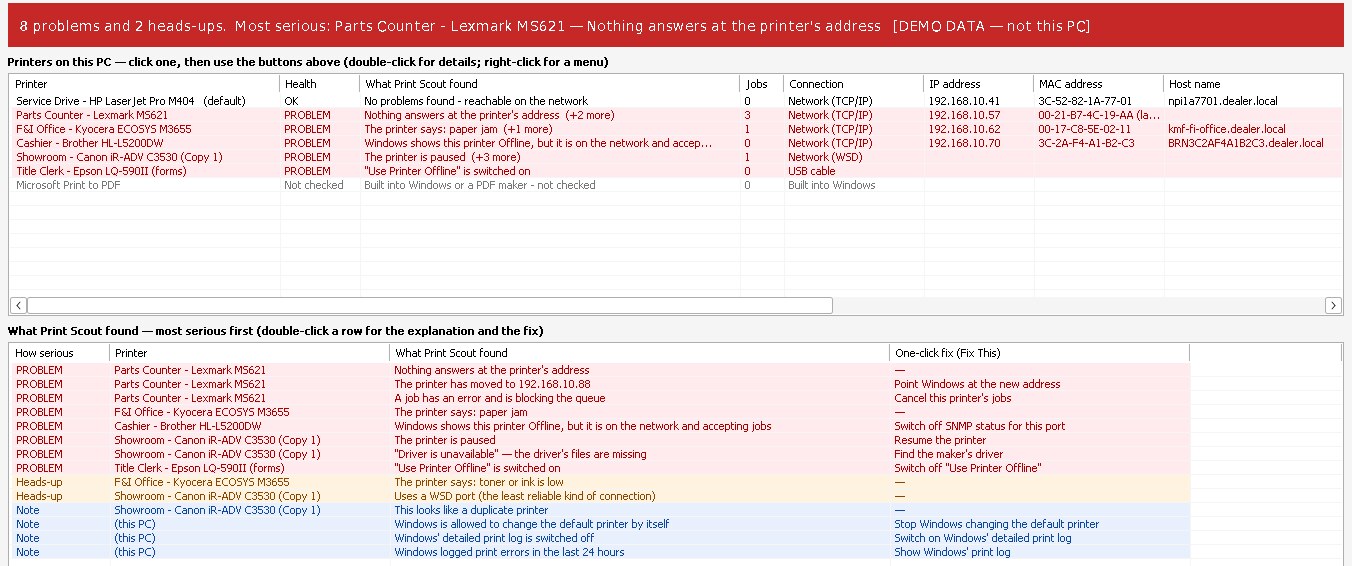
The top list: Printers on this PC
One row per printer.
- Health: the most serious thing found for that printer (PROBLEM, Heads-up, Note, OK).
- What Print Scout found: that finding in one line. "(+2 more)" means the bottom list has more for this printer.
- Jobs: how many documents are waiting.
- Connection: how the printer is attached.
- Network (TCP/IP): Windows sends jobs to a fixed network address. The most reliable kind.
- Network (WSD): Windows found the printer by itself. Convenient, but it drops offline more than any other kind.
- USB cable, Shared from another PC, Remote Desktop, Built into Windows.
- IP address, MAC address, Host name: who the printer is on the network. The MAC address comes from the network test or Find Printers; "(last seen)" means the printer did not answer this time and Print Scout is showing what it remembered.
- Model: the best guess, straight from the printer itself if it answered the network test.
- Driver, Language, Driver date, Driver version: the driver and the printer language it speaks (PCL 6, PostScript and so on; see "Driver types" below).
Red rows have a problem. Amber rows have a heads-up. Gray rows are Windows' built-in "printers" (Microsoft Print to PDF, XPS, OneNote, Fax), which are not checked unless you turn that on in Settings.
Double-click a printer for Details. Right-click it for a menu.
The bottom list
Starts as Problems: everything Print Scout found, most serious first, with the one-click fix named in the last column. Double-click a row to read the full explanation and be offered the fix.
The four buttons under Show in the Bottom List change what it shows:
- Problems: the findings.
- Print Queue: every waiting job on every printer, who sent it, its status and how long it has waited.
- Windows Log: the print errors Windows itself recorded, without digging through Event Viewer.
- Drivers: every printer driver installed, its maker, language, date, version, and how many printers use it.
- Network Printers: every printer Find Printers found on the network, installed or not, with its IP address, MAC address, host name, model, serial number and which printer on this PC uses it.
The status bar
When the last check ran, whether the Print Spooler is running, how many printers and waiting jobs there are, and how many network printers have been tested.
4. The Home tab
Check and Network
- Find Printers: searches the network for every printer. See "Finding printers on the network" below.
- Check Now: checks everything again from scratch, including the network. Use it after you change something at the printer.
- Network Test: tests the selected network printer (or all of them if none is selected). See "The network test" below.
- Details: everything known about the selected printer on one page.
Quick Fixes
- Fix This: the main button. Explains the selected problem and offers its fix.
- Restart Spooler: stops and starts the Print Spooler. The "switch it off and on again" of printing. Waiting jobs are kept.
- Clear Stuck Jobs: for a job that will not print and will not delete. Stops the spooler, deletes every waiting job file, starts the spooler. All waiting jobs on all printers on this PC are removed, so people need to print again.
- Test Page: sends Windows' test page to the selected printer.
Records
- Save Report: everything, in a text file, for a ticket or a second opinion.
- Copy Summary: a few lines to paste into a ticket, email or chat.
- History & Undo: every change Print Scout has made on this PC. See below.
- Open Log File: Print Scout's own dated record of what it found and what it changed.
5. The network test
For a network printer, Print Scout does what a technician does by hand:
- Looks the name up. Does this name or address exist on the network?
- Pings it. Is anything switched on at that address?
- Knocks on the print ports. 9100 (normal printing), 515 (LPR), 631 (IPP/AirPrint), and the web ports 80 and 443. Is it accepting jobs?
- Asks the printer itself (SNMP). Paper jam? Out of paper? Door open? How much toner is left? How many pages has it printed?
Step 4 only reads from the printer. Print Scout never changes anything on a printer.
A printer that is switched off takes a few seconds to give up on, so the test is done in the background and the results appear when they are ready.
6. Finding printers on the network
Find Printers (Home tab) knocks on the print ports (9100, 515 and 631) of every address on this PC's network, plus the networks the installed printers are on, and asks each printer that answers what it is. The Network Printers view then lists every one:
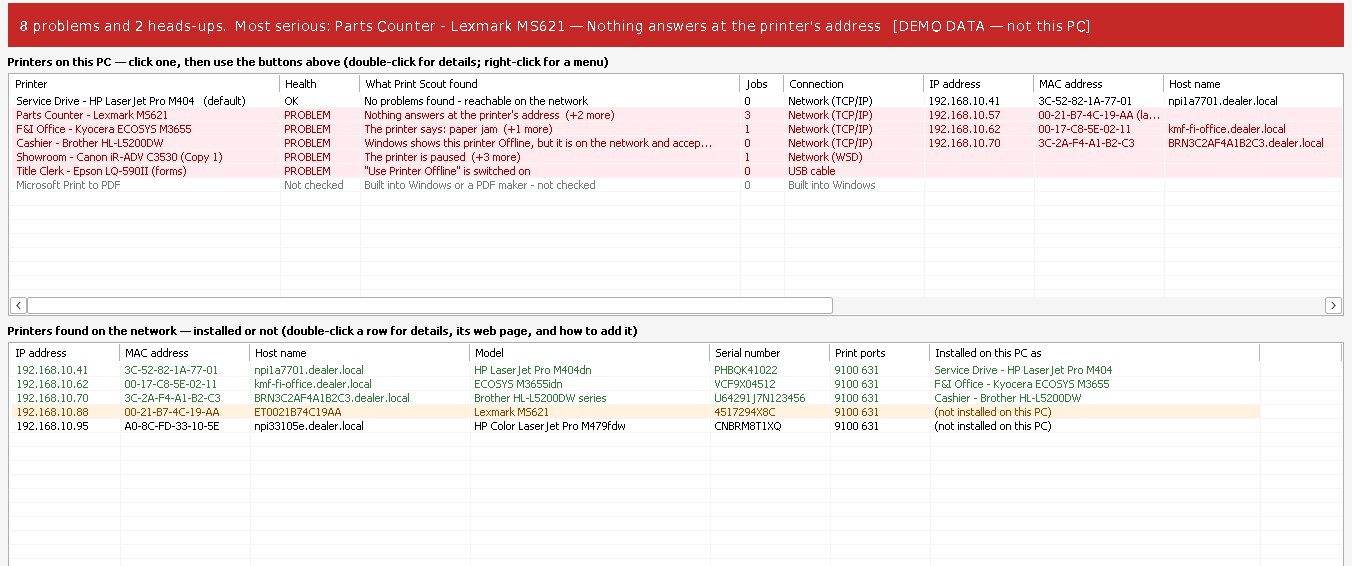
- IP address, MAC address and host name
- model and serial number
- which print ports it answers on
- which printer on this PC uses it, or "not installed on this PC"
Installed printers are green. Double-click any row for its details and its web page, and for how to add it to this PC (its address is copied for you).
Printers that moved. Every time a printer answers, Print Scout remembers its MAC address and serial number. If the router later gives it a new address, Windows keeps sending jobs to the old one and the printer looks "Offline". Print Scout then searches the network by itself, recognizes the printer at its new address, and Fix This points Windows at it. To stop it happening again, give the printer a DHCP reservation in the router (Print Scout shows the MAC address to use).
It takes about 5 to 30 seconds and only reads. Nothing is changed on any printer.
7. Driver types
Help → Driver Types explains all of this in more detail. The short version:

| Language | What it is | Use it for |
|---|---|---|
| PCL 6 (PCL XL, Kyocera KX) | HP's modern printer language, understood by almost every office laser printer | Everyday office printing. The usual best choice. |
| PCL 5 / 5e | The older HP language | Older programs, forms and check printing that need it. |
| PostScript (PS, BR-Script, KPDL) | Adobe's language; pages look exactly the same everywhere | PDFs, graphics, Macs, layouts that must not shift. |
| XPS / v4 / Class Driver | Microsoft's newer, simpler drivers | Easy installs. Often missing stapling, trays, secure print and codes. |
| UFR II | Canon's own language | Canon imageRUNNER copiers only. |
| Host-based (GDI) | The PC draws each page | Cheap printers. Only the maker's exact driver works. |
| ESC/P | Epson dot matrix | Multi-part forms. |
| ZPL / EPL / DPL | Label printer languages | Key tags, parts and shipping labels. |
- Model-specific vs universal: a universal driver (HP Universal Printing, Canon Generic Plus, Kyocera KX and others) covers many models from one maker and is easier to manage across many PCs, at the cost of a few model-specific extras.
- Type 3 vs Type 4: Type 3 is the maker's traditional driver; Type 4 is Microsoft's newer, simpler design.
- Driver date and version: an old date is fine if the printer works. Update for a specific problem, after a Windows update breaks printing, or for a security fix, and always from the maker's own site (Tools → Find Driver).
8. What the findings mean
"Nothing answers at the printer's address"
Windows is sending jobs to an address where nothing is listening. Most often the printer is off or unplugged, or its address changed because the router handed it a new one. Print a network configuration page from the printer's own control panel and compare its address with the one Print Scout shows. If they differ, either set the printer back to the old address or change the port (Tools → Properties → Ports → Configure Port).
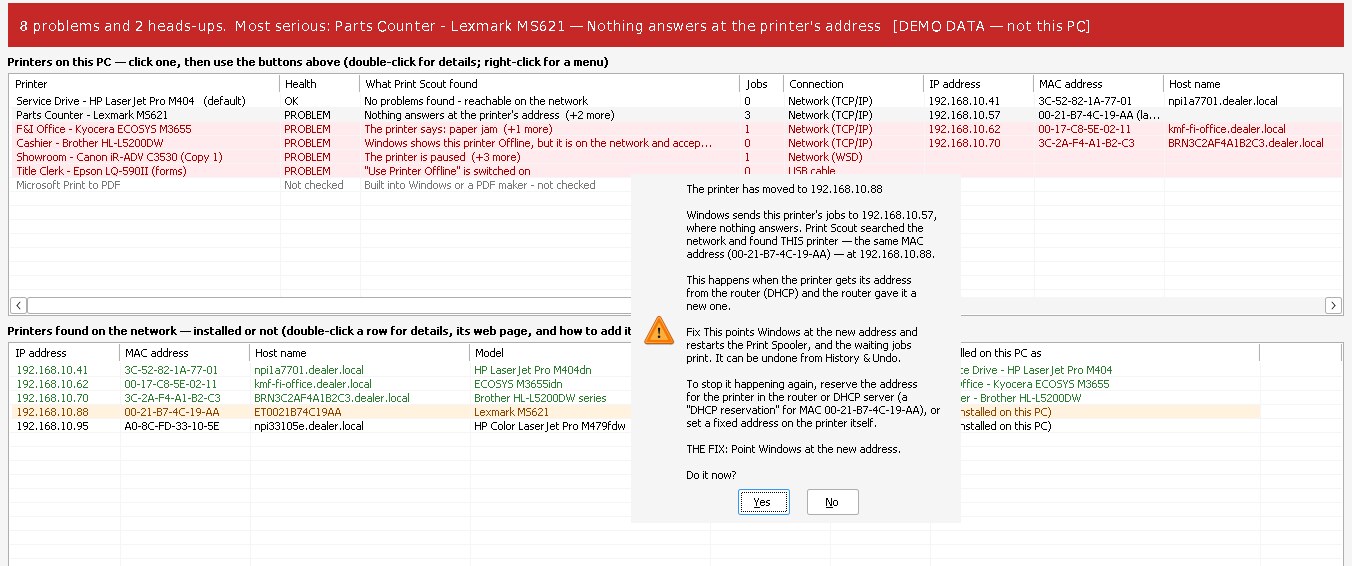
"Windows shows this printer Offline, but it is on the network and accepting jobs"
The classic false Offline. The printer's port has SNMP Status Enabled ticked, the printer does not answer SNMP, and Windows concludes it is offline. Fix This switches that off and restarts the spooler. It can be put back from History & Undo.
"Use Printer Offline is switched on"
A tick box in Windows that holds every job. Fix This unticks it.
"The printer is paused"
The queue is paused. Fix This resumes it.
"A job is stuck Deleting and blocking the queue" / "A job has an error and is blocking the queue"
One bad job holds up everything behind it. For "Deleting", Fix This runs Clear Stuck Jobs (all waiting jobs on the PC are removed). For "Error", fix the printer first, then Fix This cancels that printer's jobs.
"The Print Spooler service is not running"
No printer on this PC can print. Fix This starts it. If it stops again within seconds, a damaged job or a bad driver is crashing it: run Clear Stuck Jobs and look at the Windows Log view for the driver file it names.
"The printer says: paper jam / out of paper / a door is open / out of toner"
This came from the printer itself. Deal with it at the printer.
"The printer has moved to (new address)"
The printer is answering at a new address with the same MAC address or serial number. Fix This points Windows at the new address and restarts the spooler. "A printer of the same model was found at…" is the same idea, but recognized only by model, so check it first.
"Driver is unavailable"
The driver's files are missing. Fix This (or Tools → Find Driver) finds the driver on the maker's own website.
"Windows' detailed print log is switched off"
Windows can write a line for every print job, but ships with it off. Switch it on for a printer that only fails now and then; after the next failure the Windows Log view shows exactly what happened.
"Print Scout is running as SYSTEM" / "as a different user"
Many printers belong to the person, not the PC. If Print Scout is started from ScreenConnect Backstage, an RMM script, or "Run as different user", it cannot see that person's printers. Start it on their own desktop, as them.
"Uses a WSD port"
Not broken, but the least reliable kind of connection. If this printer keeps dropping offline, give it a fixed IP address and switch it to a Standard TCP/IP port.
"Windows is allowed to change the default printer by itself"
Windows makes whichever printer was used last the default. This is why printouts "go to the wrong printer". Fix This turns it off.
"This looks like a duplicate printer"
Windows installed the same printer twice ("Copy 1"). One of the two is usually dead. Send a Test Page to each, then remove the dead one in Windows' Printers & scanners.
"Uses a generic Windows driver" / "Uses the Generic / Text Only driver" / "The printer's driver is missing"
Install the manufacturer's driver for that model.
9. The Tools tab
Shortcuts to Windows' own windows for the selected printer (Open Queue, Properties, Printing Preferences), Find Driver (searches the maker's own website for this model's driver), and to Printers & Scanners, the classic Devices & Printers, the Add a Printer wizard (choose "Add a printer using an IP address or hostname" for the most reliable kind of connection), Print Server properties (drivers and ports), Print Management, the printer's web page, and the Windows Troubleshooter.
With Show expert tools switched on in Settings, an Advanced group appears. These buttons act on the selected printer whether or not Print Scout found anything wrong with it:
- Pause / Resume, Offline / Online, Set Default, Cancel All Jobs
- SNMP Status Off: for a network printer that keeps showing Offline
- Add Print to PDF: switches on Windows' Microsoft Print to PDF feature
- Remove Printer: cannot be undone from Print Scout
- Run as Admin: not normally needed; Print Scout asks for permission when a fix needs it
10. History & Undo
Print Scout never changes anything without asking, and it writes down everything it changes.
Home → History & Undo lists every change with the date and time. Changes that flipped a switch can be ticked and put back:
- SNMP status on a port
- A port pointed at a printer's new address
- Windows' detailed print log
- Use Printer Offline
- Paused / resumed
- The default printer
- "Let Windows manage my default printer"
- The Print Spooler's startup type
Changes that only cleared something away (restarting the spooler, cancelling jobs, clearing stuck jobs) have nothing to put back. They are listed so there is a record.
11. Settings
Every setting takes effect the moment you click it.
| Setting | What it does | Starts as |
|---|---|---|
| Keep checking automatically | Re-checks the spooler, printers and jobs every 10 seconds | On |
| Test network printers automatically | Network test at startup, on Check Now, after a fix, and every 2 minutes | On |
| Ask each printer what is wrong (SNMP) | Adds step 4 to the network test | On |
| Read Windows' print logs | Fills the Windows Log view (errors, and every job if the detailed log is on) and notes recent errors | On |
| Also check Windows' built-in printers | Includes Print to PDF, XPS, OneNote, Fax and PDF makers in the health check | Off |
| Show expert tools | Shows the Advanced group on the Tools tab | Off |
| Keep a log file | Writes findings and every change to a dated text file | On |
| Always on top | Keeps the window in front | Off |
| Check for updates automatically | Looks for a new version at startup and every 6 hours | On |
12. Administrator permission
Print Scout runs as an ordinary program. Looking is free: no permission is needed to check anything. When a fix needs administrator rights (anything involving the Print Spooler, SNMP status, or Print to PDF), Windows shows its usual permission prompt at that moment. If you answer No, nothing is changed.
On a PC where you are not an administrator, Windows asks for an administrator's name and password instead.
13. Updates
Print Scout checks for a newer version by itself. When there is one, a yellow bar appears under the ribbon with what is new and an Update now button. Nothing is installed until you click it. It then replaces itself and restarts in a few seconds, keeping your settings.
If Print Scout is in a protected folder such as Program Files it cannot replace itself. Keep it on the Desktop, in Downloads, or on a USB stick.
14. For technicians
- Test an address before installing the printer:
PrintScout.exe /nettest 192.168.1.50runs the four-step network test against that address and shows the result. Add a community name after the address if the printer does not usepublic. - Search a different network:
PrintScout.exe /scanrange 192.168.20.0/24makes Find Printers search only that range (for a printer VLAN this PC can reach but is not on). - See every kind of finding without a broken printer:
PrintScout.exe /demoshows made-up printers. Nothing on the PC is read or changed in demo mode. - Where things are kept: settings and the change history are in the registry under
HKCU\Software\Dialsoft\PrintScout. The log file is%LOCALAPPDATA%\Dialsoft\PrintScout\PrintScout-log.txt. Remembered MAC addresses and serial numbers are under...\PrintScout\Known. Deleting both removes every trace of Print Scout. - What Clear Stuck Jobs does, exactly: stops any service that depends on the spooler (such as Fax), stops the spooler, deletes the files in the spool folder, starts the spooler, and starts the dependent services again.
© 2026 Dialsoft LLC. All rights reserved.