
RX Scout user manual
RX Scout controls Yamaha RX-V and AVENTAGE network receivers (about 2010-2016 models, such as the RX-V677) from Windows and Android, and reaches settings Yamaha's own apps never showed. Every button has a tooltip: hover with the mouse, or long-press on a phone.
1. Getting started
- Windows: download
RXScout.exeand put it on your Desktop or inC:\Tools(not Program Files, so it can update itself). Double-click it. If Windows says “Windows protected your PC”, click More info → Run anyway. - Android: download
RXScout.apkon the phone, open it, and allow installs from your browser when asked. - RX Scout searches your network and connects to the receiver by itself. The dot at the top turns green when the receiver answers.
- Nothing found? Click Home → Add by IP and type the receiver's address (shown on the receiver under SETUP → Network → Information, or in your router).
2. Changing the colors
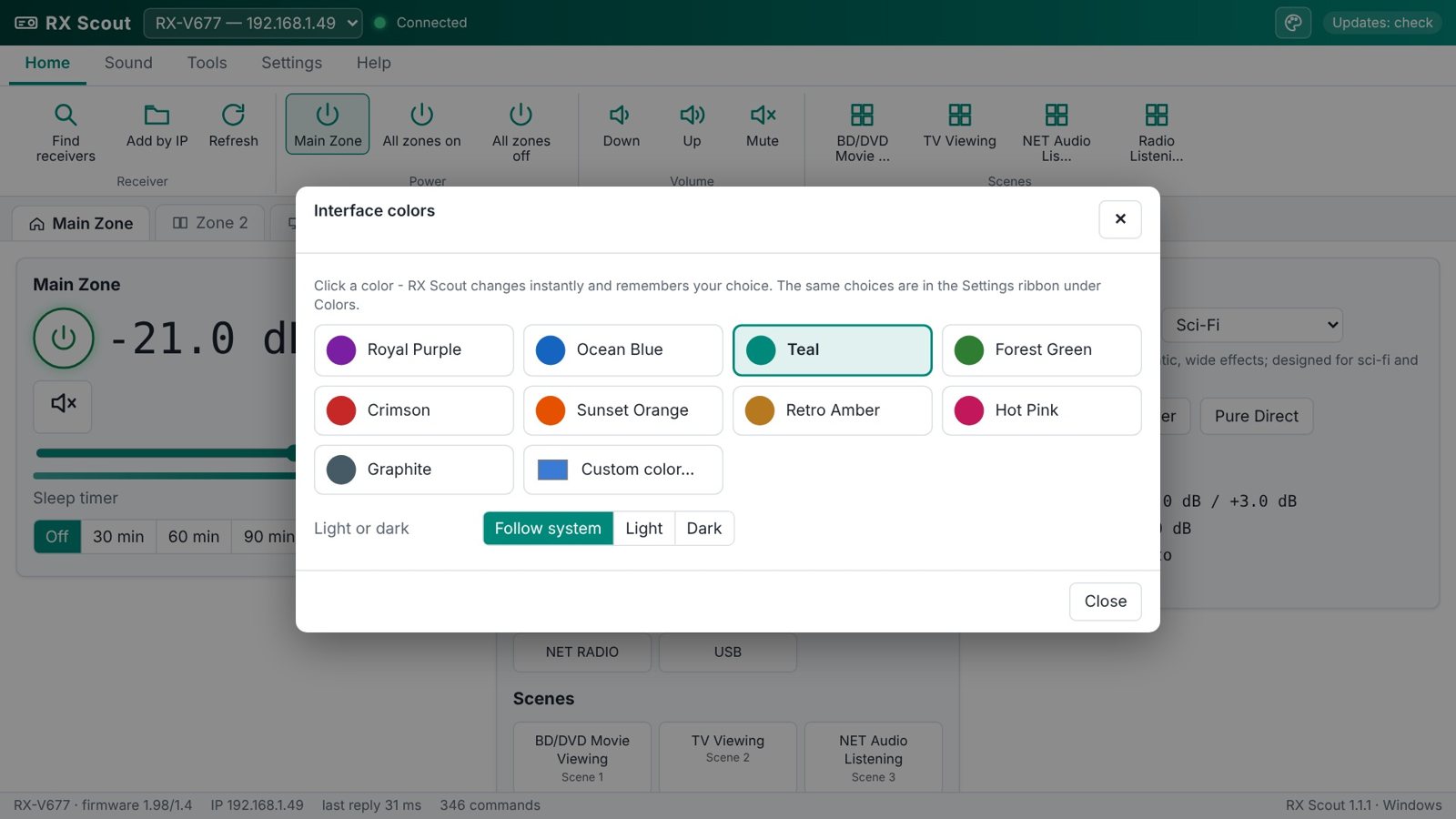
- Click the palette button at the top right of the window, next to the “Updates” indicator.
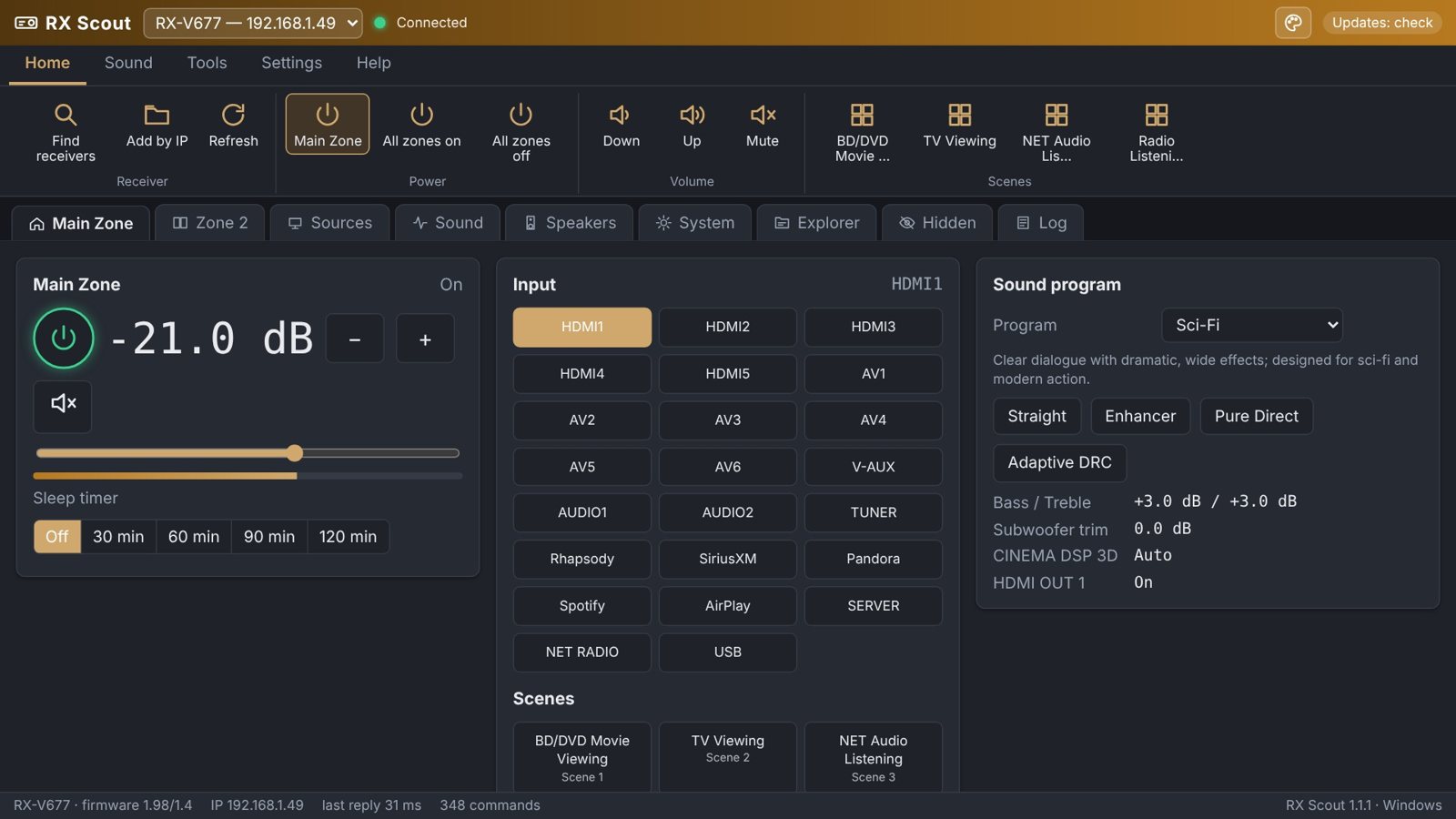
- Click a color: Royal Purple, Ocean Blue, Teal, Forest Green, Crimson, Sunset Orange, Retro Amber, Hot Pink or Graphite.
- Want something else? Click Custom color… and pick any color. RX Scout makes the matching lighter and darker shades for you.
- At the bottom choose Light, Dark or Follow system.
The change happens instantly and is remembered next time. The same choices are in the Settings ribbon under Colors. On Android the phone's status bar changes to match.
If the receiver's IP address changes
Routers sometimes hand the receiver a new IP address, and apps lose it. RX Scout doesn't: it remembers the receiver by its MAC address and Yamaha System ID, which never change.
- If the receiver stops answering, RX Scout searches the network for it, switches to the new address and reconnects by itself.
- You get a pop-up and a Windows/Android notification saying where it moved, e.g. “moved from 192.168.1.49 to 192.168.1.73”.
- Find by MAC (Home ribbon, or the System tab) searches right away.
- Email alerts: Settings → If the IP changes → tick Email me → setup…. Enter your mail server (for SmarterMail: e.g.
mail.dialsoft.com, STARTTLS, port 587), the mailbox login and password, and the address to send to. Click Save & send test. The password is stored encrypted on the PC (protected by your Windows login) and never in the settings file. - Keep running in the tray (Windows): closing the window hides RX Scout next to the clock, where it checks the receiver every minute so alerts still arrive. Click the tray icon to open it; right-click it for Check the receiver now or Exit.
3. The ribbon
| Ribbon tab | What's on it |
|---|---|
| Home | Find receivers, Add by IP, Refresh · Main Zone power, all zones on/off · volume down/up/mute · the receiver's four SCENE buttons |
| Sound | One-click DSP programs (Standard, Sci-Fi, Spectacle, Drama, 2ch/7ch Stereo) · Straight, Enhancer, Pure Direct, Adaptive DRC |
| Tools | Command Explorer, Discover hidden, Traffic log · Back up, Restore, Export snapshot |
| Settings | Refresh speed, volume step, volume safety limit, confirm raw commands, theme, tooltips, colors, start tab |
| Help | User guide, release notes, about, check for updates, tell someone |
The small arrow at the right end of the ribbon tabs hides the ribbon buttons to give the page more room.
4. Main Zone
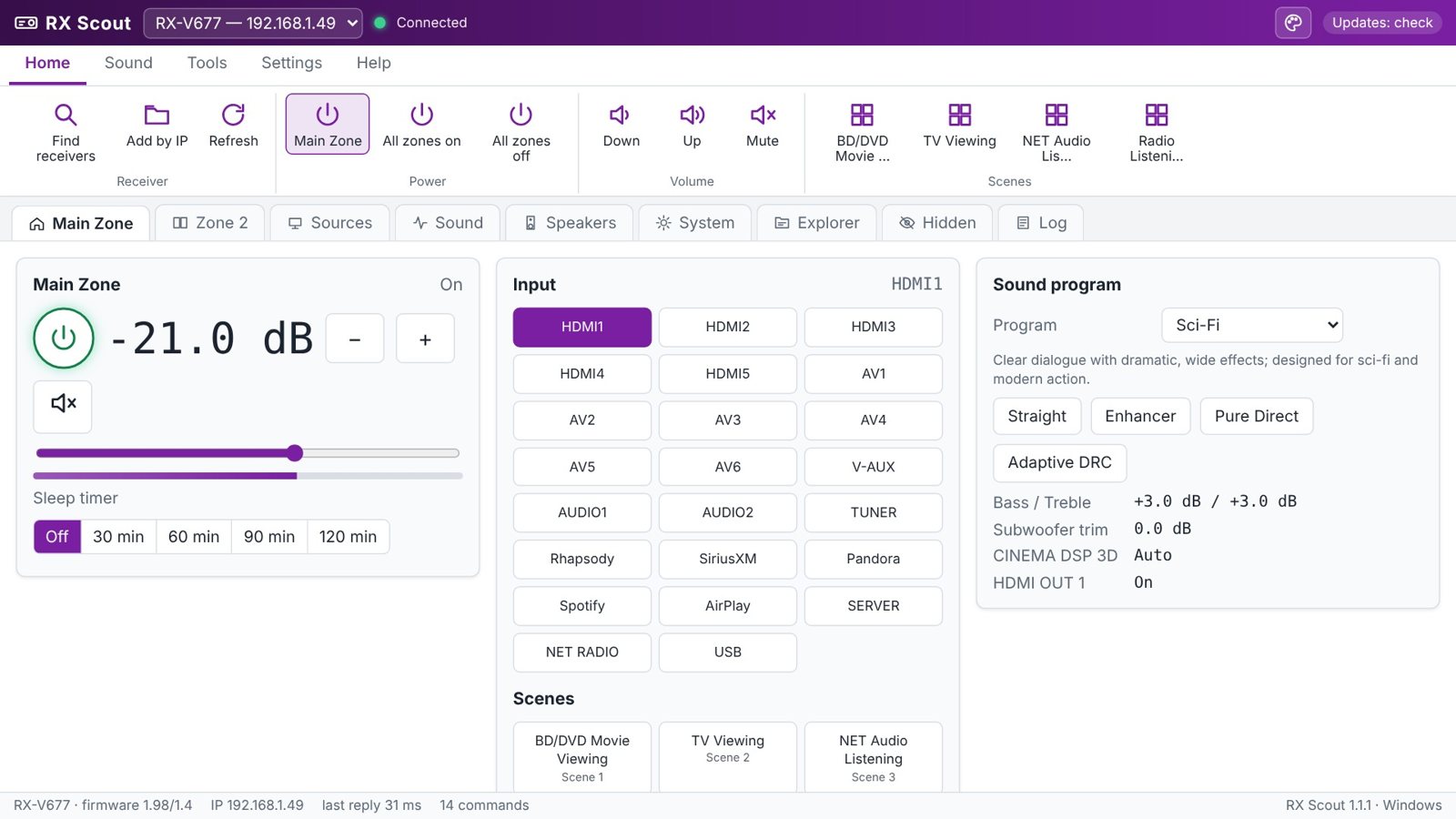
- Power: the round button. Volume: drag the slider and let go, or use − / +. Range is −80.5 to +16.5 dB; 0 dB is already very loud.
- Inputs show the receiver's own names, so renamed inputs appear as you named them. Scenes recall your stored SCENE presets.
- Sound program: pick a Cinema DSP program; the text under it says what it's for. Straight, Enhancer, Pure Direct and Adaptive DRC are one click each.
- Now playing shows the station, track and album art for network sources and the tuner.
- Sleep timer: Off, 30, 60, 90 or 120 minutes.
5. Zone 2
Power, volume, mute, input and sleep for the second zone. Most RX-V models can't send HDMI inputs to Zone 2; use analog or network sources there.
6. Sources
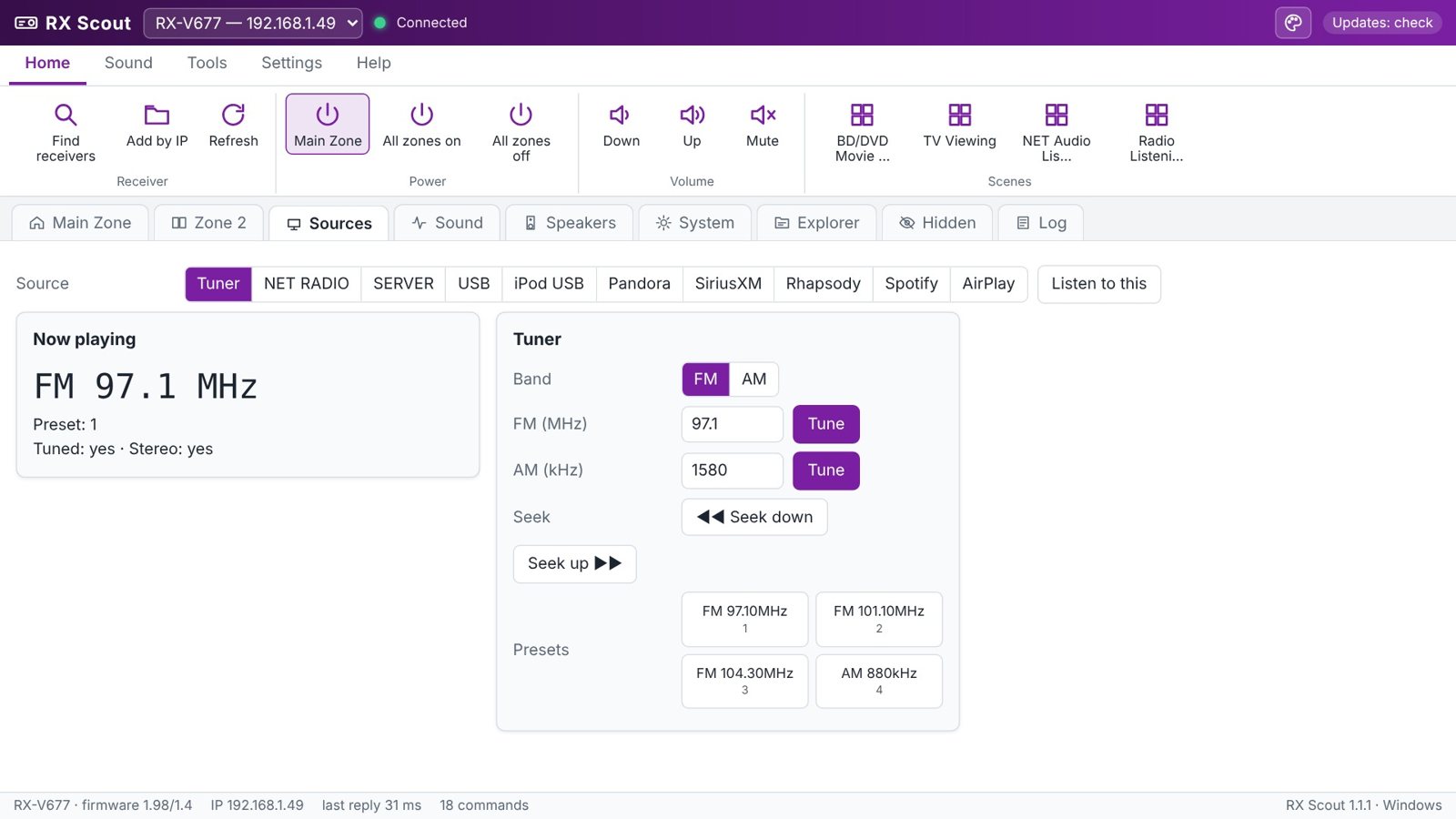
- Tuner: type an FM frequency (MHz) or AM (kHz) and click Tune, seek up/down, or click a preset.
- Net Radio, Server, USB, iPod, Pandora, SiriusXM, Rhapsody: click a folder to open it, ◀ Back to go up, Top to start over, Page ▲/▼ for more. Clicking a song or station plays it.
- Listen to this switches the Main Zone to the source you're looking at.
7. Sound
Bass and treble (−6 to +6 dB), subwoofer trim, Adaptive DRC (keeps dialogue clear at low volume), CINEMA DSP 3D, Extra Bass, YPAO Volume and Dialogue Lift/Level. Per-input volume trim evens out loudness between sources. Tone controls do nothing while Pure Direct is on.
8. Hidden settings
These are labelled Undocumented: the receiver supports them but they aren't in Yamaha's published command list. After every change RX Scout reads the value back and tells you whether the receiver kept it.
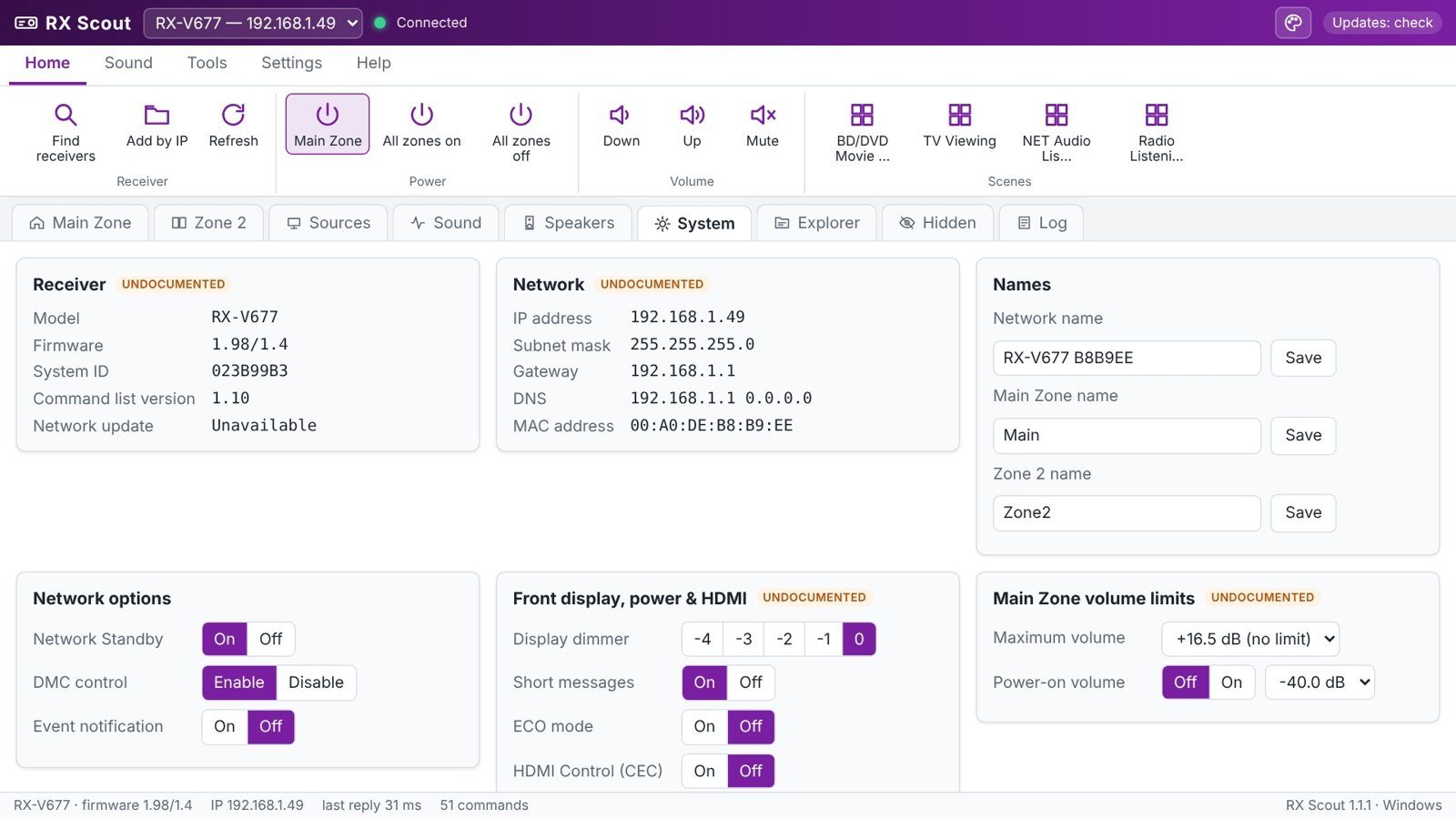
| Setting | Where | Range |
|---|---|---|
| Speaker channel levels (10 speakers) | Speakers | −10.0 to +10.0 dB |
| Speaker distances | Speakers | feet or meters |
| Volume trim per input | Sound | −6.0 to +6.0 dB |
| Front display dimmer | System | −4 (dim) to 0 (bright) |
| Short display messages | System | On / Off |
| Maximum volume, each zone | System | −30.0 to +16.5 dB (+16.5 = no limit) |
| Power-on volume, each zone | System | Off, or a fixed level |
| HDMI Control (CEC) | System | On / Off |
| HDMI standby pass-through | System | Off / On / Auto |
| HDMI output resolution | System | Through, Auto, 480p … 4K (model dependent) |
| ECO mode | System | On / Off (takes effect after the receiver is turned off and on) |
| Network details incl. MAC address | System | read-only |
The Unit tab: front & back
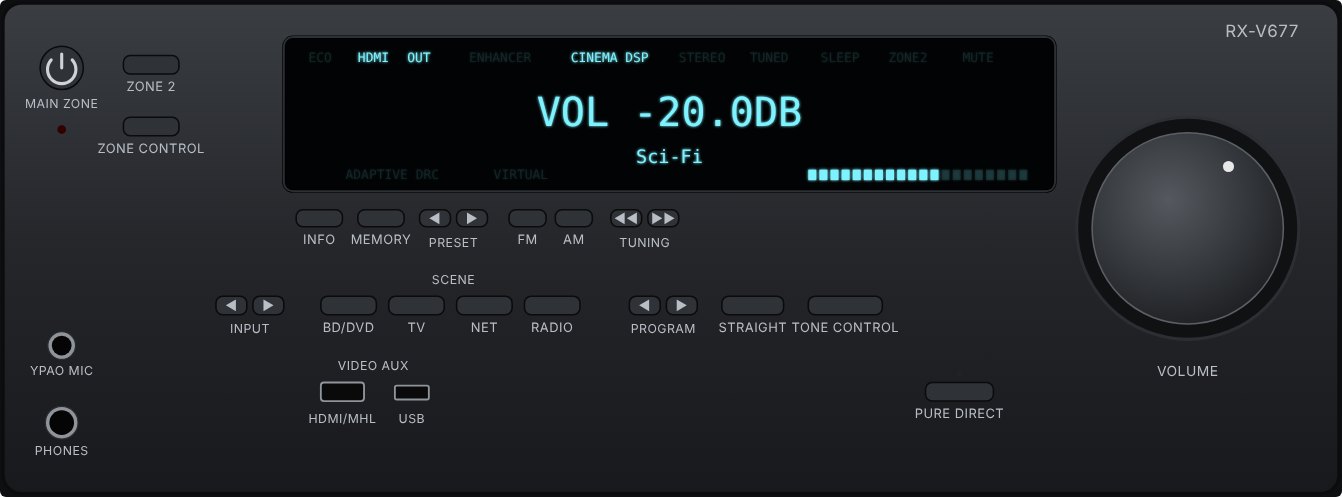
- Live display. The receiver doesn't send its display text over the network, so RX Scout rebuilds it from the status it reads: input name, sound program, volume bar and indicator lights (ECO, HDMI OUT, ENHANCER, CINEMA DSP, STEREO/TUNED, SLEEP, ZONE2, MUTE, ADAPTIVE DRC), at your Display dimmer brightness. Click INFO to change what it shows.
- Working keys. MAIN ZONE, ZONE 2, INPUT ◀▶, the four SCENE keys, PROGRAM ◀▶, STRAIGHT, PURE DIRECT, FM/AM, TUNING and PRESET do what the real keys do. Turn the VOLUME knob with the mouse wheel, or click its left half (down) or right half (up).
- On-screen menu keys. ON SCREEN, OPTION, DISPLAY, the cursor pad, ENTER and RETURN work the receiver's setup menu on your TV, so you can reach settings that only exist there. Watch the TV while you press them.
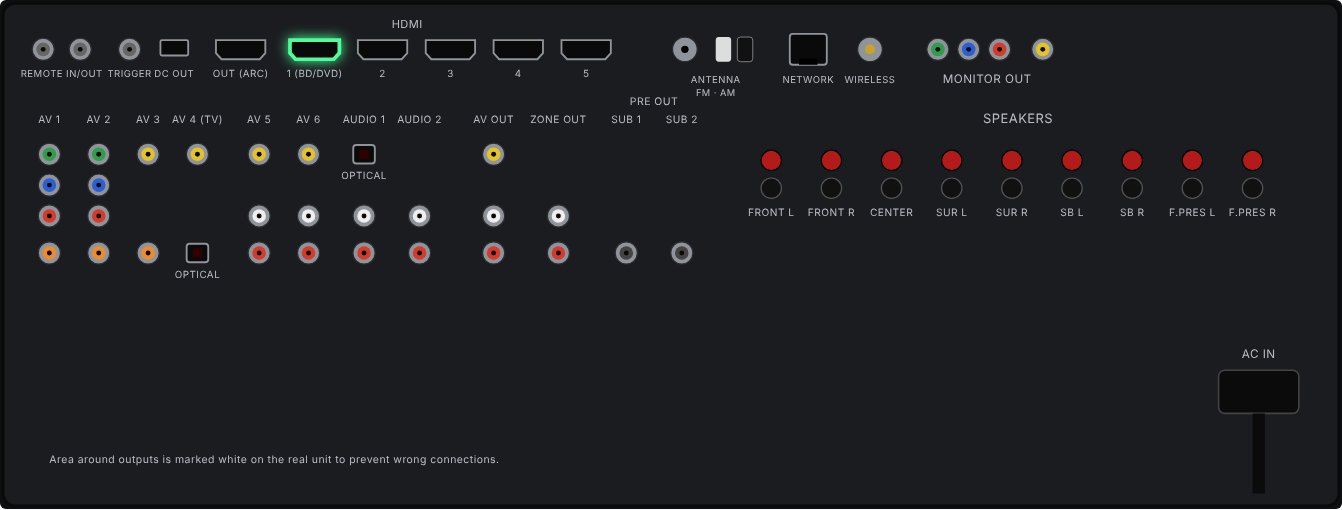
The drawings are made by RX Scout from the owner's manual's part lists, so positions are close but not exact.
9. Explorer & hidden-command scanner
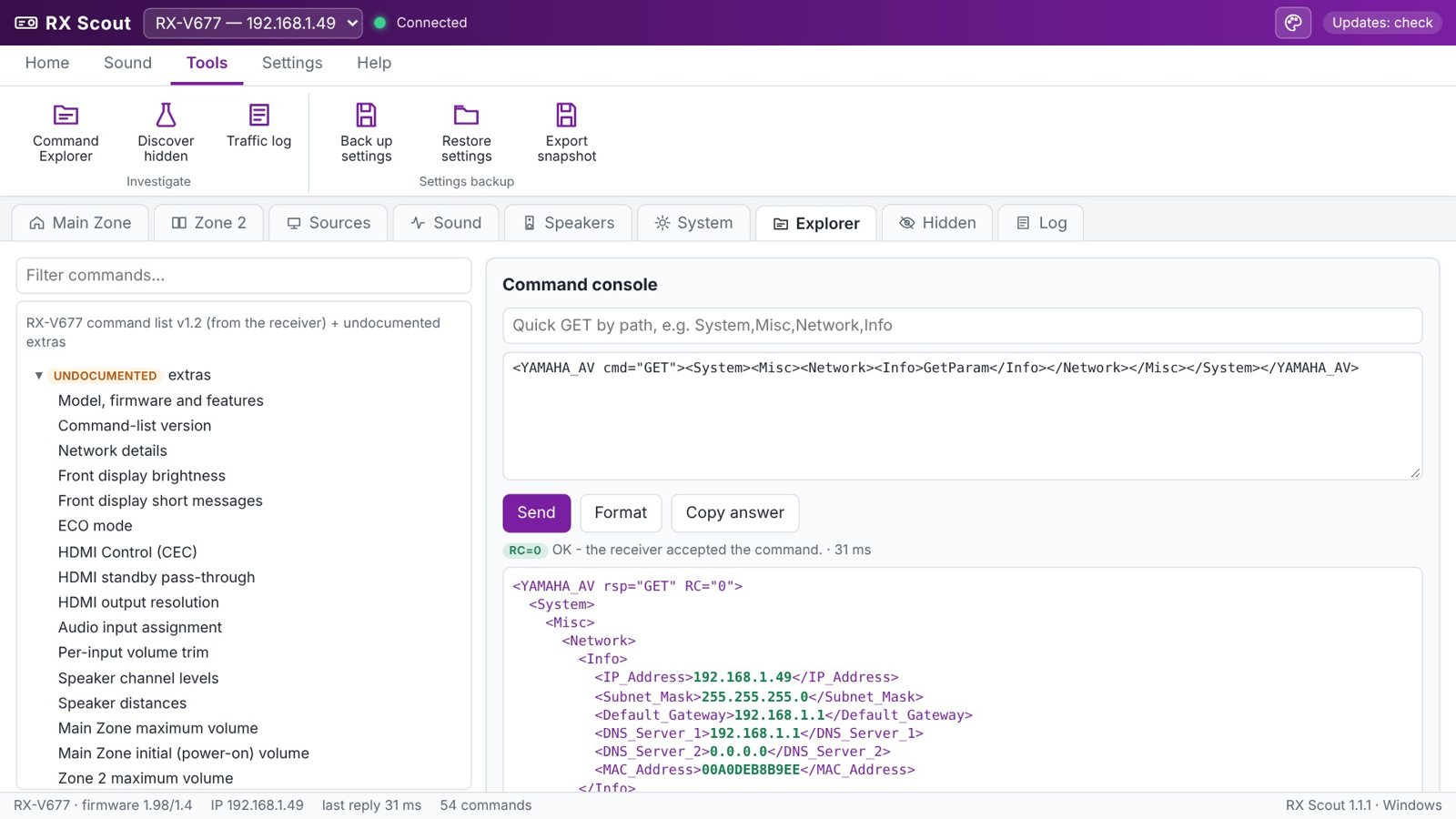
- The Explorer tab shows every command the receiver publishes, plus the undocumented extras. Click one to load it into the console, change the value and click Send.
- Type a path such as
System,Misc,Network,Infoin the Quick GET box and press Enter to read it. - A GET only reads and is always safe. A PUT changes a setting, and RX Scout asks first (Settings → Confirm raw PUT).
- Hidden → Start scan tries every published command plus about 70 names used on other Yamaha models, and lists everything that answers. It only reads.
10. Backup & restore
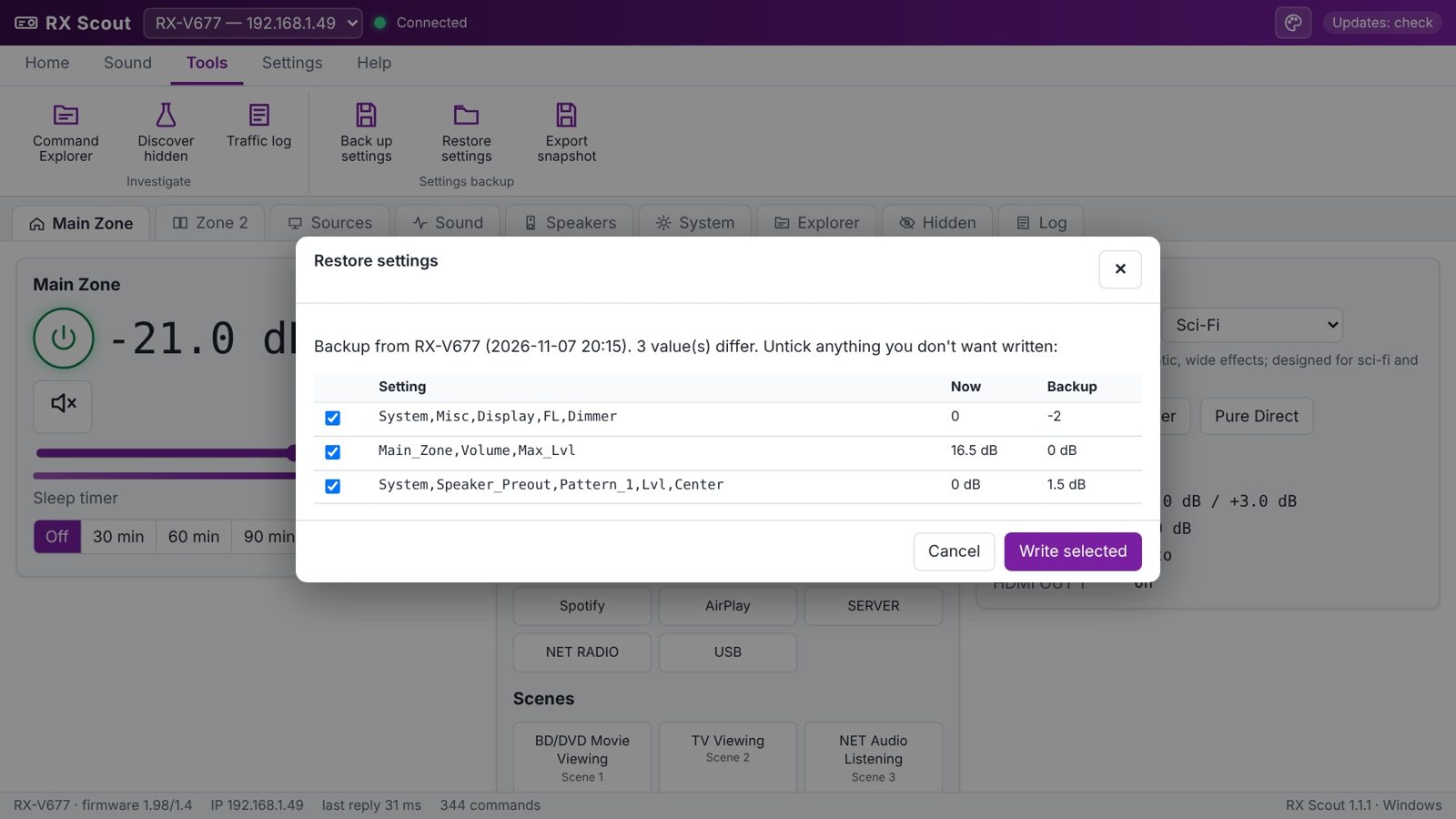
- Tools → Back up settings saves tone, DSP, dialogue, names, display, ECO, HDMI, volume limits, every input trim and all speaker levels to a file (57 values on the RX-V677).
- Tools → Restore settings opens a backup, compares it with the receiver, and lists only what's different. Untick anything you don't want, then click Write selected.
- Export snapshot saves the receiver's answer to every command in one file, handy for troubleshooting.
11. Settings
All settings apply immediately; nothing needs a restart.
- Status every: how often RX Scout reads the receiver's status (0.5 to 10 s).
- Volume step: 0.5, 1, 2 or 5 dB per press.
- Volume limit: RX Scout never sets the volume above this level.
- Theme, colors, tooltips (Verbose, Short or Off) and the tab RX Scout opens on.
- Keyboard on Windows: ↑/↓ or +/− volume, M mute, F5 refresh.
12. On Android
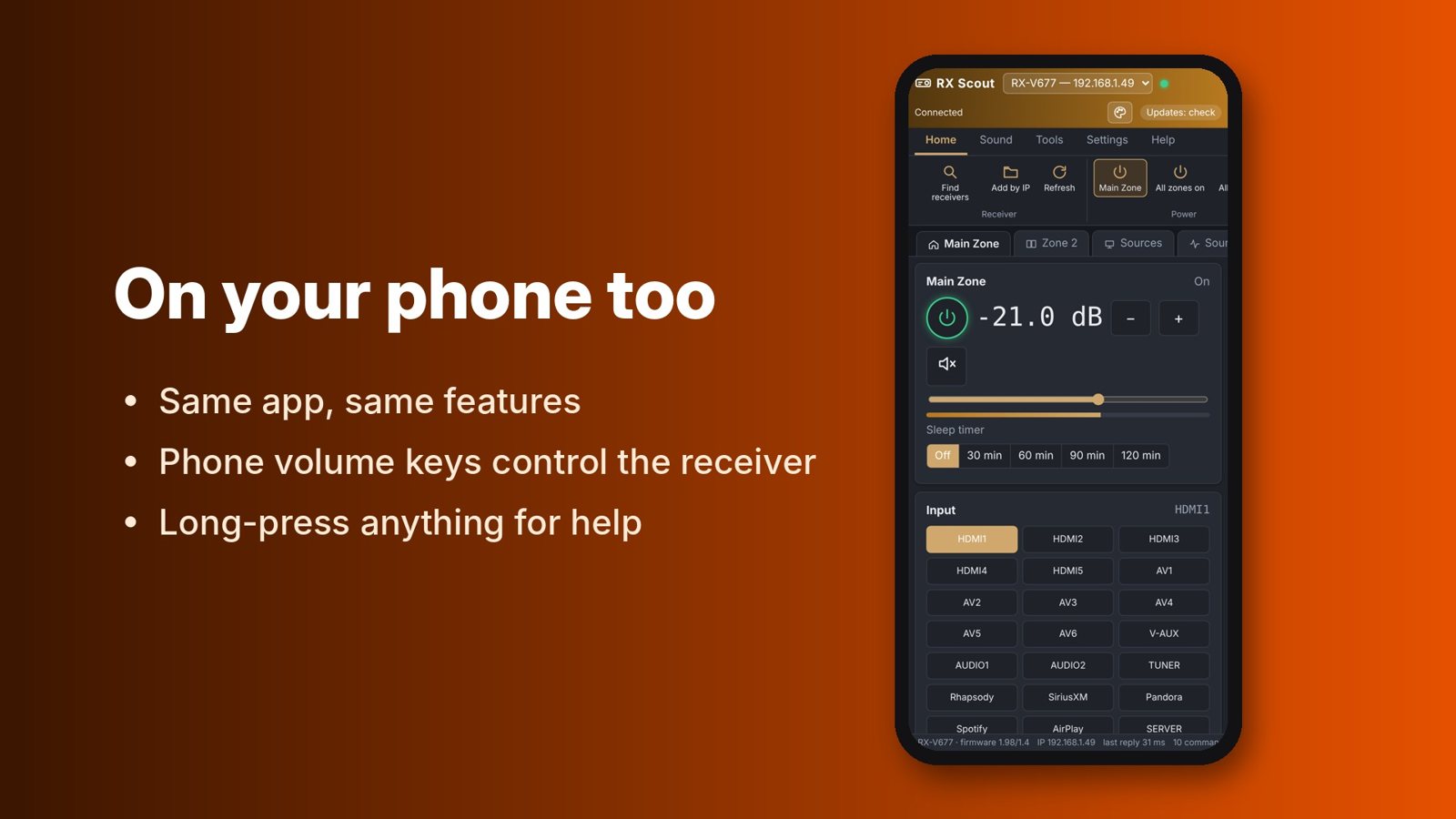
- The phone must be on the same Wi-Fi as the receiver (not a guest network).
- While RX Scout is open, the phone's volume buttons change the receiver's volume. Turn this off in Settings → Phone volume keys.
- Long-press any control for its explanation. The Back button closes a window first, then returns to the Main Zone tab.
- Saved backups and logs go to
Downloads/RX Scout. RX Scout tells you when a new version is out.
13. Return codes
| Code | Meaning |
|---|---|
| RC=0 | Accepted |
| RC=2 | This model doesn't have that command |
| RC=3 | Not allowed right now: the zone is off or the source isn't active |
| RC=4 | Value rejected: out of range or wrong text |
14. Troubleshooting
| Problem | What to do |
|---|---|
| No receiver found | Use Add by IP. Make sure the PC or phone is on the same network, not guest Wi-Fi or another VLAN. |
| Red dot, “Not reachable” | The receiver is unplugged, changed address, or is in standby with Network Standby off. Give it a fixed address in your router using the MAC shown on the System tab. |
| “Value read back is different” | The receiver ignored that change; this model can't change it remotely. |
| Tone controls do nothing | Turn off Pure Direct. |
| Antivirus warning | New, unsigned programs get flagged sometimes. Download only from dialsoft.com and report it as a false positive to your antivirus vendor. |
RX Scout is published by Dialsoft LLC, Wharton NJ. Developed with Claude by Anthropic. Not affiliated with Yamaha Corporation; Yamaha, AVENTAGE, CINEMA DSP and YPAO are trademarks of Yamaha Corporation.