
AP Scout User Manual
For AP Scout 2.3 · Windows 10 & 11 · © Dialsoft LLC
1. What AP Scout does
AP Scout is a Wi-Fi troubleshooting tool for Windows, built for IT technicians, including newer techs who are still learning. Run it on a laptop at a customer's site and it will:
- list every Wi-Fi access point (AP) in range with its MAC address (BSSID), signal, channel and security;
- log every drop, roam and failed connection, so you can see which AP is dropping people;
- check the whole connection, from Wi-Fi to IP address, gateway, internet and DNS, and explain any problem in plain English with steps to fix it;
- do walk tests and site surveys on a floor plan, with heatmaps and a pass/fail grade;
- audit the Wi-Fi setup against best practice (channels, widths, fast roaming, security, power and more);
- connect read-only to UniFi and Cisco Meraki controllers to show real AP names, VLANs and offline APs;
- make a branded PDF report for the customer.
Almost everything on screen has a tooltip: hover the mouse over a heading, a number or a button and AP Scout explains what it means and why it matters. If you're ever unsure what something is, hover over it.

2. Getting started
What you need
- Windows 10 or 11 (64-bit) with a Wi-Fi adapter.
- Microsoft Edge WebView2, which is built into Windows 11 and every up-to-date Windows 10.
- No installer and no admin rights. AP Scout is one program file,
APScout.exe.
Install
- Download
APScout.exefrom dialsoft.com/ap-scout. - Put it in a folder you can write to, like the Desktop, Downloads or
C:\Tools. Not Program Files: AP Scout replaces its own file when it updates, and Program Files is locked. - Double-click it.
Allow location access (Windows 11)
Windows 11 treats the list of nearby Wi-Fi networks as location information. If Location services are off, Windows hides the list of APs from every program. AP Scout detects this and shows a button that opens the right Settings page: turn on Location services and Let desktop apps access your location. AP Scout doesn't use your location for anything else.
First steps at a customer site
- Connect the laptop to the customer's staff Wi-Fi.
- Click + New site, name it (e.g. “Riverside Motors”), and tick the customer's network names (staff and guest Wi-Fi).
- Optional: Tools → Connect UniFi or Meraki so AP Scout shows real AP names (see chapter 15).
- Read the Diagnosis panel on the right. It tells you whether anything is wrong right now.
3. The main window

| Item | What it does |
|---|---|
| Adapter | Which Wi-Fi adapter to watch (only matters if the laptop has more than one). |
| Scan every | How often AP Scout scans the air: 5, 10, 20, 30 or 60 seconds, or Paused. 10 seconds is a good default; use 5 while walking a building. |
| scanned … ago | When the last scan finished. |
| 🛠 Tools | Network fixes (flush DNS, renew IP, reconnect), the controller setup, the roaming test, the client report and sharing. |
| 📣 | Tell someone about AP Scout (chapter 18). |
| ✓ Up to date | Update status. Click to check now (chapter 20). |
| ⏻ | Exit AP Scout completely (also Ctrl+Q). |
| ⚙ | Settings. |
| Export CSV | Saves the AP list and the connection log as two spreadsheet (CSV) files in Downloads. |
| ⟳ Scan now | Scans immediately instead of waiting. |
Below the title bar are the site tabs (chapter 4). The window then has four areas:
- Currently connected to (top left): this laptop's connection right now (chapter 5).
- Drops by access point (top right): which APs dropped this laptop (chapter 7).
- The big tabbed area (bottom left): Access points, Channel graph, Walk test, Best practices, and Ping & call quality.
- Diagnosis / Connection log / Notes (bottom right).
4. Sites (customer locations)

A site is one customer location, for example one dealership rooftop. Each site keeps its own AP names (labels), notes, floor plans, walk tests, controller connection and drop history, so customers never get mixed up.
- Unsorted collects anything logged at places you haven't made a site for. It can't be deleted.
- 📍 here means AP Scout recognizes this site's APs around you right now.
- The red number is drops at that site in the last 24 hours.
- × removes a site (after asking). Its connection log moves to Unsorted, so no history is lost.
- ⋯ on the selected tab opens the site menu: Rename, Networks & known APs, UniFi controller, Meraki dashboard, Learn APs in range, Delete.
Known APs and auto-switching
Each site has a list of known APs: the customer's own access points. AP Scout learns them from the controller (if connected), or from ⋯ → Learn APs in range. Do that as you walk the building, so every AP gets learned. Known APs are used to:
- recognize the site automatically. With Auto-switch sites on (right end of the tab bar), AP Scout switches to the right tab when you arrive at a different customer;
- flag UNKNOWN devices that use the customer's network name but aren't theirs: a forgotten home router, or an “evil twin”.
5. The connection card
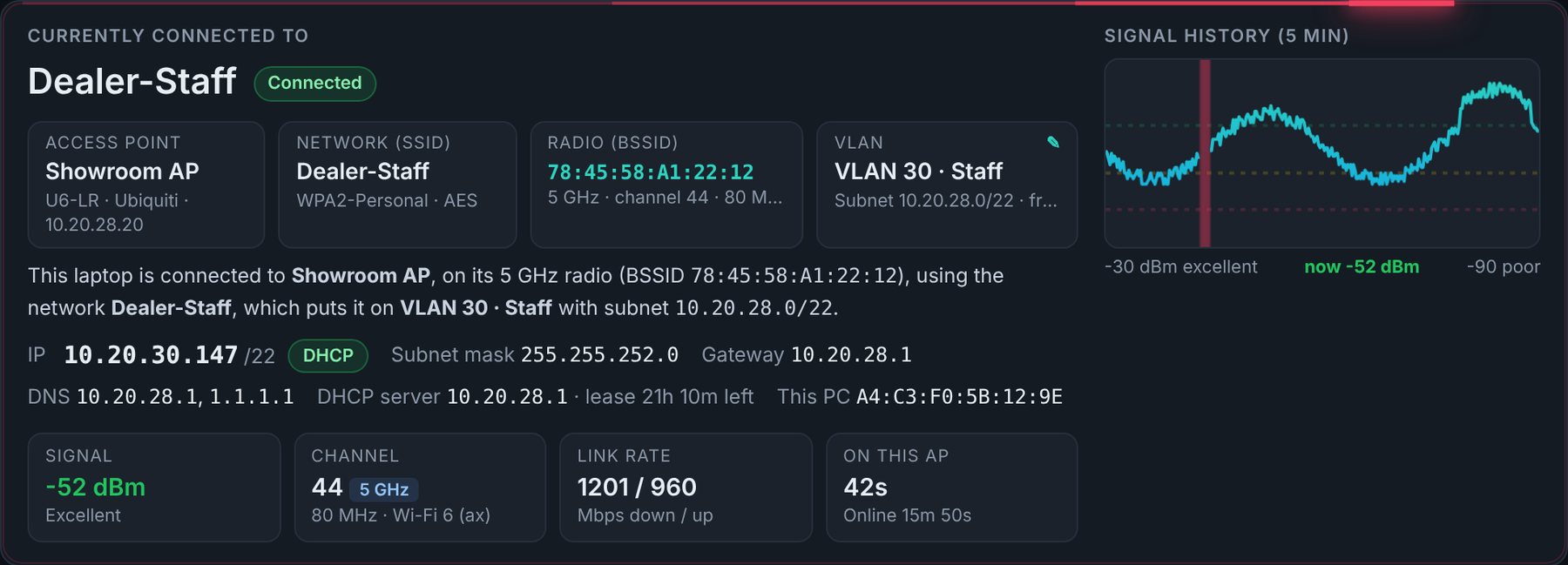
This shows exactly what this laptop is connected to, in plain English, for example: “connected to Showroom AP, on its 5 GHz radio, using the network Dealer-Staff, which puts it on VLAN 30”.
- Access point: the AP's name (from the controller or your label), model and IP.
- Radio (BSSID): the MAC address of the exact radio you're on, its band, channel and width.
- VLAN: from the controller, or set it by hand with the ✎ pencil.
- IP line: address, DHCP or static, subnet mask, gateway, DNS servers, DHCP server and lease time.
- Signal / Channel / Link rate / On this AP: signal in dBm (see the quick reference), the speed the radio negotiated, and how long you've been on this AP.
- Signal history: the last 5 minutes of signal. Red bars are moments the connection dropped.
The card's animated border shows overall health at a glance: green = all good, amber = something to check, red = a problem.
6. Diagnosis & the checklist
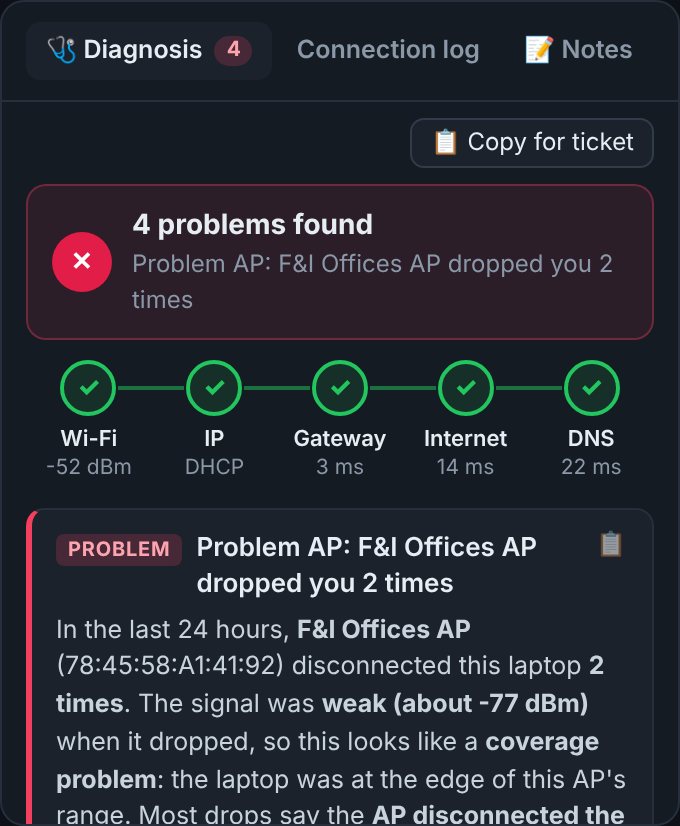
The Diagnosis tab is the heart of AP Scout. At the top is the verdict (“All good”, “1 problem found”…). Hover it for a full explanation, or click it to jump to the most important finding.
The checklist
Five steps, in the order a connection actually works. A problem at one step usually explains the failures after it, so always fix the first red step first:
- Wi-Fi: connected, with a usable signal?
- IP: did DHCP give a valid address? A
169.254.x.xaddress means DHCP failed. - Gateway: does the router/firewall answer pings?
- Internet: do outside servers answer?
- DNS: do names like google.com resolve?
Findings
Below the checklist, each finding is graded PROBLEM, CHECK or INFO. Each has a plain-English explanation, numbered What to try steps, and often a 🎓 “learn more” section explaining the concept behind it. Findings cover weak signal, a busy channel, APs that keep dropping you, sticky roaming, DHCP and DNS failures, captive portals, old or wrong Wi-Fi drivers, Windows power-saving settings, offline or rebooted APs, rogue APs, and more.
The laptop box lists this PC's Wi-Fi adapter, driver version and date, power-saving settings, and the adapter's hardware ID (e.g. PCI\VEN_10EC&DEV_C852). Search the hardware ID to find the exact driver.
7. Drops & the connection log

A drop is when this laptop loses its Wi-Fi connection without anyone disconnecting it. Drops by access point lists which AP the laptop was on each time it dropped. The AP with the most drops, especially recent ones, is your suspect. Each entry says, in plain English, what the drops have in common: for example a weak signal (the laptop was at the edge of the AP's range), or the AP itself disconnecting the laptop. Click an entry to highlight that AP in the list.
- When AP Scout starts, it also imports Windows' own Wi-Fi event log, so drops from before AP Scout was running show up too.
- Clear drops resets the counts for this site, for example after you've fixed the problem and want to see whether it comes back. Connects and roams stay in the log.
Connection log
The Connection log tab lists every connect, roam (move from one AP to another), drop and failed connection, with the AP, signal, how long the laptop was offline, and Windows' reason. The log is saved automatically.
8. The access point list
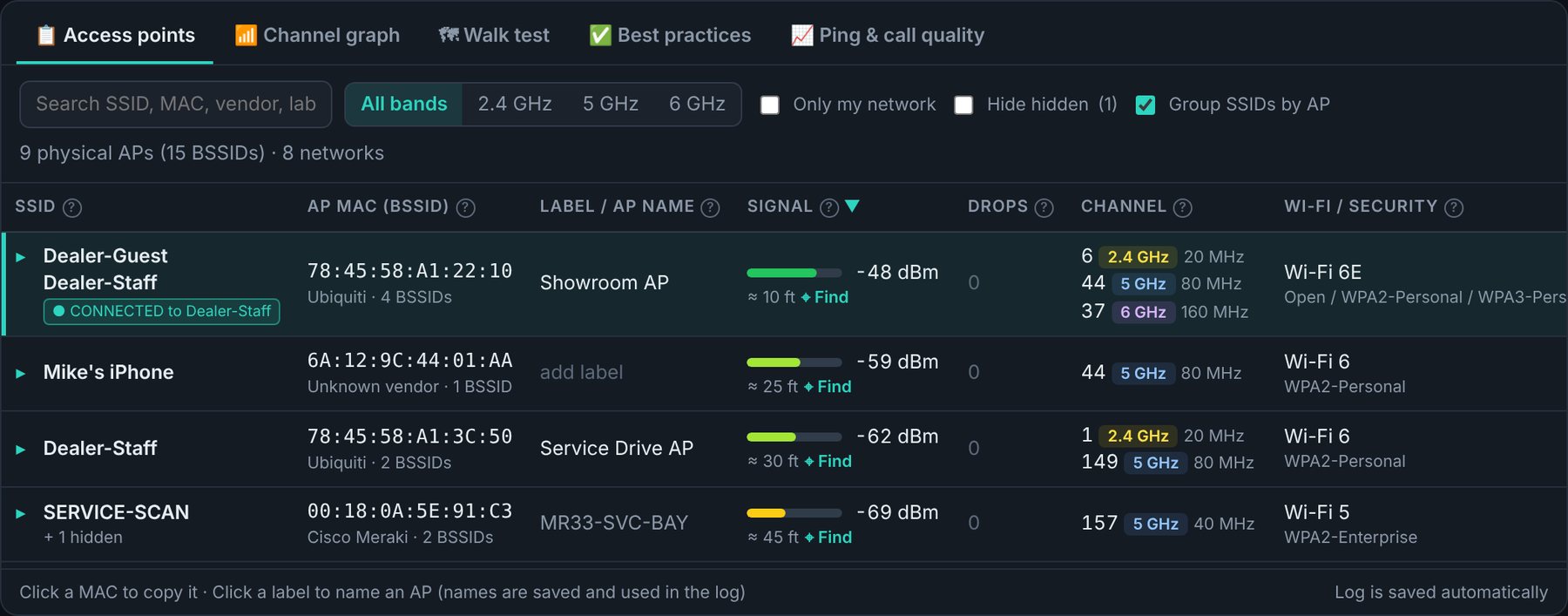
Every AP radio AP Scout can hear. Columns:
| Column | Meaning |
|---|---|
| SSID | The network name(s). CONNECTED marks yours. UNKNOWN marks a device using the site's network name that isn't a known AP: check it. |
| AP MAC (BSSID) | The radio's MAC address and the maker (Ubiquiti, Cisco Meraki…). Click to copy. |
| Label / AP name | The real AP name from the controller, the name the AP broadcasts, or your own label. Click “add label” to name an AP; labels are saved per site and used everywhere, including the log. |
| Signal | dBm with a bar, and a rough distance (“≈ 25 ft”). ⌖ Find opens the AP finder (chapter 9). |
| Drops | How many times this AP dropped you. |
| Channel | Channel, band (2.4 / 5 / 6 GHz) and width (20–320 MHz). |
| Wi-Fi / Security | Wi-Fi generation (4, 5, 6, 6E, 7) and security (WPA2, WPA3, Open…). |
| Clients / Load | When the AP announces it: how many devices are connected and how busy its channel is. |
Filters
- Search by name, MAC, vendor or label; band chips; Only my network.
- Group SSIDs by AP (on by default): one AP broadcasting several networks shows as one row. Click ▸ to expand it.
- Hide hidden: hides networks that don't broadcast a name. Many of these are normal. UniFi and Meraki APs use hidden networks for wireless uplinks (mesh), and printers, TVs and phones create hidden or “DIRECT-” networks of their own.
9. Finding a physical AP
Click ⌖ Find next to any AP to open a big live signal meter for that AP. Walk around: the meter gets warmer as you get closer and colder as you move away. This is the quickest way to find an unlabeled AP above a ceiling tile, or a rogue device hidden in an office.
The Find window also has a Floor check. Floors and ceilings absorb about 10–20 dB of signal, so comparing a reading here with one at the top or bottom of the stairs tells you whether the AP is on this floor, above you or below you.
10. Channel graph
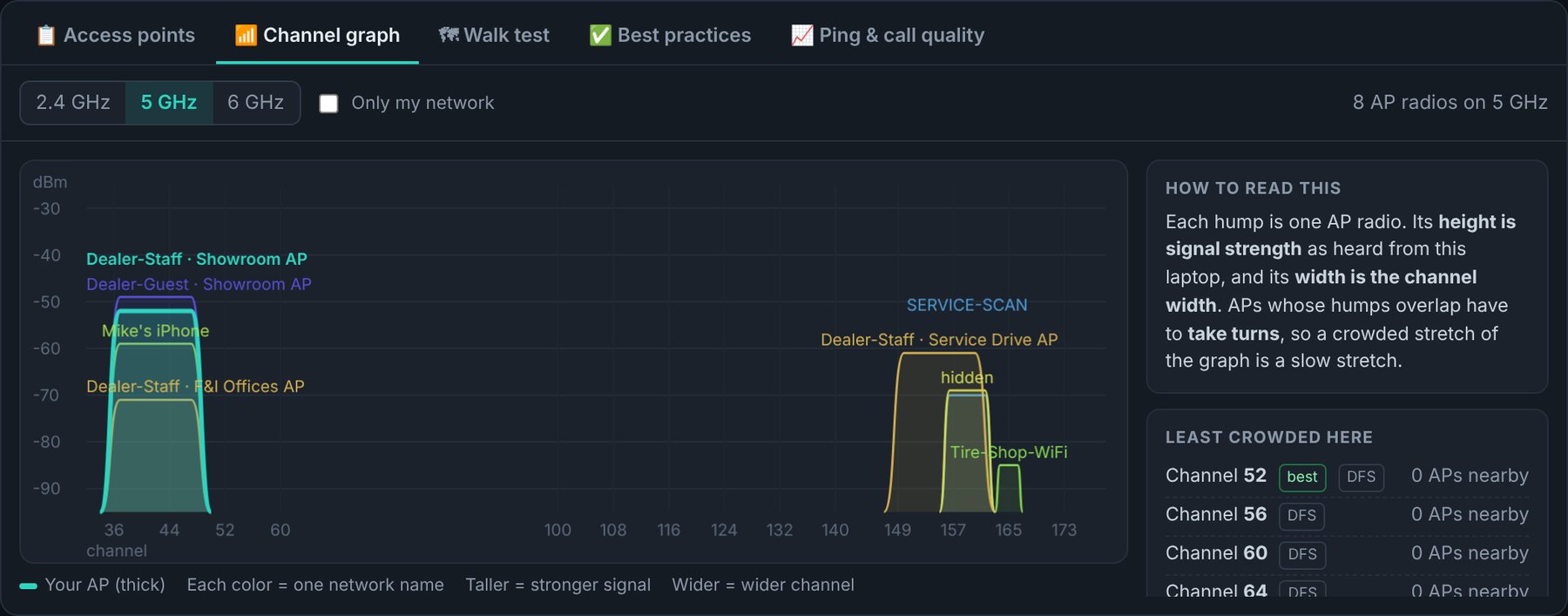
A picture of the airwaves. Each AP is drawn as a hump over the channels it uses, as tall as its signal. Your AP is the thick line. Overlapping humps share airtime: only one of them can talk at a time. This is the fastest way to see crowding and pick a better channel. Pick the band at the top; Only my network shows how the site's own APs are spread out. The side panel suggests the least crowded channels.
11. Ping & call quality

A live graph of how fast the gateway (the local router/firewall) and the internet answer, with packet loss and jitter (how much the delay jumps around). It also shows an estimated call quality score (MOS, 1–5, the scale phone companies use; 4 and up is good). Use it for “my calls keep cutting out” complaints:
- Gateway slow or losing packets → the problem is the Wi-Fi or the local network.
- Gateway fine but internet slow → the problem is the internet connection or the firewall, not the Wi-Fi.
12. Roaming test
Tools → 🚶 Roaming test. Start it, then walk the building with the laptop the way a user would. AP Scout grades every handoff between APs: how long it took, the signal before and after, pings lost along the way, and time spent stuck on a weak AP when a stronger one was available. This shows whether people can walk around on a call without dropping.
13. Walk test & site survey
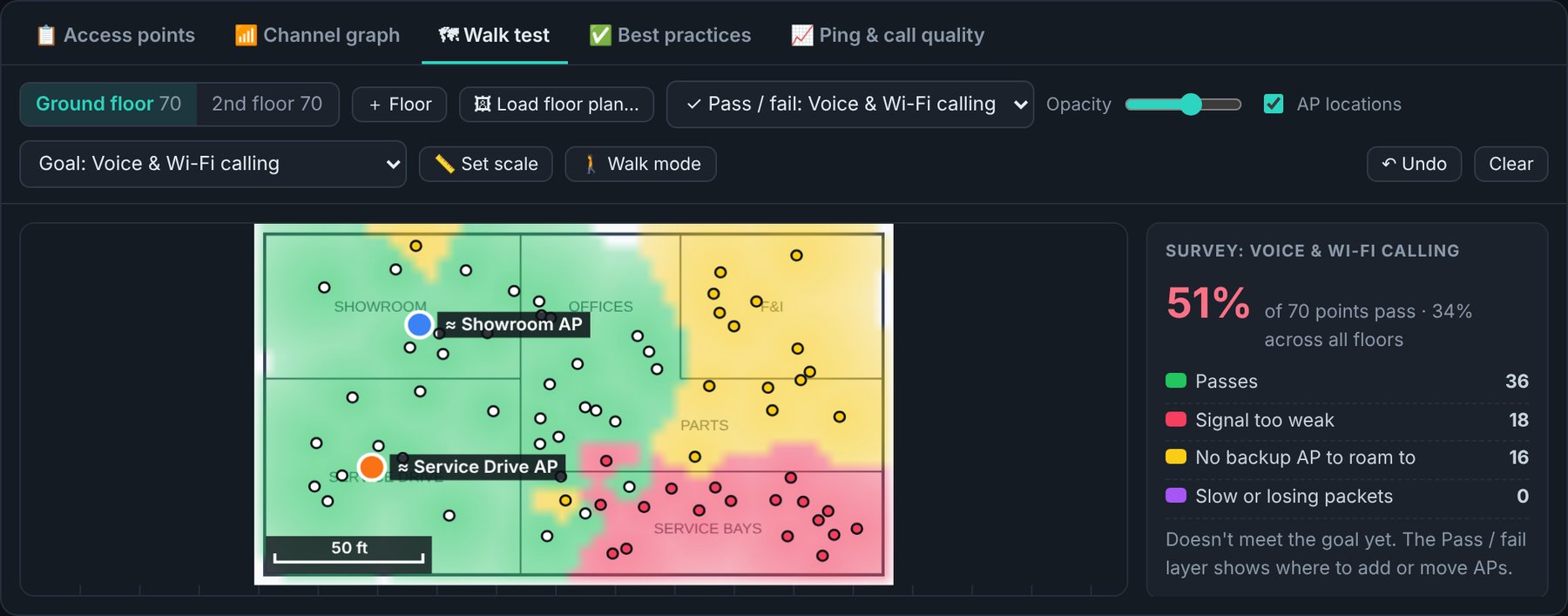
The 🗺 Walk test tab turns a laptop into a site-survey tool. It shows where coverage is good, where the holes are, which AP covers which area, roughly where each AP is mounted, and whether the Wi-Fi is good enough for what the customer needs.
Step by step
- Floors. One tab per floor. + Floor adds a basement, mezzanine, outbuilding…; double-click a floor to rename it.
- 🖼 Load floor plan. Any picture works: a PDF screenshot, a phone photo of the fire-exit map, or a sketch. (No plan? Click on the blank grid.)
- 📏 Set scale. Click both ends of something you know the length of (a door is 3 ft, a ceiling tile 2 ft, a parking space about 9 ft) and type the feet. The map then shows a ruler and spreads each reading a realistic distance.
- Goal. Pick what the Wi-Fi has to support (see the table below).
- 🚶 Walk mode. Click where you're standing, walk slowly and steadily (about a step a second), and click the map every time you turn, reach a wall or go through a door. AP Scout takes a reading about every 1.5 seconds and spreads them along the line you walked. Each reading records every AP's signal plus ping and packet loss to the gateway. Press Esc or ⏹ Stop walking when done.
Short on time? Leave Walk mode off and click single spots instead: wait 3 seconds, click where you are, and repeat every 15–30 ft. - Switch the layer to ✓ Pass / fail and look at the result.
Survey goals
| Goal | Strongest AP | Backup AP | Ping / loss | Use for |
|---|---|---|---|---|
| Voice & Wi-Fi calling | −67 dBm | −70 dBm | < 50 ms / < 1% | Wi-Fi phones, Teams/Zoom calls (industry standard) |
| Tablets & scanners on the move | −70 dBm | −75 dBm | < 100 ms / < 2% | Service-drive tablets, parts scanners |
| Business data | −70 dBm | — | < 100 ms / < 2% | DMS, POS, printing at desks |
| Basic / guest | −75 dBm | — | < 150 ms / < 5% | Customer lounge, browsing |
The backup AP is the second-strongest AP at a spot. A phone needs one to hand off to while walking, or the call drops. The side panel shows the percentage of points that pass and why the others fail. Hover each row for what it means and how to fix it. Changing the goal re-grades everything instantly.
Map layers
| Layer | Shows |
|---|---|
| ✓ Pass / fail | passes · signal too weak · no backup AP to roam to · slow or losing packets |
| My signal | What this laptop actually got at each spot. |
| Best AP at each spot | True coverage: the strongest AP heard anywhere. |
| Backup AP | The second-strongest AP: where roaming works. |
| Which AP covers where | Each AP's territory in its own color. |
| Ping to gateway | Response time at each spot. |
| Only (AP name) | One AP's coverage on its own. |
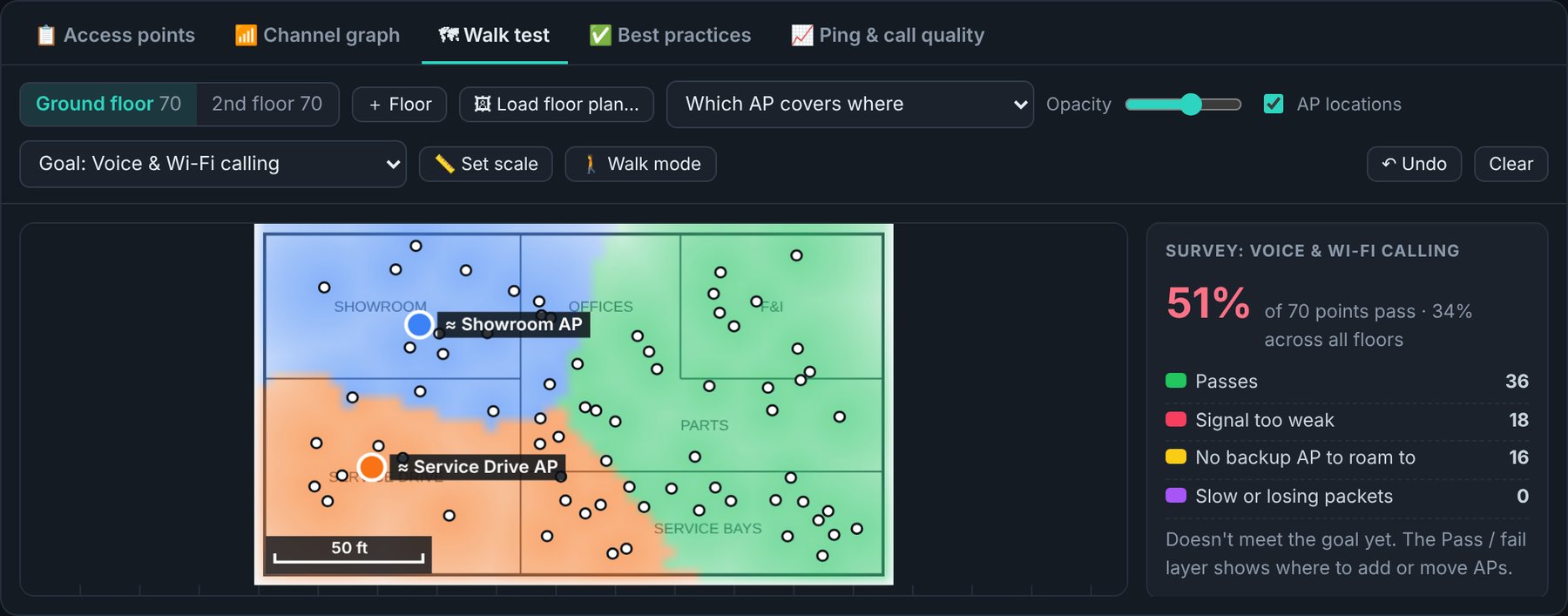
≈ pins are AP Scout's estimate of where each AP is mounted, based on where its signal peaked. They're accurate to about one room if you've walked all around it. With several floors walked, the side panel also works out which floor each AP is on.
14. Best-practice audit

The ✅ Best practices tab checks the site's Wi-Fi against widely used design rules (Cisco, Ubiquiti and CWNP guidance). Each item is graded FIX, SHOULD FIX, SUGGESTION or OK, with Why it matters and How to fix, including the menu path in UniFi or Meraki.
Over-the-air checks (any site, no login)
- 2.4 GHz only on channels 1, 6 and 11, and only 20 MHz wide.
- 5 GHz width suits the number of APs (40 MHz is usually best with 4+ APs).
- No two nearby APs share a 5 GHz channel.
- No more than 3 network names per radio. Each extra SSID wastes airtime.
- Fast roaming (802.11r) and roaming assistance (802.11k/v).
- Encryption: no open or WEP staff networks; guest may be open if it's isolated.
- Protected management frames (802.11w).
- No look-alike devices using your network names.
Controller checks (with UniFi or Meraki connected)
- All APs online; firmware current and consistent.
- 2.4 GHz power lower than 5 GHz; no radio more than half busy; minimum RSSI not aggressive.
- Number of SSIDs; guest network isolated from the business network.
- Fast roaming, BSS transition and PMF enabled; minimum data rate (12 Mbps) set; no hidden SSIDs without a reason.
- UniFi client experience score per AP.
Tick Show passing checks to see everything that's right, which is a good way to learn what a well-built network looks like. 📋 Copy for ticket copies the list for a ticket or a quote.
15. Connecting UniFi & Meraki

AP names, VLANs and which APs are offline live in the system that manages the APs, not in the Wi-Fi signal. Connecting it lets AP Scout show real AP names instead of “Unnamed AP”, the VLAN this laptop is on, offline APs, firmware, channel load and (Meraki) which floor each AP is on. AP Scout only reads; it never changes anything.
Open Tools → 🔌 Connect UniFi or Meraki. The wizard looks at the gateway and suggests the right type.
UniFi
- The laptop must be on the same network as the console (UDM, UDR, Cloud Gateway, Cloud Key or self-hosted Network server).
- Controller address: the address you'd type into a browser, e.g.
https://192.168.1.1(classic self-hosted:https://server:8443). - Use a local admin account. A View Only role is enough, and recommended: in UniFi, Admins & Users → Create New Admin → Restrict to local access only, role View Only.
- Tick self-signed certificate. UniFi consoles ship with one; this is normal on a local network.
- Pick the UniFi site (a controller can manage every rooftop in a dealer group).
Meraki
- In the Meraki dashboard: Organization → Settings, make sure API access is enabled. Then click your name → My profile → API access → Generate new API key. A read-only dashboard user's key is best.
- Paste the key, pick the organization (usually the dealer group) and the network (the rooftop).
16. Client reports (PDF)
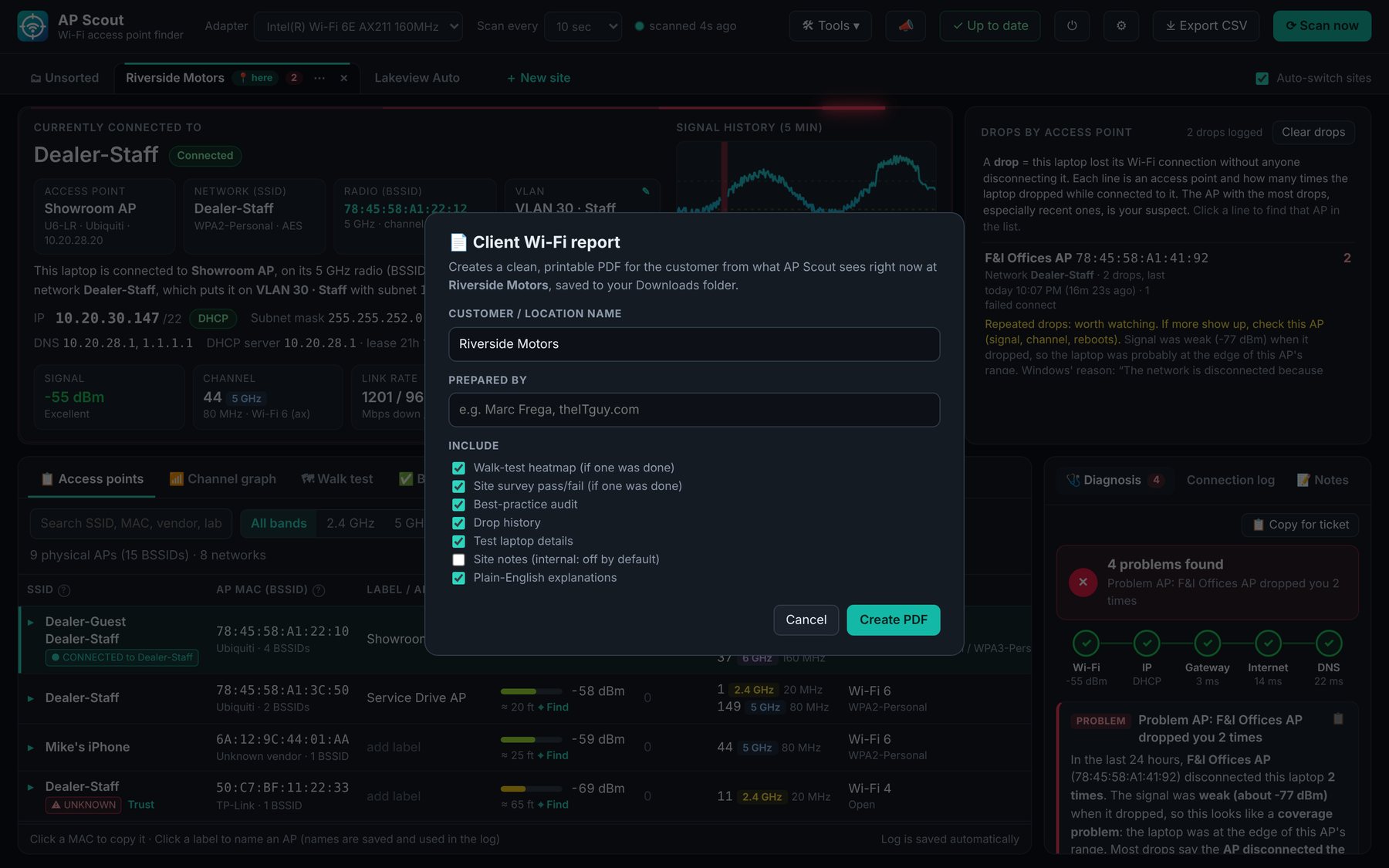
Tools → 📄 Client report (PDF) makes a branded Wi-Fi health report for the site. Enter the customer name and Prepared by (remembered), and choose what to include:
- findings & recommendations (always), with optional plain-English explanations;
- walk-test heatmaps for every floor walked;
- site survey pass/fail result and maps;
- best-practice review;
- drop history, test laptop details, and site notes (off by default, since notes are usually internal).
The PDF is saved in your Downloads folder and opened in Explorer. Steps that only make sense to a tech (“click Find…”) are left out of the client's copy. See a sample report (PDF).
17. Tools menu & export

| Tool | What it does |
|---|---|
| Flush DNS cache | Clears saved name lookups. Same as ipconfig /flushdns. |
| Renew IP address | Asks DHCP for the address again. Same as ipconfig /renew. |
| Reconnect Wi-Fi | Disconnects and rejoins, so the laptop picks the strongest AP. Not counted as a drop. |
| Connect UniFi or Meraki | The controller wizard (chapter 15). |
| Roaming test | Chapter 12. |
| Client report (PDF) | Chapter 16. |
| Tell someone about AP Scout | Chapter 18. |
Export CSV (title bar) saves two files to your Downloads folder that open in Excel: the current AP list and this site's connection log. The file names include the site, the PC name and the date.
18. Sharing AP Scout

Click 📣 in the title bar to send someone the download link. Optionally fill in Send to (an email address, phone number or Facebook username) and Your name, edit the message if you like, and pick how to send it: Email (your mail program), Gmail, Outlook web, Messenger, WhatsApp, Text message (Windows Phone Link), Teams, a Facebook or LinkedIn post, or copy the message or link. The QR code opens the download page on a phone.
AP Scout opens that app with everything filled in; you choose the person and press Send. Nothing is sent automatically. (Messenger doesn't let other programs fill in text, so AP Scout copies the message: press Ctrl+V in the chat.)
19. Settings, tray & exit

Every setting takes effect immediately.
- Keep running in the tray: the window's ✕ hides AP Scout to the system tray (near the clock) instead of quitting, and it keeps logging drops, roams and pings. Right-click the tray icon for a menu.
- Pop-up alert on drops: a Windows notification the moment Wi-Fi drops, naming the AP and the signal. Handy on-site; you may want it off on an end user's laptop.
- Start with Windows: starts hidden in the tray at sign-in, so it logs from boot. No admin rights needed.
- Check for updates automatically, with a Check now link.
- Exit completely and Hide to tray now.
To close AP Scout completely (no tray icon, no logging), use ⏻ in the title bar, Ctrl+Q, or right-click the tray icon → Exit.
20. Updates

AP Scout checks for a new version a few seconds after it starts and every 6 hours. The title-bar button shows the result:
- ✓ Up to date: no new update. Click any time to check again.
- ⬆ Update to x.y.z: a banner shows What's new, Update now and Later.
- ⚠ Update check failed: GitHub couldn't be reached; hover for the reason.
Update now downloads the new version, checks it against a published SHA-256 checksum (a damaged or tampered file is thrown away), swaps it in and restarts AP Scout within a few seconds. Sites, labels, notes and logs are kept. Nothing installs without your click. If AP Scout is in a folder it can't write to, it opens the download page instead.
21. Your data & privacy
- Everything AP Scout records stays on this PC, in
%LOCALAPPDATA%\APScout: sites and labels (sites.json), settings, the connection log (events.jsonl) and floor plans (plans\). - AP Scout only goes on the internet to check GitHub for updates, to ping public servers for the internet and DNS checks, and to talk to a controller you connected.
- Controller passwords and API keys are encrypted with Windows DPAPI.
- To move AP Scout's data to another laptop, copy that folder.
22. Troubleshooting & FAQ
No access points are listed
On Windows 11, turn on Location services and Let desktop apps access your location (AP Scout shows a button for it). Also check that Wi-Fi is turned on and the right adapter is selected.
An AP shows as “Unnamed AP”
UniFi and Meraki APs don't broadcast their names over the air. Connect the controller (chapter 15), or click “add label” and name it yourself.
Why are there so many hidden networks?
Mostly harmless: mesh/wireless-uplink networks from UniFi and Meraki APs, plus printers, TVs and phones. Use Hide hidden. Hover the explanation in the list to see what each one probably is.
My antivirus or SmartScreen warns about APScout.exe
New, unsigned programs sometimes get flagged just for being new. Download only from dialsoft.com or the official GitHub page. Each version's SHA-256 checksum is published next to it.
The update didn't install
Usually the folder is read-only (Program Files, a network share). Move APScout.exe to the Desktop or C:\Tools and try again, or use the download page.
The drop count seems high
AP Scout imports Windows' own log on first start, so older drops appear. Use Clear drops after fixing a problem to start counting fresh.
23. Wi-Fi quick reference
Signal strength (dBm)
Signal is measured in negative numbers: closer to zero is stronger. Every 3 dB is double (or half) the power.
| Signal | Rating | Good enough for |
|---|---|---|
| −30 to −50 | Excellent | Anything |
| −50 to −60 | Good | Anything |
| −60 to −67 | OK | Voice and video calls (−67 is the industry line) |
| −67 to −75 | Weak | Email, browsing; calls may break up |
| −75 to −85 | Very weak | Unreliable; drops likely |
| below −85 | Unusable | — |
Glossary
| AP | Access point: the box on the ceiling that provides Wi-Fi. |
| SSID | The network name people pick (e.g. “Dealer-Staff”). One AP usually broadcasts several. |
| BSSID | The MAC address of one radio on one AP, for one SSID. It identifies exactly which AP you're on. |
| Band | 2.4 GHz (reaches farther, slow, crowded), 5 GHz (fast, the main band), 6 GHz (Wi-Fi 6E/7, fastest, shortest range). |
| Channel width | 20/40/80/160 MHz. Wider is faster for one device, but leaves fewer channels to share between APs. |
| Roam | A device moving from one AP to another as you walk. |
| Sticky client | A device clinging to a far-away AP instead of roaming to a closer one. |
| 802.11r / k / v | Fast roaming / neighbor reports / AP-steered roaming. Together they make roaming quick and smart. |
| Co-channel interference | Nearby APs on the same channel taking turns, which slows them all. |
| Channel utilization | How busy the channel is. Above about 50%, things slow down. |
| VLAN | A separate network on the same cables, e.g. staff and guest kept apart. |
| DHCP | The service that hands out IP addresses. 169.254.x.x means it failed. |
| Gateway | The router/firewall that leads to the internet. |
| MOS | Mean Opinion Score: call quality from 1 (bad) to 5 (perfect). |
AP Scout © Dialsoft LLC, Wharton, New Jersey. Built with Claude. QR codes by QR Code Generator for JavaScript © Kazuhiko Arase (MIT license). UniFi is a trademark of Ubiquiti Inc.; Meraki is a trademark of Cisco Systems, Inc. Questions or ideas? Contact us.